

When a customer views a quote, send a Slack notification
When a customer views one of your Quotient quotes, this workflow posts a message to a Slack channel, so your sales team knows the quote has been opened.
 Quotient
 Slack
2 steps Setup ~5 min Used on 663 sites Free to import
What this workflow does
After you send a quote, you usually wait without knowing whether the customer has looked at it. Quotient knows when a quote is viewed. This workflow passes that news to Slack, so the person who wrote the quote can decide when to follow up.
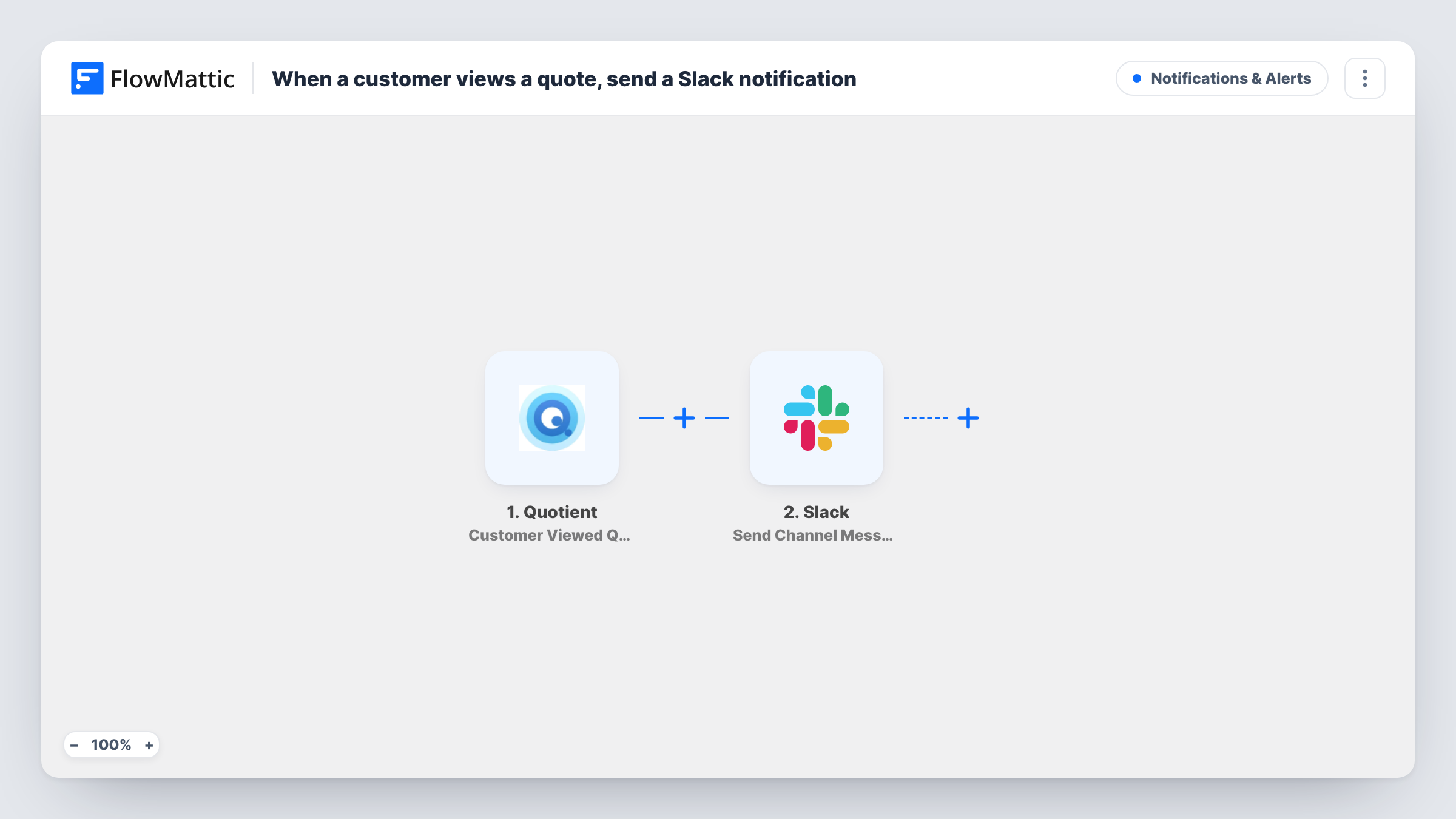
The Quotient trigger fires when a customer views a quote. FlowMattic receives the quote data Quotient sends and makes it available for mapping. The second step posts a message to the Slack channel you choose. You write the text and insert values such as the customer's name, the quote title or its total, depending on what Quotient provides.
A customer may open the same quote more than once. Run a test after import to see how often Quotient reports views on your account, and add a Filter if the channel gets too busy. Task History lists each message the workflow sent.
Timing a follow-up call
A salesperson sees in Slack that a customer just opened their quote and calls while the details are still fresh for the customer.
Team lead watching large quotes
With a Filter on the total, only views of big quotes post to the sales lead's channel, so they can step in on important deals.
Small business owner on the move
A tradesperson gets a Slack message on their phone when a customer opens a quote, without checking the Quotient dashboard.
How this workflow runs
What happens at each step once the workflow is on, and what you need before you import it.
 Quotient Customer Viewed Quote
Runs when a customer views a quote in Quotient. The quote data Quotient sends is passed on so you can use it in the Slack message.
- Slack Send Channel Message
Posts a Slack message to the channel you pick. Write the text, insert the Quotient quote values you want, and connect your Slack workspace on import.
What you need
- FlowMatticCore
- Quotient AccountAccount
- Slack AccountAccount
After importing, map your own data. To keep the template universal, not every step is pre-filled. Open each step in the builder and connect your accounts and fields (channels, lists, sheets, recipients) before you switch the workflow on.
Make it yours
Changes worth making after you import it.
- Put the customer's name and the quote title in the message, so the team knows which quote was opened without clicking through.
- Add a Filter after the trigger with a condition on the quote total, so only views of larger quotes reach the channel.
- Open one of your own quotes as a customer would after import, so FlowMattic captures real data before you write the message.
Questions about this workflow
Will I get a Slack message every time the Quotient quote is opened?
The workflow runs each time Quotient reports a view. Test by opening a quote twice to see whether your account reports repeat views.
Does the customer know their view is reported to Slack?
The workflow only reads the view event from Quotient and posts to your Slack. It sends nothing to the customer.
Can the Slack message go to the person who wrote the quote?
The step is Send Channel Message, so it posts to a channel. To reach one person, swap it for a Slack direct message action.
Can I also be told when a Quotient quote is accepted?
Not with this template. Build a second workflow with the Quotient Quote Accepted trigger and its own Slack step.
More Notifications & Alerts workflows
Other ready-to-import templates from the same category.





Import this workflow into your WordPress site
Download the JSON, import it from the Workflows screen and connect your accounts. Every run stays on your server, with no per-task fees.
30-day money-back guarantee Unlimited workflows and runs Self-hosted