

Log every FG Funnels appointment status change in a Google Sheets spreadsheet
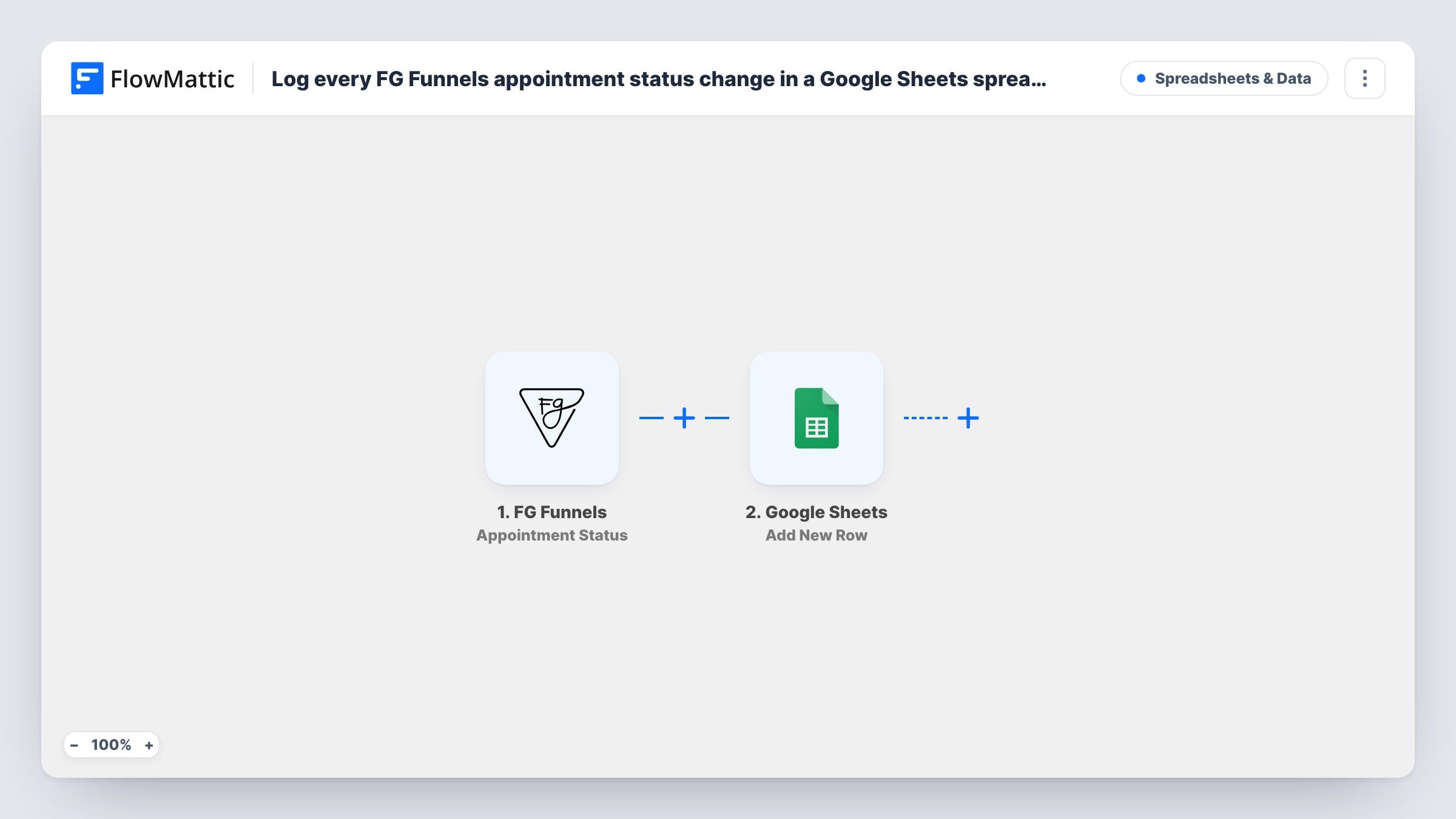
Each time an appointment’s status changes in FG Funnels, this workflow adds a new row to Google Sheets with the details you map, building a running history of bookings, confirmations and cancellations.
 FG Funnels
 Google Sheets
2 steps Setup ~5 min Used on 1.5k sites Free to import
What this workflow does
Appointment statuses change over time, for example from booked to confirmed or cancelled. FG Funnels shows the current state, but not always an easy history you can count and share. A spreadsheet log gives you that record without exporting anything.
The FG Funnels trigger fires whenever an appointment's status changes. FlowMattic passes the appointment data to Google Sheets, which adds a new row to the spreadsheet you pick. Map the status, the contact and the appointment time to your columns, and add a column for the date of the change if you want a timeline.
Rows are only ever appended here, never edited, so one appointment can appear several times, once for each status it passed through. That is what makes the sheet a history rather than a snapshot. Task History records each run as well.
Counting no-shows and cancellations
Filter the sheet by status at the end of the month to see how many appointments were cancelled or missed, and for which calendar.
A record for a sales manager
A manager who doesn't use FG Funnels day to day reviews the sheet to see how many calls were booked and confirmed each week.
Tracking a single client's appointments
Sort by contact to see every status change for one client, which helps when they question a missed or moved appointment.
How this workflow runs
What happens at each step once the workflow is on, and what you need before you import it.
 FG Funnels Appointment Status
Fires when the status of an appointment changes in your connected FG Funnels account. The appointment's data becomes available to map into the sheet.
- Google Sheets Add New Row
Adds a row to the Google Sheets spreadsheet you choose for each status change. Connect your Google account and map the appointment's status, contact and time to columns.
What you need
- FlowMatticCore
- FG Funnels AccountAccount
- Google Sheets AccountAccount
After importing, map your own data. To keep the template universal, not every step is pre-filled. Open each step in the builder and connect your accounts and fields (channels, lists, sheets, recipients) before you switch the workflow on.
Make it yours
Changes worth making after you import it.
- Add a Filter after the trigger if you only want certain statuses in the sheet, such as cancellations and no-shows.
- Change an appointment's status in FG Funnels once after import so FlowMattic captures the real fields before you map the columns.
- Use a Router to write each status to its own sheet tab, with one route per status value so no change lands in two places.
Questions about this workflow
Does the sheet update an appointment's existing row when its FG Funnels status changes again?
No. Each status change adds a new row, so an appointment that is booked, then cancelled, appears twice. That keeps the full history.
Are FG Funnels appointments from before import added to the sheet?
No. Only status changes that happen after you turn the workflow on are logged.
Which appointment statuses are logged in Google Sheets?
All of them, as imported. Every status change starts a run. Add a Filter after the trigger to keep only the statuses you care about.
More Spreadsheets & Data workflows
Other ready-to-import templates from the same category.




Import this workflow into your WordPress site
Download the JSON, import it from the Workflows screen and connect your accounts. Every run stays on your server, with no per-task fees.
30-day money-back guarantee Unlimited workflows and runs Self-hosted