

Log new Timely hours entries in a Google Sheets spreadsheet
Each time hours are created in Timely, this workflow adds a row to a Google Sheets spreadsheet, so you build a running log of tracked time you can sort, total and share.
 Timely
 Google Sheets
2 steps Setup ~5 min Used on 2.0k sites Free to import
What this workflow does
Timely is where your team tracks time. But billing, payroll and client reports often get pulled together in a spreadsheet, where you can add formulas, pivot tables and notes. Exporting time every week means repeating the same steps. This workflow writes each new hours entry to a sheet as it is created.
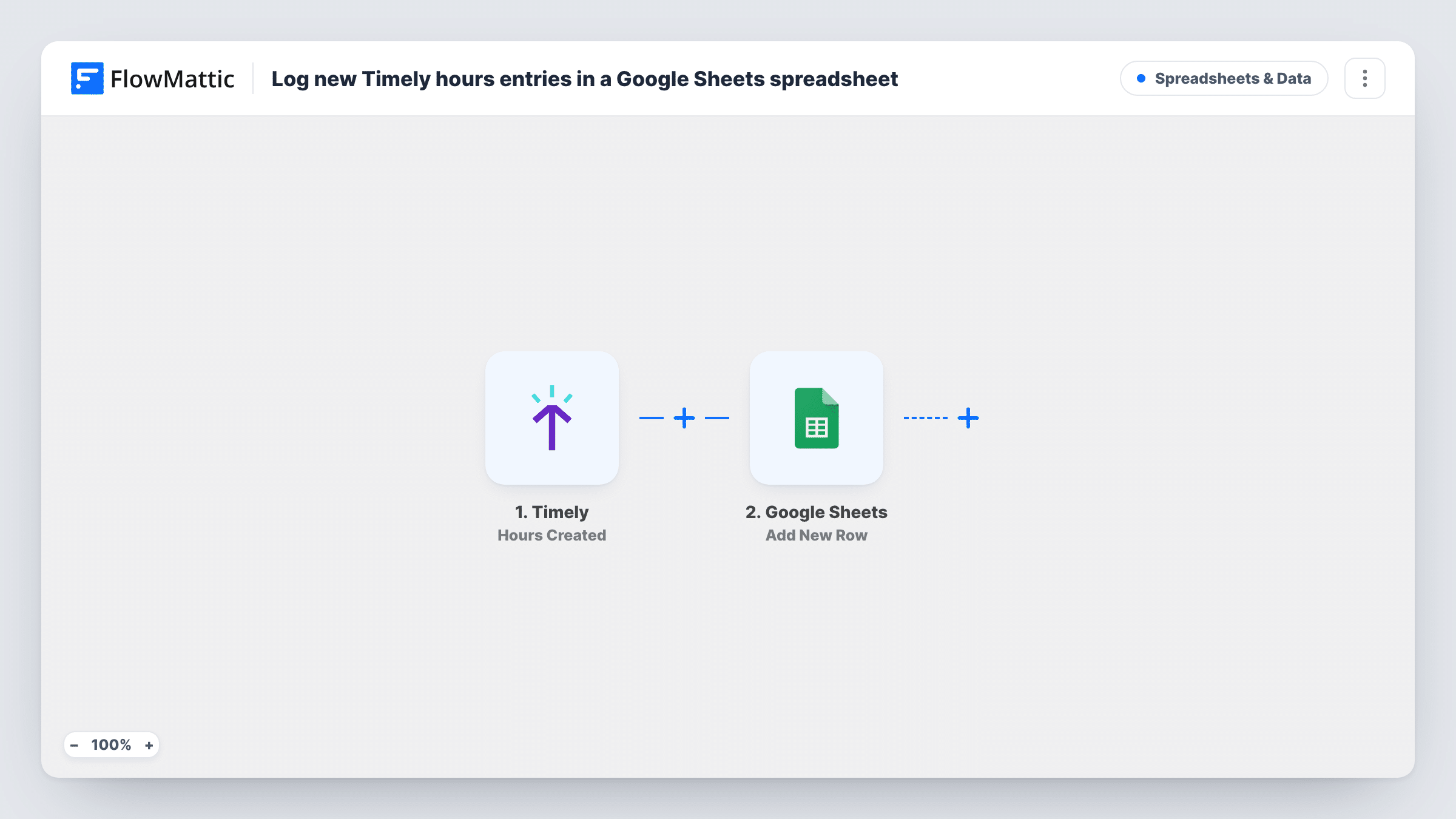
The Timely trigger, Hours Created, fires when hours are created and passes the entry's details to FlowMattic. The second step is Google Sheets Add New Row, which adds a row to the spreadsheet you choose with the Timely values you map to each column.
The sheet only receives new entries. If someone edits or deletes hours in Timely later, the existing row stays as it was, so treat the sheet as a log, not a live copy. After import, log a test entry in Timely to see the values it sends, then map them to your columns.
Monthly client invoices
Each entry lands in a sheet where a pivot table totals hours per client, giving you the numbers for that month's invoices.
Contractor payroll
Freelancers track time in Timely. The sheet gives your bookkeeper a running list of hours without access to Timely.
Project budget tracking
A formula column compares logged hours against each project's budget, so you can see when a project is running over.
How this workflow runs
What happens at each step once the workflow is on, and what you need before you import it.
 Timely Hours Created
Fires when hours are created in Timely. Connect your Timely account, and the details of the new entry become available to map into the sheet.
- Google Sheets Add New Row
Writes the Timely entry as a fresh row in the spreadsheet you select. Connect your Google account, choose the spreadsheet and sheet, and map the Timely values to its columns.
What you need
- FlowMatticCore
- Timely AccountAccount
- Google Sheets AccountAccount
After importing, map your own data. To keep the template universal, not every step is pre-filled. Open each step in the builder and connect your accounts and fields (channels, lists, sheets, recipients) before you switch the workflow on.
Make it yours
Changes worth making after you import it.
- Set up the sheet's header row first with a column for each Timely value you want, then add your own formula columns to the right that the workflow leaves blank.
- Add a Filter after the trigger if only some projects or people should reach this sheet, using a value Timely sends with the entry.
- Keep one sheet per year or per client if the log grows large, and duplicate the workflow for each target sheet.
Questions about this workflow
If I edit Timely hours, does the Google Sheets row update?
No. The trigger is Hours Created, so only new entries are sent. Edits and deletions in Timely don't change the rows already in the sheet.
Are hours logged before I import this added to the sheet?
No. Only entries created after the workflow is on are logged. Export older hours from Timely if you need them in the same sheet.
Which Timely details can I put in the Google Sheet?
Whatever Timely sends with the Hours Created event. Log a test entry after import to see the available values, then map the ones you need.
Do I need a Google account with edit access to the sheet?
Yes. The Google account you connect must be able to edit the spreadsheet, since the workflow adds rows to it.
More Spreadsheets & Data workflows
Other ready-to-import templates from the same category.




Import this workflow into your WordPress site
Download the JSON, import it from the Workflows screen and connect your accounts. Every run stays on your server, with no per-task fees.
30-day money-back guarantee Unlimited workflows and runs Self-hosted