

When Contact Form 7 is submitted, add form submission as Google Spreadsheet row
Every Contact Form 7 submission on your WordPress site is added as a new row in a Google Sheets spreadsheet, giving you a sortable list of form entries outside your inbox.
 Contact Form 7
 Google Sheets
2 steps Setup ~5 min Used on 1.3k sites Free to import
What this workflow does
Contact Form 7 emails you each message and does not keep a list of entries. Once the messages pile up, answering a simple question, like how many enquiries came in last month, means searching through mail. This workflow keeps a spreadsheet copy of every entry instead.
The Contact Form 7 trigger runs whenever a visitor sends the form. Each field the visitor filled in becomes data you can map. The Google Sheets step writes those values to a new row in the spreadsheet you select, one column per field you map.
Each submission produces its own row, including repeat messages from the same person. The data leaves your site only for the spreadsheet in your Google account, and Task History records every run if a row seems to be missing.
Keep a log of enquiries
A small business keeps every message from its contact page in one sheet, with columns for name, email and the question asked.
Share entries with someone outside WordPress
A colleague without a site login reviews new form entries in a shared Google Sheet and adds notes beside each one.
Count sign-ups for a class or event
A registration form built with Contact Form 7 fills a sheet that doubles as the attendee list.
How this workflow runs
What happens at each step once the workflow is on, and what you need before you import it.
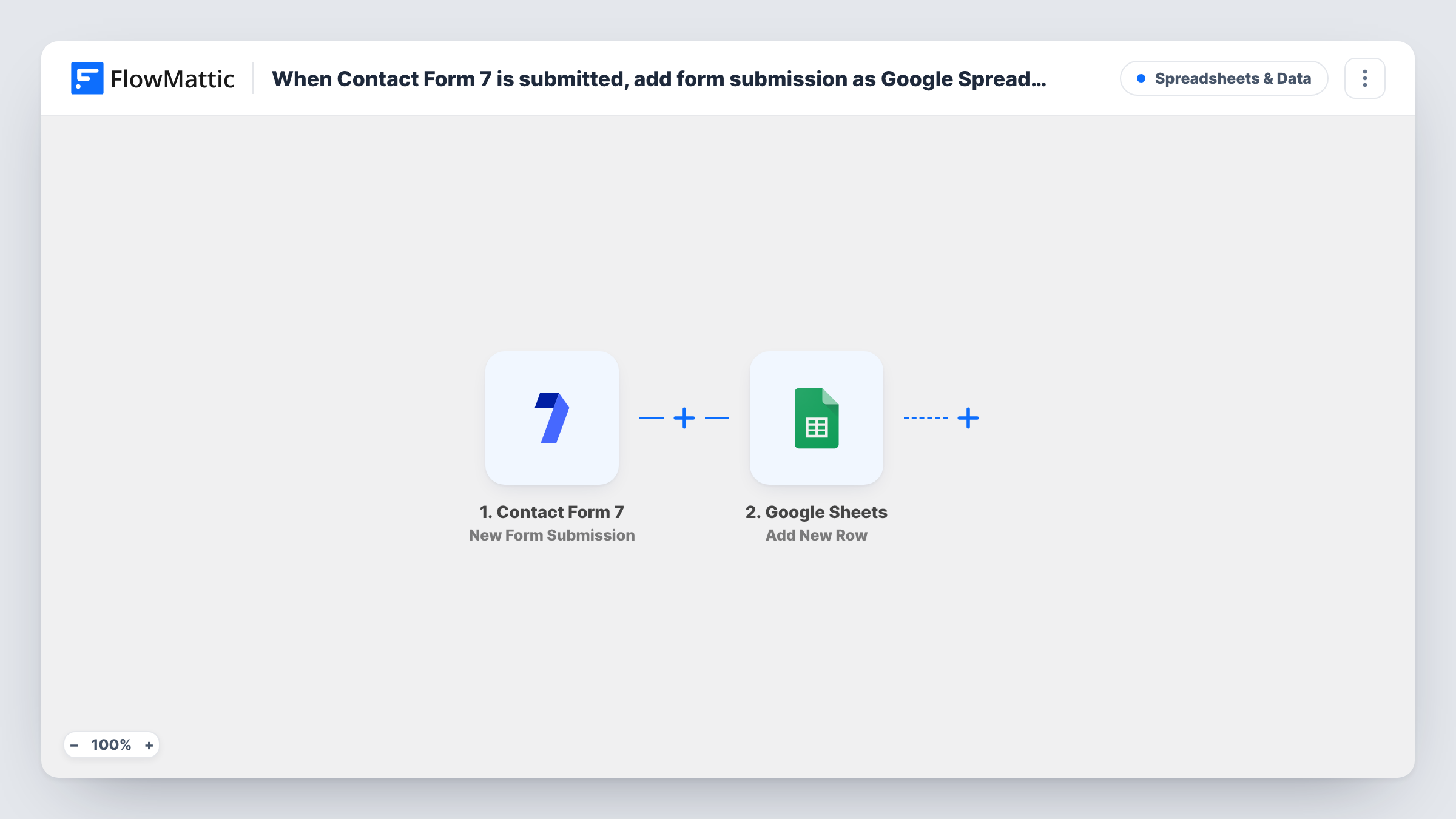
 Contact Form 7 New Form Submission
Starts whenever someone sends one of your Contact Form 7 forms. The values they entered become available to map into the spreadsheet row.
- Google Sheets Add New Row
Writes the entry as one fresh row at the bottom of your chosen Google Sheets spreadsheet. Link your Google account, select the sheet and map each column to a form field.
What you need
- FlowMatticCore
- Contact Form 7 PluginPlugin
- Google Sheets AccountAccount
After importing, map your own data. To keep the template universal, not every step is pre-filled. Open each step in the builder and connect your accounts and fields (channels, lists, sheets, recipients) before you switch the workflow on.
Make it yours
Changes worth making after you import it.
- Put a header row in the sheet before you map the step, so each column has a clear name to match with a Contact Form 7 field.
- Submit the form once yourself after import. FlowMattic then lists the real field names, which makes mapping each column straightforward.
- If several forms on the site fire this trigger, add a Filter that continues only for the form you want logged, or point other forms at their own sheets with a Router.
Questions about this workflow
Does Contact Form 7 stop emailing me once entries go to Google Sheets?
No. The workflow listens for submissions and leaves the form's mail settings alone, so notification emails keep arriving.
Can I add past Contact Form 7 messages to the sheet?
No. Only submissions made after you turn the workflow on are added. Older messages stay in your email.
What if I add a new field to the Contact Form 7 form later?
Add a matching column in the sheet, send a test submission, then map the new field in the Google Sheets step. Until then, its value is not written.
Does every submission get its own Google Sheets row?
Yes. Each submission adds one row, even when the same person sends the form more than once.
More Spreadsheets & Data workflows
Other ready-to-import templates from the same category.



Import this workflow into your WordPress site
Download the JSON, import it from the Workflows screen and connect your accounts. Every run stays on your server, with no per-task fees.
30-day money-back guarantee Unlimited workflows and runs Self-hosted