

When a New Item is Created in Notion, Fetch Associated Country Data Using ISO Integration and Create a New Contact in HubSpot
When a new item appears in your Notion database, this workflow looks up the country it names with ISO, then creates a HubSpot contact that carries both the Notion details and the country data.
 Notion
 ISO
 HubSpot CRM
3 steps Setup ~5 min Used on 2.9k sites Free to import
What this workflow does
Notion is a handy place to collect people before they reach your CRM, but a country typed as plain text tells HubSpot very little. Region, country code and currency usually get added by hand later, if at all. This workflow fills those gaps on the way from Notion to HubSpot.
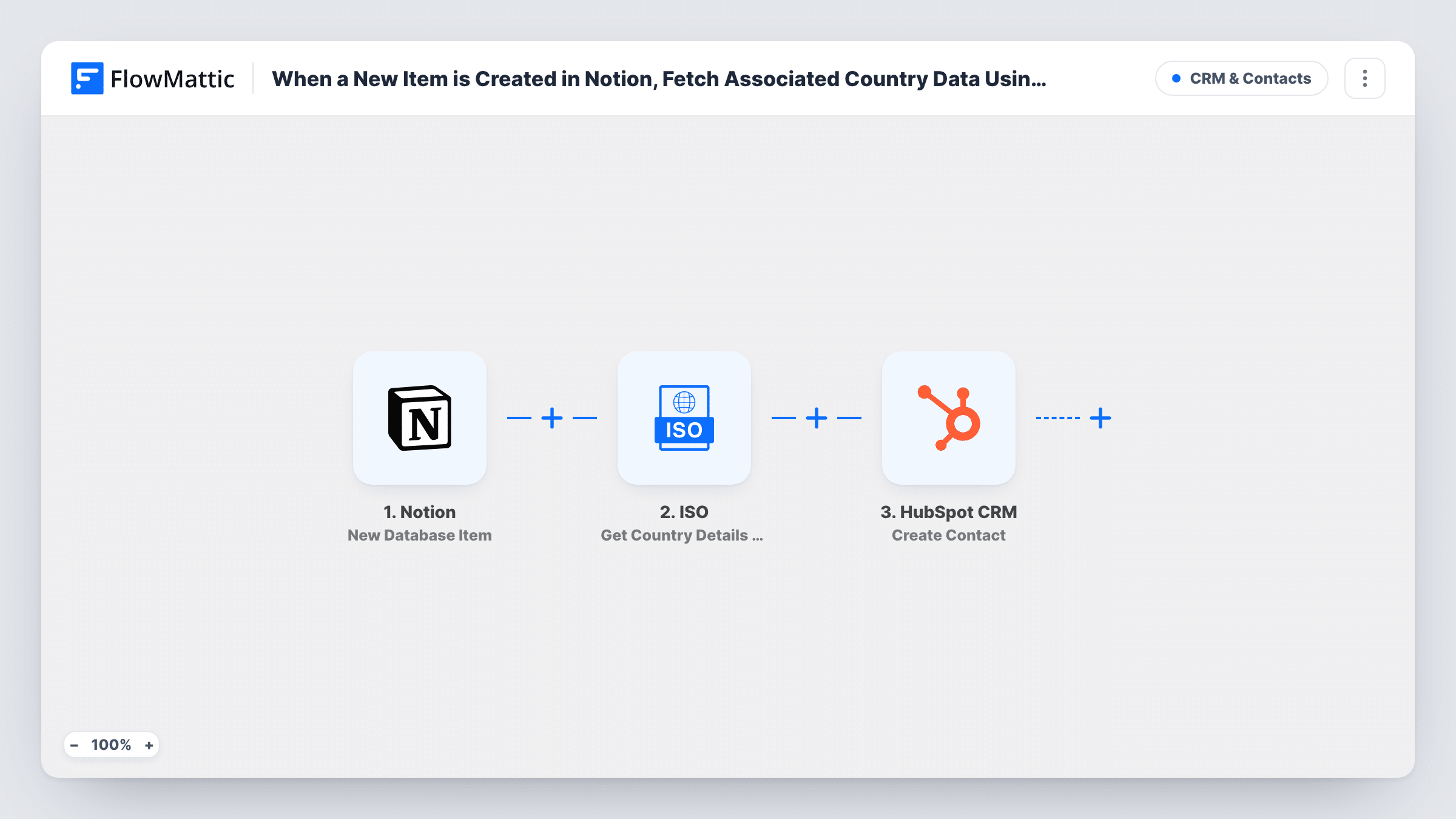
The Notion trigger watches one database and fires when a new item is created in it. FlowMattic takes the country name from that item and passes it to ISO, whose Get Country Details by Country Name action returns details such as the country code, capital, region, currency and language. The last step creates a contact in HubSpot CRM, where you map the Notion properties and the ISO results to contact properties.
Your Notion database needs a property that holds a country name, because that is what the ISO step looks up. Every new item in the database runs all three steps, and Task History keeps a record of each run with the data passed between steps.
Event sign-ups tracked in Notion
Attendees are logged in a Notion database with their country. Each new entry becomes a HubSpot contact with the region and country code already filled in, ready for regional follow-up lists.
Partner directory feeding the CRM
Your team adds new resellers to a Notion table. HubSpot receives each one as a contact, and the ISO currency and language fields help you prepare the right material.
Research leads collected by an assistant
An assistant adds prospects to Notion with a country column. The workflow turns each row into a HubSpot contact without anyone re-typing names, emails or locations.
How this workflow runs
What happens at each step once the workflow is on, and what you need before you import it.
 Notion New Database Item
Fires when a new item is created in the Notion database you connect. The item's properties, including the one that holds the country name, are passed on for mapping.
- ISO Get Country Details by Country Name
Sends the country name from the Notion item to ISO and returns that country's details, such as its code, capital, region, currency, language and flag. Map the Notion property that contains the country name.
- HubSpot CRM Create Contact
Creates a new contact in HubSpot. Map the person's details from Notion, then add the ISO results to whichever HubSpot contact properties you use for location or region.
What you need
- FlowMatticCore
- Notion AccountAccount
- ISO AccountAccount
- HubSpot CRM AccountAccount
After importing, map your own data. To keep the template universal, not every step is pre-filled. Open each step in the builder and connect your accounts and fields (channels, lists, sheets, recipients) before you switch the workflow on.
Make it yours
Changes worth making after you import it.
- Use a Select property for country in Notion with fixed spellings. Free-typed names with typos or abbreviations may not match a country in the ISO lookup.
- Add a Filter after the trigger that continues only when the Notion item has an email address, so HubSpot is not sent contacts it can't identify.
- Create a test item in Notion after import so FlowMattic captures its properties and the ISO response, then map both into the HubSpot step before you turn the workflow on.
Questions about this workflow
What if the Notion item has no country, or a misspelled one?
The ISO step may return nothing or an error for that item. The run still goes on to HubSpot, so the contact is created without country data. Task History shows what ISO returned.
Does HubSpot update a contact that already exists?
The step is Create Contact, which only creates. HubSpot may refuse a contact whose email is already in your CRM, and Task History shows its response for that run.
Will existing items in my Notion database be sent to HubSpot?
No. The trigger reacts to items created after the workflow is turned on. Older items stay where they are unless you add them again.
Do I need an account for the ISO step?
The template lists an ISO account as a requirement, so connect it when you import. The ISO step is what turns a country name into codes, region and currency.
More CRM & Contacts workflows
Other ready-to-import templates from the same category.






Import this workflow into your WordPress site
Download the JSON, import it from the Workflows screen and connect your accounts. Every run stays on your server, with no per-task fees.
30-day money-back guarantee Unlimited workflows and runs Self-hosted