

When new form submission is received in Contact Form 7, add a new subscriber in Mailchimp
Every Contact Form 7 submission on your WordPress site adds the sender to your Mailchimp audience, or refreshes their details if they are already a member.
 Contact Form 7
 Mailchimp
2 steps Setup ~5 min Used on 1.2k sites Free to import
What this workflow does
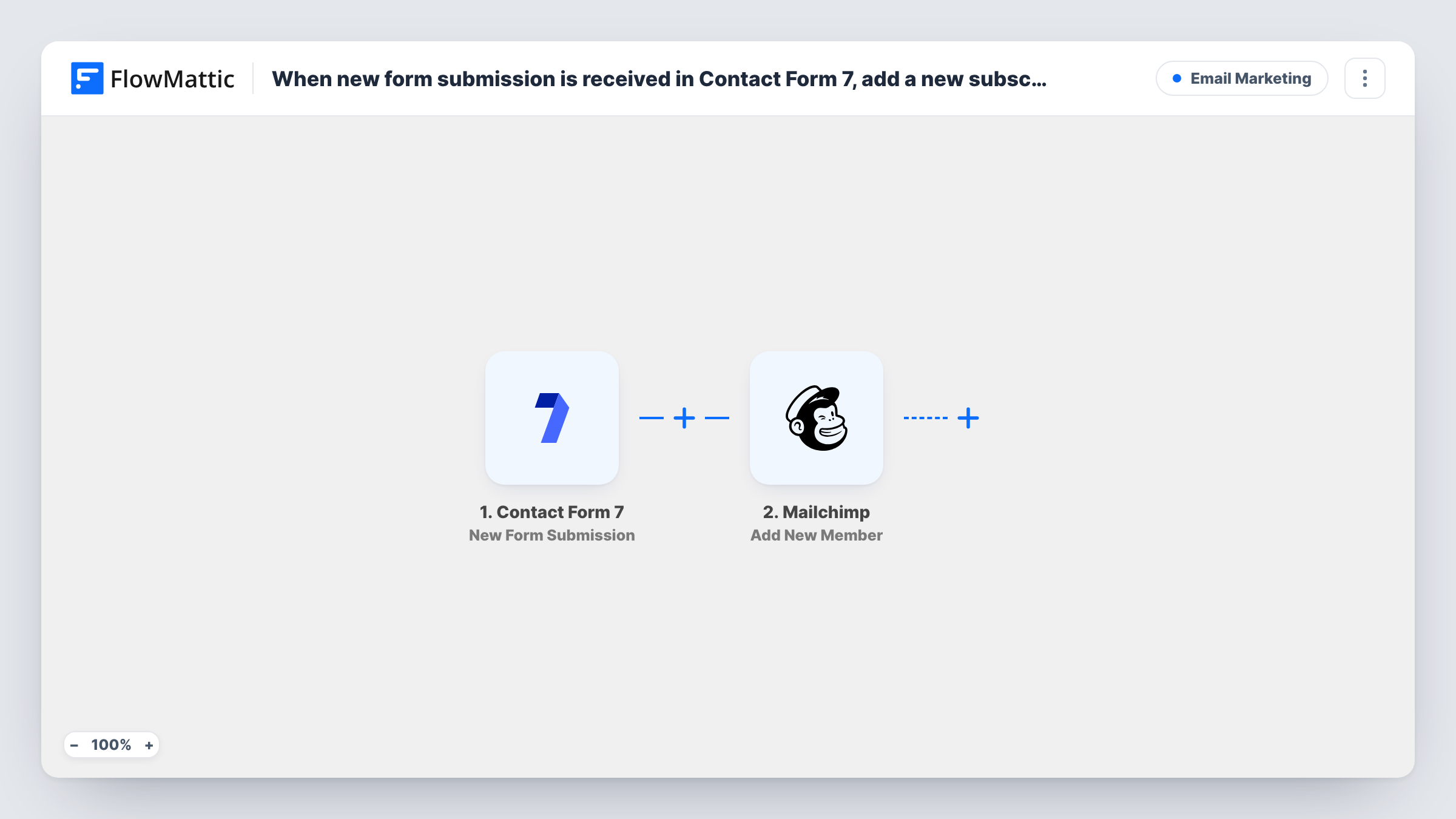
Contact Form 7 is a common way to collect email addresses on WordPress, but it has no link to Mailchimp of its own. Without one, sign-ups wait in your inbox until someone exports or types them in. This two-step workflow sends each submitter to Mailchimp right after the form is sent.
The Contact Form 7 trigger runs whenever a visitor submits the form you choose. FlowMattic hands the submitted fields to Mailchimp, where Add New Member puts the address on your list. If the address is already there, Mailchimp updates that member with the new details instead of making a duplicate.
Any Contact Form 7 form works, from a two-field newsletter box to a full contact form. You map the email field and any name fields you collect. Task History logs each submission that went through, which helps when a subscriber says they signed up but you cannot find them.
Newsletter box in a site footer
A small Contact Form 7 form with an email field sends each visitor straight to your Mailchimp newsletter audience.
Contact form with an opt-in checkbox
Your main enquiry form also asks about the newsletter. With a Filter added on the checkbox, only those who ticked it join your Mailchimp list.
Download gate for a PDF guide
Visitors leave their name and email to get a guide. Each one becomes a Mailchimp member you can send the follow-up series to.
How this workflow runs
What happens at each step once the workflow is on, and what you need before you import it.
 Contact Form 7 New Form Submission
Runs each time a visitor submits the Contact Form 7 form you pick. The submitted fields are passed to Mailchimp for mapping.
- Mailchimp Add New Member
Adds the submitter to your Mailchimp list, or updates the member if that address is already there. Map the form's email field, plus any first or last name fields.
What you need
- FlowMatticCore
- Contact Form 7 PluginPlugin
- Mailchimp AccountAccount
After importing, map your own data. To keep the template universal, not every step is pre-filled. Open each step in the builder and connect your accounts and fields (channels, lists, sheets, recipients) before you switch the workflow on.
Make it yours
Changes worth making after you import it.
- Use the email* tag in your Contact Form 7 form so the address is required and Mailchimp always receives one.
- If the form is also used for general enquiries, add a Filter that continues only when your consent checkbox is ticked.
- Submit the form once after import so FlowMattic captures its field names, then map them in the Mailchimp step and run a second test.
Questions about this workflow
What if the Contact Form 7 submitter is already in Mailchimp?
Add New Member updates an existing member instead of adding a second one, so your audience keeps one record per address.
Can I use this with several Contact Form 7 forms?
The trigger is set to one form. To cover another form, clone the workflow and choose the other form in the copy's trigger.
Will I still get the Contact Form 7 mail for each entry when Mailchimp is connected?
Yes. FlowMattic only reads the submission. Your form's mail settings stay as they are.
More Email Marketing workflows
Other ready-to-import templates from the same category.




Import this workflow into your WordPress site
Download the JSON, import it from the Workflows screen and connect your accounts. Every run stays on your server, with no per-task fees.
30-day money-back guarantee Unlimited workflows and runs Self-hosted