

When a new Gong call ends, log it in Google Sheets, alert the team on Slack, then update the same sheet row as reviewed
Each processed Gong call is logged as a row in Google Sheets and posted to Slack, then the same row is updated to show that the Slack alert went out.
 Gong
 Google Sheets
 Slack
4 steps Setup ~8 min Used on 3.1k sites Free to import
What this workflow does
A call log in Google Sheets gives you a sortable record of every Gong call, and a Slack post tells the team a new one is ready. Doing both by hand rarely happens consistently. This workflow does both, and then updates the row so the sheet shows which calls were announced.
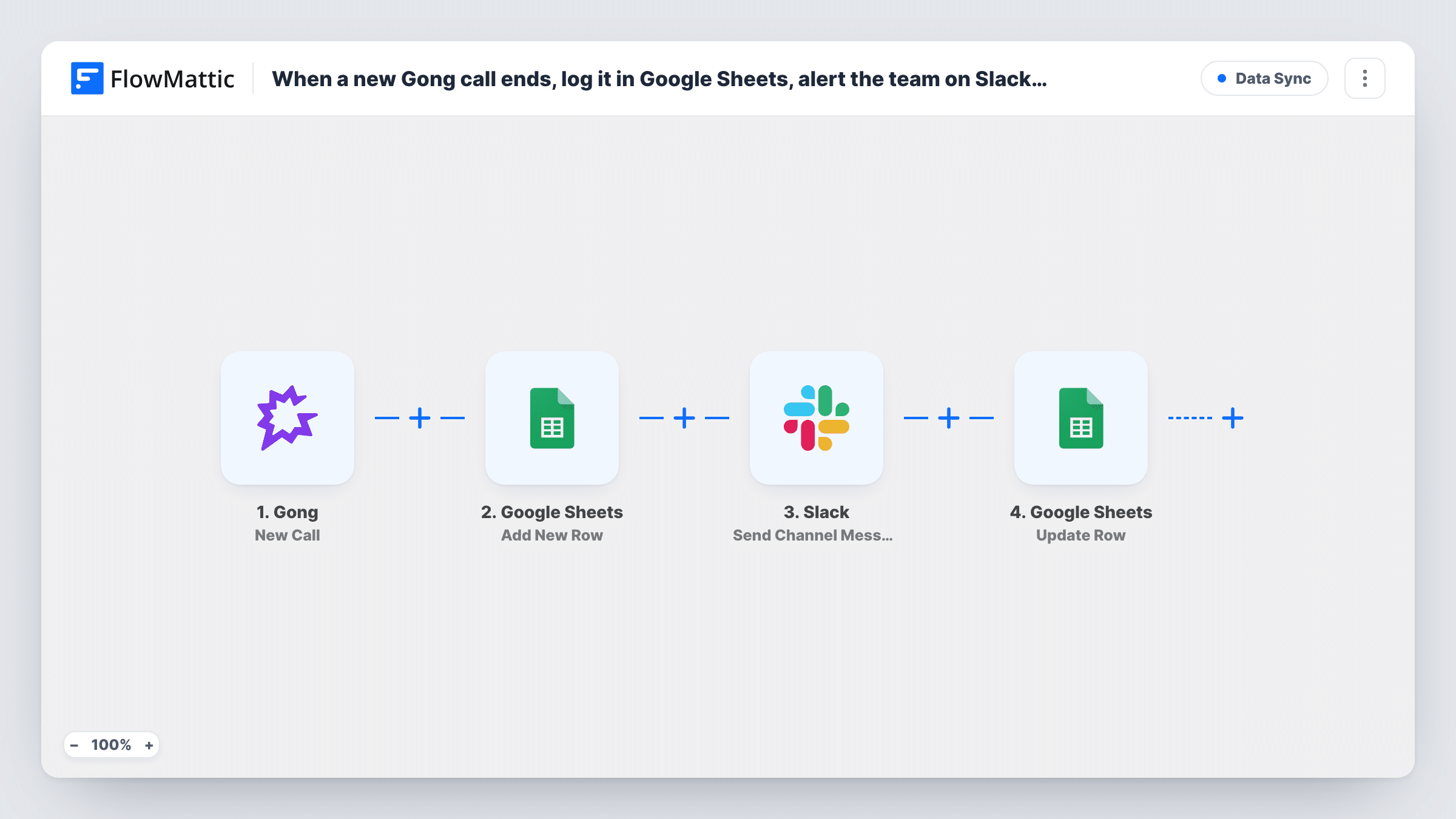
A run starts once Gong has processed a new call. Step two adds a row to your Google Sheets spreadsheet with the call details you map, such as the title, host and date. Step three posts a message to a Slack channel. The last step runs Update Row on the same spreadsheet, using the row that step two created, to write a value such as Reviewed into a status column.
Be clear about what that status means. The row is updated straight after the Slack post, not after a person listens to the call, so it records that the alert was sent. If you want a human sign-off, change the value the last step writes, or add a Human in the Loop step before it. Test with one call to confirm the update lands on the new row.
Weekly call review meeting
The sheet lists every processed call with its host and date. The team filters it before the weekly meeting to choose calls to play back.
Audit trail for alerts
The status column shows that each logged call was also announced in Slack, which helps when someone asks whether a call was shared.
Manager sign-off with an approval step
Add Human in the Loop before the update, so a manager approves each call and only then does the row show Reviewed.
How this workflow runs
What happens at each step once the workflow is on, and what you need before you import it.
 Gong New Call
Starts the run after Gong processes a call, handing its details to the three steps that follow.
- Google Sheets Add New Row
Adds a row to your chosen Google Sheets spreadsheet with the call details you map, for example title, host and date. Leave a column free for the status written in the last step.
- Slack Send Channel Message
Posts a message about the call to your chosen Slack channel. Write the text and map details such as the call title and host into it.
- Google Sheets Update Row
Updates the row created in step two, in the same spreadsheet, with the value you set, such as Reviewed in the status column. Map the row reference from step two and confirm on a test run that the right row changes.
What you need
- FlowMatticCore
- Gong AccountAccount
- Google Sheets AccountAccount
- Slack AccountAccount
After importing, map your own data. To keep the template universal, not every step is pre-filled. Open each step in the builder and connect your accounts and fields (channels, lists, sheets, recipients) before you switch the workflow on.
Make it yours
Changes worth making after you import it.
- Add a Filter after the trigger so only calls with external participants or certain titles are logged and announced.
- Write the current date and time into the status column in the last step, instead of a fixed word, to record when the Slack alert was sent.
- Insert a Human in the Loop step before Update Row if Reviewed should mean a person actually checked the call. Give it an End Workflow timeout action, so rows aren't marked if nobody responds.
Questions about this workflow
Does Reviewed mean someone listened to the Gong call?
No, not as imported. The row is updated right after the Slack message is posted, so it shows the alert went out. Add an approval step if you need a real review.
How does the last step find the row it updates?
It uses the row created by the Add New Row step earlier in the same run. Map that step's row reference into Update Row and check the result with a test call.
What happens if the Slack post fails?
The run still goes on to the Update Row step, so the row can show the status even though no message was posted. Task History shows the Slack error on that step.
Can I log Gong calls to a sheet without the Slack alert?
Yes. Remove the Slack step, and either drop the Update Row step or have it write a different status.
More Data Sync workflows
Other ready-to-import templates from the same category.





Import this workflow into your WordPress site
Download the JSON, import it from the Workflows screen and connect your accounts. Every run stays on your server, with no per-task fees.
30-day money-back guarantee Unlimited workflows and runs Self-hosted