

Log every new Stormboard idea in a Google Sheets backlog
Every new idea posted on a Stormboard board is added as a row in a Google Sheets spreadsheet, giving you a backlog of ideas you can sort, score and share outside the board.
 Stormboard
 Google Sheets
2 steps Setup ~5 min Used on 2.5k sites Free to import
What this workflow does
A busy Stormboard session can produce dozens of ideas, and the board isn't always the best place to rank them or keep them after the session ends. A spreadsheet is easy to sort, filter and share with people who never open Stormboard. This workflow writes each new idea to a sheet as it is created.
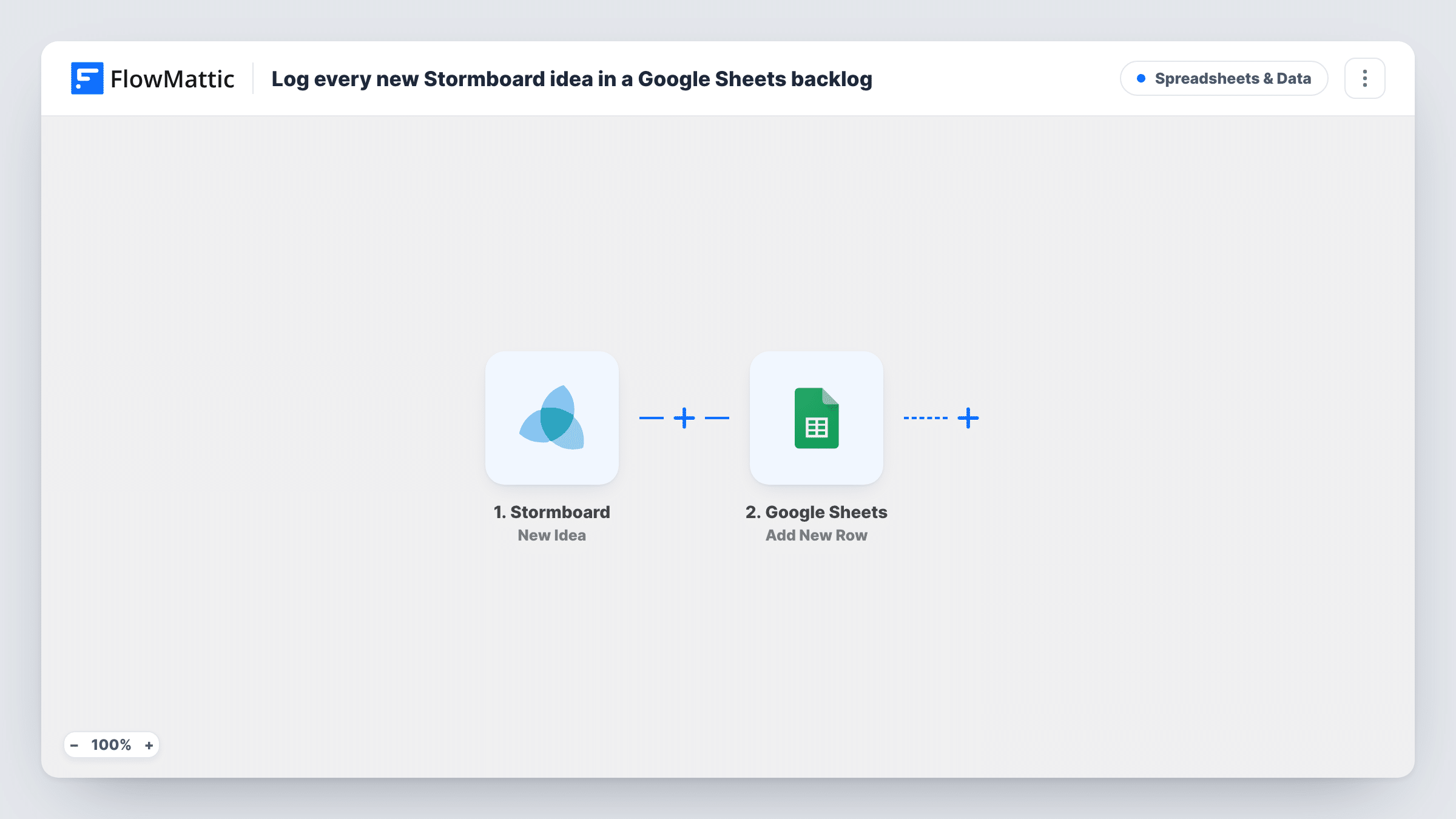
The Stormboard trigger, New Idea, fires when an idea is created. FlowMattic receives the details Stormboard sends for that idea. The next step runs Google Sheets Add New Row and writes the values you map into a new row of the spreadsheet you choose.
Each idea gets its own row, so the sheet grows into a running log. You can add your own columns next to the mapped ones for a score, an owner or a status, and the workflow will leave them alone. Task History records each run if you need to check what reached the sheet.
A product idea backlog
Ideas from customer workshops on Stormboard land in a sheet where the product manager adds an effort and value score to each row.
Keeping a record after a board is archived
Ideas from a planning session stay in the spreadsheet after the board is closed, so you can refer back to them months later.
Sharing ideas with people outside Stormboard
Leadership reviews a Google Sheet once a week. Every idea from the team's boards is already there, with no export step.
How this workflow runs
What happens at each step once the workflow is on, and what you need before you import it.
 Stormboard New Idea
Fires when a new idea is created on Stormboard. Connect your Stormboard account, and the details Stormboard sends for the idea become available to map into the sheet.
- Google Sheets Add New Row
Writes a new row into the Google Sheets spreadsheet you select. Connect your Google account, choose the spreadsheet and sheet, and map the Stormboard idea values to its columns.
What you need
- FlowMatticCore
- Stormboard AccountAccount
- Google Sheets AccountAccount
After importing, map your own data. To keep the template universal, not every step is pre-filled. Open each step in the builder and connect your accounts and fields (channels, lists, sheets, recipients) before you switch the workflow on.
Make it yours
Changes worth making after you import it.
- Set up the sheet's header row before you map, with a column for each idea value you want, then leave extra columns for scoring that the workflow doesn't fill.
- Add a Filter after the trigger if you only want ideas from certain boards or sections in this sheet, using a value Stormboard sends with the idea.
- Want ideas from different boards in different tabs? Use a Router with a condition per board and an Add New Row step on each route pointing at its own sheet.
Questions about this workflow
If an idea is edited in Stormboard, does the row change?
No. The trigger fires when an idea is created, and the workflow only adds rows. Later edits on the board are not copied to the sheet.
Are older Stormboard ideas added to the Google Sheet?
No. Only ideas created after the workflow is turned on are logged. Copy older ideas across yourself if you need them.
Which Stormboard details can I put in the sheet?
Whatever Stormboard sends with the New Idea event. Create one test idea after import to see the values, then map the ones you need to columns.
Can I use Microsoft Excel instead of Google Sheets for the Stormboard backlog?
Not with this template as imported. You would replace the Google Sheets step with an equivalent action from another app in FlowMattic and map the idea values again.
More Spreadsheets & Data workflows
Other ready-to-import templates from the same category.


Import this workflow into your WordPress site
Download the JSON, import it from the Workflows screen and connect your accounts. Every run stays on your server, with no per-task fees.
30-day money-back guarantee Unlimited workflows and runs Self-hosted