

When a new email is received in an IMAP mailbox such as Gmail, retrieve recent time logs in My Hours
When a new email lands in a mailbox folder you connect over IMAP, such as a Gmail inbox, FlowMattic retrieves recent time logs from My Hours, ready for a step you add to use them.
 IMAP Email Parser
 My Hours
2 steps Setup ~5 min Used on 884 sites Productivity Free to import
What this workflow does
This is a starting point for flows where an email should pull time-tracking data, for example a client asking for an hours update or an internal report request. It connects the two pieces and leaves the last part, what to do with the logs, to you.
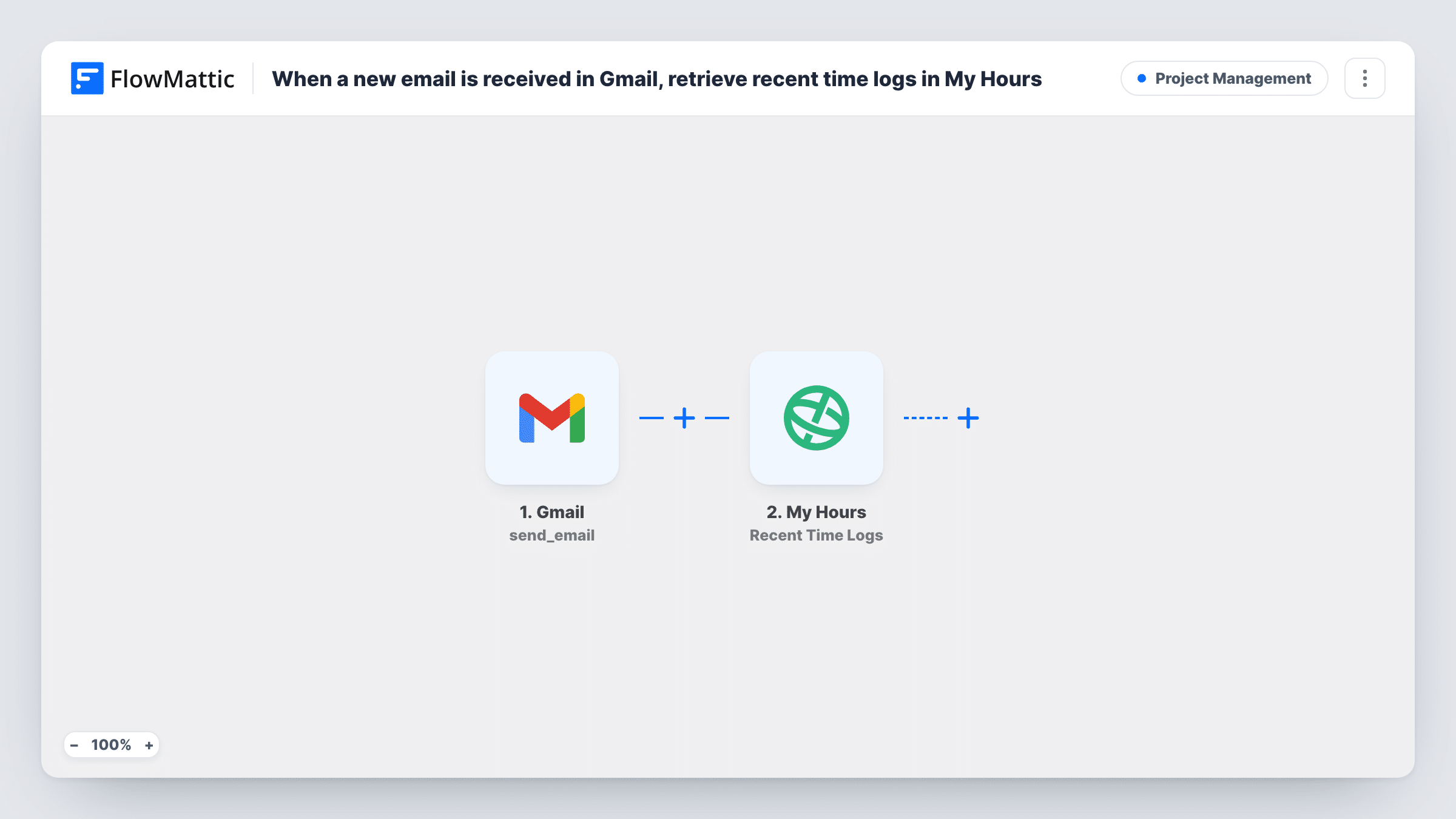
The IMAP Email Parser Email Received trigger fires when a new email arrives in the folder you specify. Gmail, Outlook and other providers work through their IMAP settings. FlowMattic then runs the My Hours Recent Time Logs action, which retrieves time logs from a date you set.
Be clear about what it does as imported: the My Hours step only reads. It changes nothing in My Hours and sends nothing anywhere, and no later step uses the logs it returns. To make the flow useful, add a step after it, such as an Email step that replies with the hours or a Google Sheets step that writes them to a report.
The trigger runs for every new email in the folder, not only the ones that ask for hours. After import, connect the mailbox and My Hours, set the date the logs should start from, and check a test run to see the logs My Hours returns.
Hours report by email request
A freelancer sets up a folder for timesheet requests; with an Email step added after My Hours, each request gets a reply listing recent hours.
Time logs into a weekly sheet
An agency forwards a weekly reminder email to the watched folder and adds a Google Sheets step that writes the returned My Hours logs to a report.
Testing the My Hours connection
A developer uses the template to check what Recent Time Logs returns before building a fuller reporting workflow around it.
How this workflow runs
What happens at each step once the workflow is on, and what you need before you import it.
 IMAP Email Parser Email Received
Fires when a new email arrives in the IMAP folder you choose. The sender, subject and message content are available to later steps; connect the mailbox with its IMAP details after import.
- My Hours Recent Time Logs
Retrieves time logs from My Hours starting from a date you set. It only reads data: nothing uses the result until you add a step after it, such as an email reply or a sheet row.
What you need
- FlowMatticCore
- My Hours AccountAccount
After importing, map your own data. To keep the template universal, not every step is pre-filled. Open each step in the builder and connect your accounts and fields (channels, lists, sheets, recipients) before you switch the workflow on.
Make it yours
Changes worth making after you import it.
- Swap the trigger for the IMAP Email Parser 'Email with Subject Contains' trigger, so only emails with words like 'hours report' in the subject fetch time logs.
- Add FlowMattic's Email step after the My Hours step and send the logs back to the sender's address from the trigger.
- Point the trigger at a dedicated folder or label, and use a mail rule to move only report requests into it, so ordinary inbox mail doesn't start runs.
Questions about this workflow
Does the My Hours step send the time logs anywhere?
No. Recent Time Logs only retrieves the logs. As imported, nothing uses them, so add a step after it, such as an Email or Google Sheets step, and map the returned logs into it.
Can I use a Gmail inbox with the IMAP Email Parser trigger?
Yes. Connect Gmail through its IMAP settings in the trigger. Outlook and other mail providers that offer IMAP access work the same way.
Will every email in the mailbox fetch My Hours logs?
Yes, every new email in the folder you pick starts a run. Use a dedicated folder, or the Email with Subject Contains trigger, to limit it to the emails meant for reports.
More Project Management workflows
Other ready-to-import templates from the same category.




Import this workflow into your WordPress site
Download the JSON, import it from the Workflows screen and connect your accounts. Every run stays on your server, with no per-task fees.
30-day money-back guarantee Unlimited workflows and runs Self-hosted