

Create a ClickUp task when a new Crowdin task is added
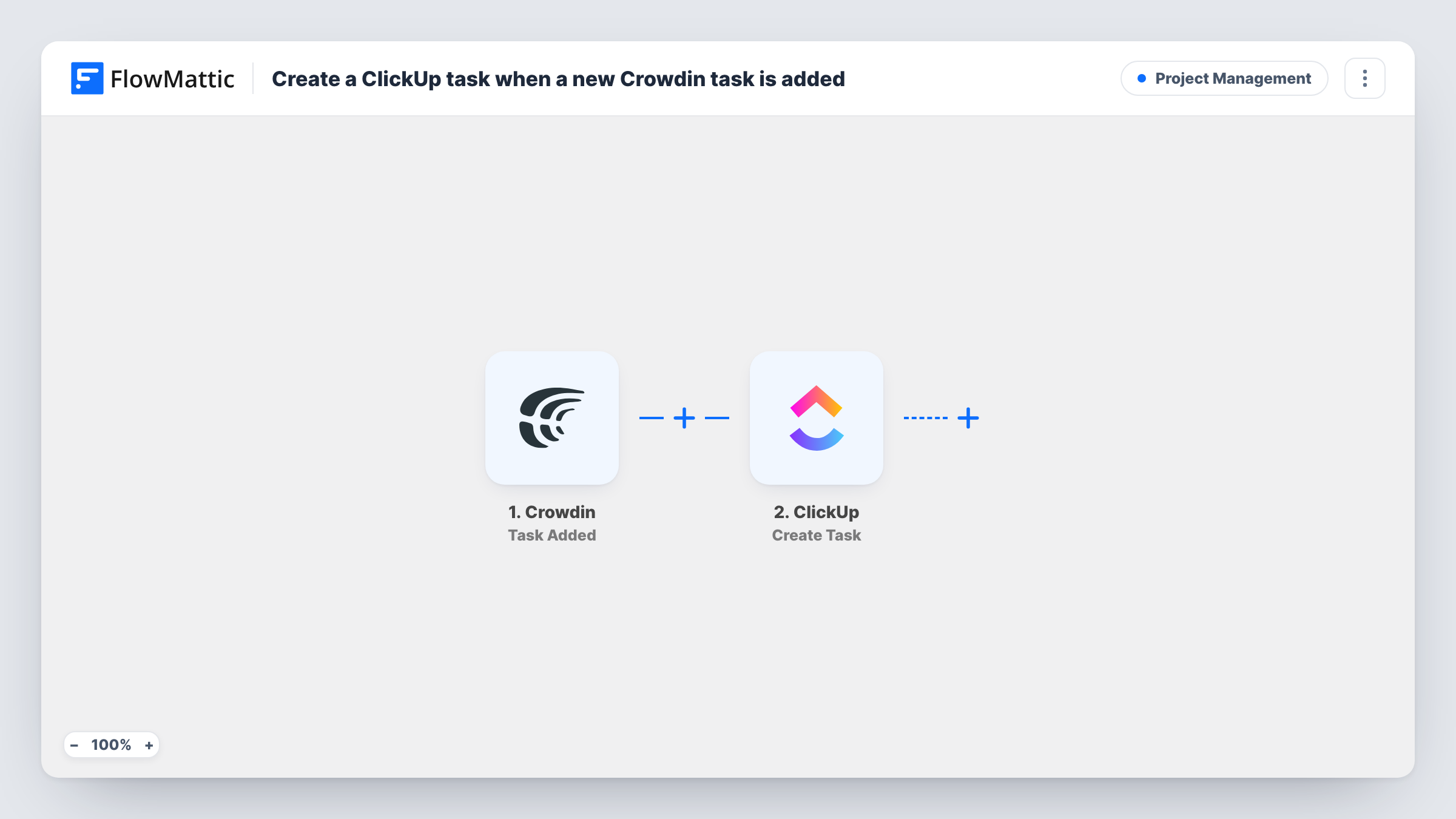
Whenever a task is added in Crowdin, this workflow creates a matching task in ClickUp, so translation and proofreading work shows up in the same place your team plans everything else.
 Crowdin
 ClickUp
2 steps Setup ~5 min Used on 2.6k sites Productivity Free to import
What this workflow does
Localization work often sits in Crowdin while the rest of the project lives in ClickUp. Project managers then check two tools to see what is due, and translation jobs get forgotten when planning a release. This workflow copies each new Crowdin task into ClickUp as it is added.
The Crowdin trigger fires when a task gets added in your Crowdin account. FlowMattic passes the task's data on, and the ClickUp step creates a new task from it. You decide what goes into the ClickUp task, for example the Crowdin task title in the name and its details in the description.
The link runs one way and only at creation. Later changes in Crowdin, such as a task being completed, do not update the ClickUp copy. Treat the ClickUp task as a planning entry that points people back to Crowdin, where the actual translation happens. Task History keeps a record of every task that was copied.
Release planning for a software product
A product team sees each new Crowdin translation task in the same ClickUp space as the release checklist, so localization is part of the plan.
Agency managing client localization
An agency that tracks all client work in ClickUp gets a task there whenever a Crowdin task is added for a client project.
Proofreading assignments for an in-house reviewer
A reviewer who works from ClickUp sees new Crowdin proofreading tasks there instead of watching Crowdin for them.
How this workflow runs
What happens at each step once the workflow is on, and what you need before you import it.
 Crowdin Task Added
Runs when a task is added in Crowdin. The task's details are passed on so you can use them in the ClickUp task.
- ClickUp Create Task
Creates a task in ClickUp built from the Crowdin data you map in, such as the task name and description. A test run shows where the new task is placed.
What you need
- FlowMatticCore
- Crowdin AccountAccount
- ClickUp AccountAccount
After importing, map your own data. To keep the template universal, not every step is pre-filled. Open each step in the builder and connect your accounts and fields (channels, lists, sheets, recipients) before you switch the workflow on.
Make it yours
Changes worth making after you import it.
- Include the Crowdin project name in the ClickUp task title so tasks from different projects are easy to tell apart.
- Add a Filter after the trigger if you only want some Crowdin tasks copied, for example those for one project, when that value is in the trigger data.
- Add a Slack or email step after ClickUp if the assignee also needs a direct message when a localization task arrives.
Questions about this workflow
Does completing the Crowdin task close the ClickUp task?
No. The workflow only runs when a task is added in Crowdin. It does not watch for changes, so you close the ClickUp task yourself.
Will Crowdin tasks created before import appear in ClickUp?
No. Only tasks added after the workflow is turned on start a run and create a ClickUp task.
Can the ClickUp task link back to the Crowdin task?
If the Crowdin trigger data includes a link or ID for the task, map it into the ClickUp description. Add a test task in Crowdin to see what data comes through.
More Project Management workflows
Other ready-to-import templates from the same category.



Import this workflow into your WordPress site
Download the JSON, import it from the Workflows screen and connect your accounts. Every run stays on your server, with no per-task fees.
30-day money-back guarantee Unlimited workflows and runs Self-hosted