

Create a ClickUp prep task for every new calendar event matching a search
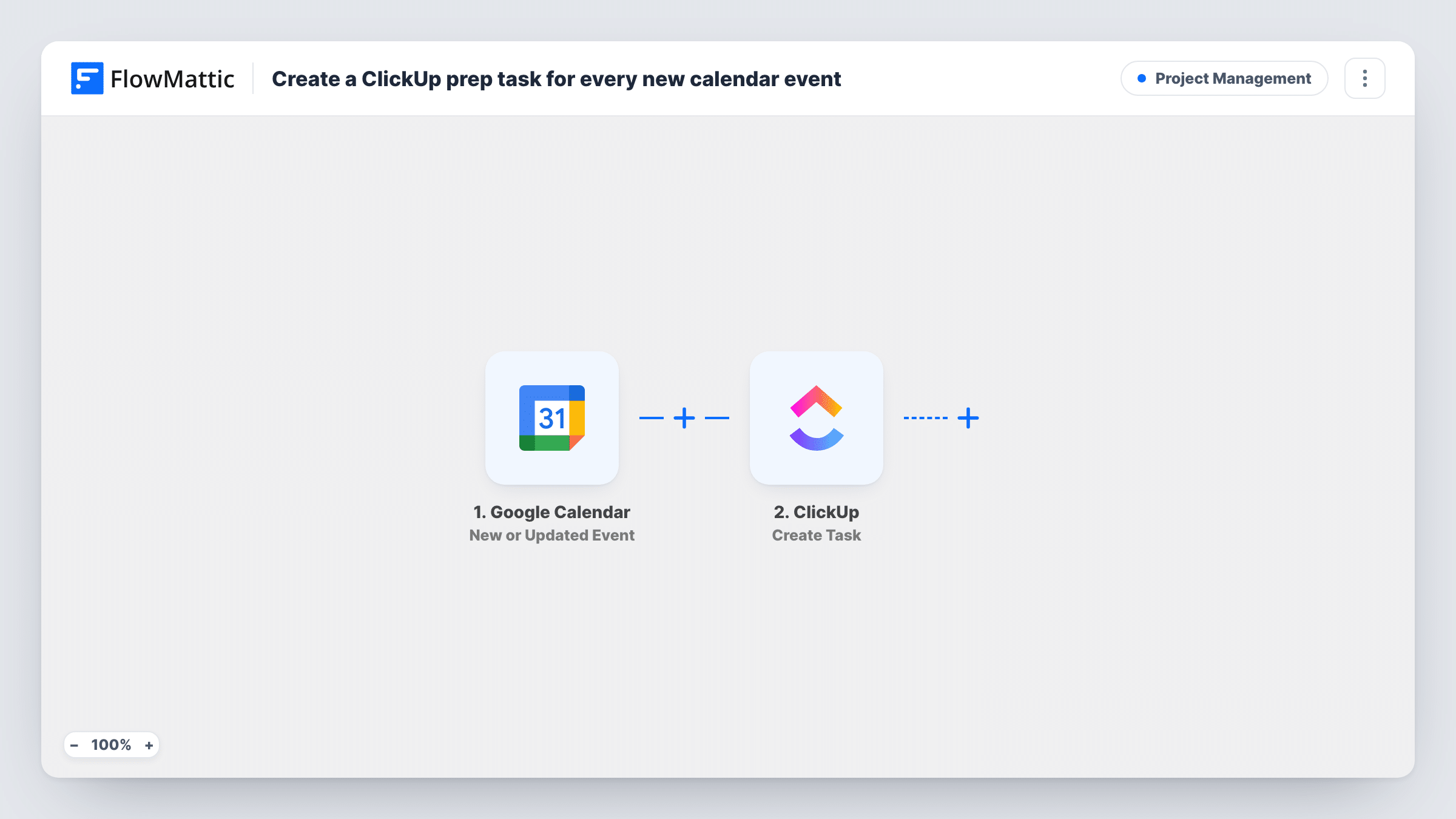
When a new Google Calendar event matches the search you set, FlowMattic creates a ClickUp task called “Prep:” plus the event title, with the start time and a reminder to prepare the agenda and materials.
 Google Calendar
 ClickUp
2 steps Setup ~5 min Used on 1.0k sites Productivity Free to import
What this workflow does
Meetings that need preparation, such as client reviews, demos or interviews, tend to show up in the calendar long before anyone thinks about the slides. This workflow turns each of those events into a ClickUp task the moment it is created, so preparation becomes a piece of work you can assign and schedule.
The Google Calendar trigger fires when an event is created that matches a search. After import you connect your Google account and set the search, for example a word you always put in demo or client event titles. Events that don't match are left alone.
For each match, the ClickUp step creates a task named "Prep:" followed by the event title. Its description gives the event's start time and the line "Prepare agenda and materials." Connect ClickUp and set where the task should be created, then edit the description if your preparation looks different.
The trigger reacts to newly created events only, so events already in your calendar before you turn the workflow on don't get a task. Create a test event that matches your search and check Task History to see the task ClickUp returned.
Sales demo preparation
A sales rep searches for "Demo" so every booked demo creates a ClickUp task to tailor the slides to that prospect.
Client review meetings
An agency account manager matches events with "Review" in the title and gets a task to pull the month's report together before each one.
Interview scheduling
A hiring manager matches "Interview" events, so each new interview creates a task to read the candidate's CV and prepare questions.
How this workflow runs
What happens at each step once the workflow is on, and what you need before you import it.
 Google Calendar New Event Matching Search
Fires when an event is created in Google Calendar that matches the search you set after import. The event's title and start time are passed to ClickUp.
- ClickUp Create Task
Creates a ClickUp task named "Prep:" plus the event title, with a description giving the start time and a note to prepare the agenda and materials. Choose where tasks go when you connect ClickUp.
What you need
- FlowMatticCore
- Google Calendar AccountAccount
- ClickUp AccountAccount
After importing, map your own data. To keep the template universal, not every step is pre-filled. Open each step in the builder and connect your accounts and fields (channels, lists, sheets, recipients) before you switch the workflow on.
Make it yours
Changes worth making after you import it.
- Agree on one word for events that need preparation, such as Demo or Prep, and use it in event titles so the search matches only those.
- Edit the ClickUp description to list the actual prep steps your team follows for that kind of meeting, so the task works as a checklist.
- Run two copies of this workflow with different searches, such as Demo and Interview, if each kind of meeting belongs in a different ClickUp list.
Questions about this workflow
Which Google Calendar events create a ClickUp task?
Only new events that match the search you set in the trigger. Events that don't match, and events that already existed before the workflow was turned on, are not sent to ClickUp.
Does the ClickUp task get a due date from the event?
Not as imported. The event's start time goes into the description only. Check the ClickUp step after import if you want to map the start time to a date as well.
What happens if I move a calendar event to another day?
The ClickUp task stays as it was. The trigger fires when an event is created, so the existing task keeps the start time from when it was made.
Does the Google Calendar event description reach ClickUp?
Not as imported. Only the event title and start time are mapped into the task. Run a test event to see what else the trigger passes, such as attendees or a location, and add what helps to the task description.
More Project Management workflows
Other ready-to-import templates from the same category.



Import this workflow into your WordPress site
Download the JSON, import it from the Workflows screen and connect your accounts. Every run stays on your server, with no per-task fees.
30-day money-back guarantee Unlimited workflows and runs Self-hosted