

Send email via Gmail for new Gravity Forms submissions
Every time a Gravity Forms form is submitted on your site, this workflow sends an email from your Gmail account with the answers, to a teammate, a shared inbox or the person who filled in the form.
 Gravity Forms
 Gmail
2 steps Setup ~5 min Used on 2.0k sites Free to import
What this workflow does
Gravity Forms has its own notifications, but they are sent by your WordPress server, and some teams would rather send from a real Gmail account: replies land in that inbox, and the message sits in Sent like any other email. This workflow sends a Gmail message for each submission.
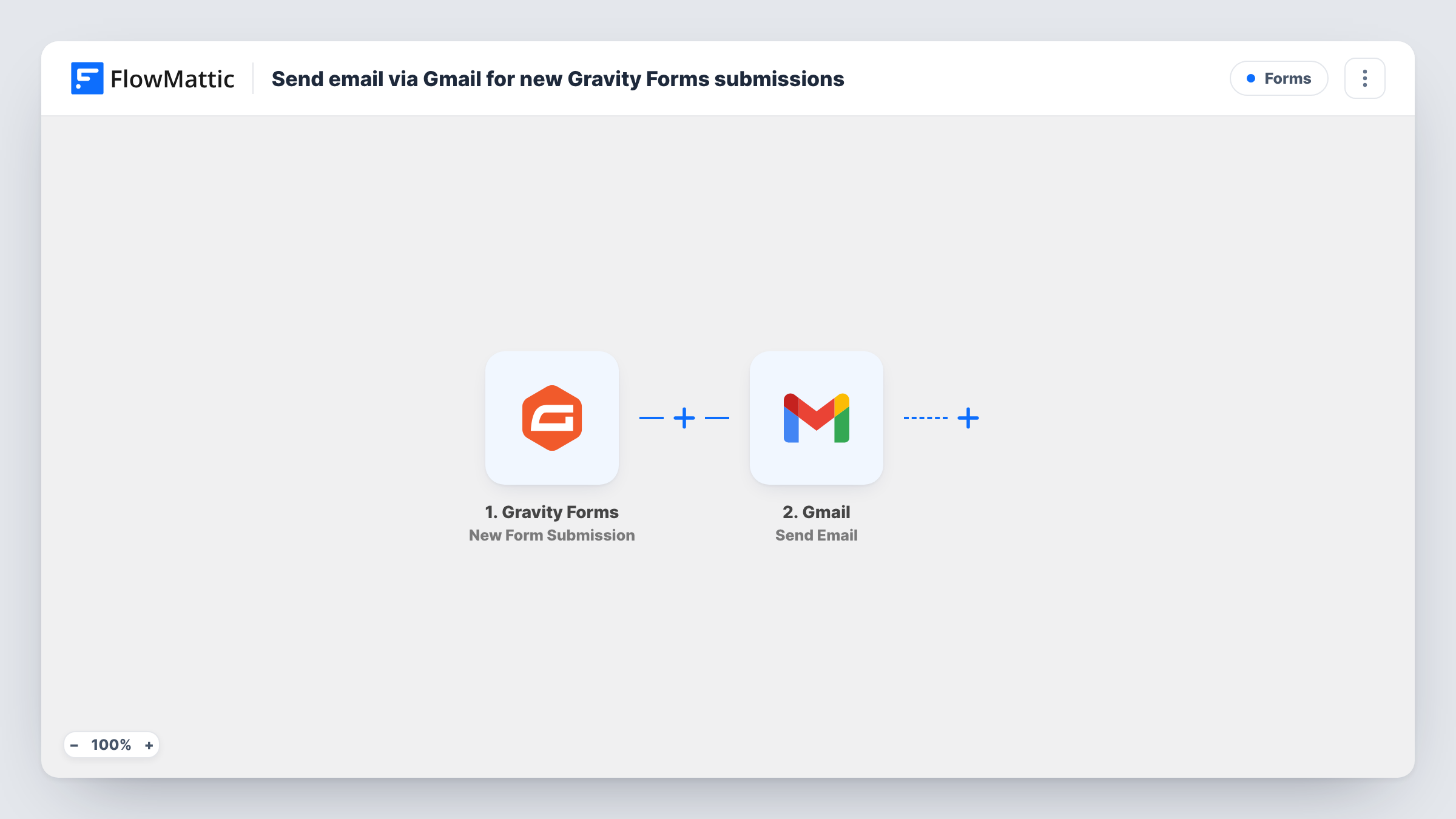
The Gravity Forms trigger, New Form Submission, runs when a form is submitted. FlowMattic receives every submitted field and passes them to Gmail, where Send Email sends a message through the account you connect. You decide the recipient, the subject and the body, and you can drop any form answer into them.
Every submission sends one email; there is no Filter in the template. Your existing Gravity Forms notifications keep working, so turn off any you no longer need to avoid duplicates. Send a test entry after import to capture the fields, then build the email. Task History logs each send.
Enquiries to a sales inbox
Quote requests from your Gravity Forms form go to the sales team's Gmail address, with the visitor's answers laid out in the body so they can reply straight away.
Confirmation to the person who applied
Map the applicant's email as the recipient and send a personal confirmation from your Gmail account, so their reply comes back to a mailbox you read.
Booking requests for a small studio
A photographer's booking form sends each request from the studio's Gmail to the studio's own address, keeping every booking in one searchable inbox.
How this workflow runs
What happens at each step once the workflow is on, and what you need before you import it.
 Gravity Forms New Form Submission
Runs when someone submits a Gravity Forms form on your WordPress site. Every answer in the entry becomes available to place in the Gmail message.
- Gmail Send Email
Emails the entry from your connected Gmail mailbox. Set the recipient, either a fixed address or the email field from the form, then write the subject and body using the submitted answers.
What you need
- FlowMatticCore
- Gravity Forms PluginPlugin
- Gmail AccountAccount
After importing, map your own data. To keep the template universal, not every step is pre-filled. Open each step in the builder and connect your accounts and fields (channels, lists, sheets, recipients) before you switch the workflow on.
Make it yours
Changes worth making after you import it.
- Add a Filter after the trigger on a form field, such as the enquiry type, so only the submissions that need a Gmail message send one.
- Use a Router with one route per department value and a Gmail step on each, so each enquiry goes to the right inbox.
- Map the visitor's name into the subject line, so the team can scan the inbox and see who wrote in without opening each message.
Questions about this workflow
Will Gravity Forms still send its own notification emails?
Yes. The workflow doesn't touch your form settings. Turn off the Gravity Forms notification if the Gmail message replaces it, or you will get both.
Can the Gmail message go to the person who filled in the Gravity Forms form?
Yes. Map the form's email field as the recipient. The message is then sent to them from your Gmail account.
Are older Gravity Forms entries emailed when I turn this on?
No. Only new submissions made after the workflow is active send an email. Existing entries stay in Gravity Forms.
Where do replies to the Gmail message go?
To the Gmail account that sent it, because the message is sent through that account like any email you write yourself.
More Forms workflows
Other ready-to-import templates from the same category.






Import this workflow into your WordPress site
Download the JSON, import it from the Workflows screen and connect your accounts. Every run stays on your server, with no per-task fees.
30-day money-back guarantee Unlimited workflows and runs Self-hosted