

Log disqualified SmartSurvey responses in Airtable for review
Whenever SmartSurvey disqualifies a survey response, this workflow creates a record for it in an Airtable table, giving your team one place to review screened-out respondents.
 SmartSurvey
 Airtable
2 steps Setup ~5 min Used on 857 sites Free to import
What this workflow does
Screening questions keep the wrong people out of a survey, but the responses they stop still tell you something. If many people are screened out at the same question, your criteria may be too tight or your invite may be reaching the wrong audience. This workflow keeps a record of each disqualified response so you can look for those patterns.
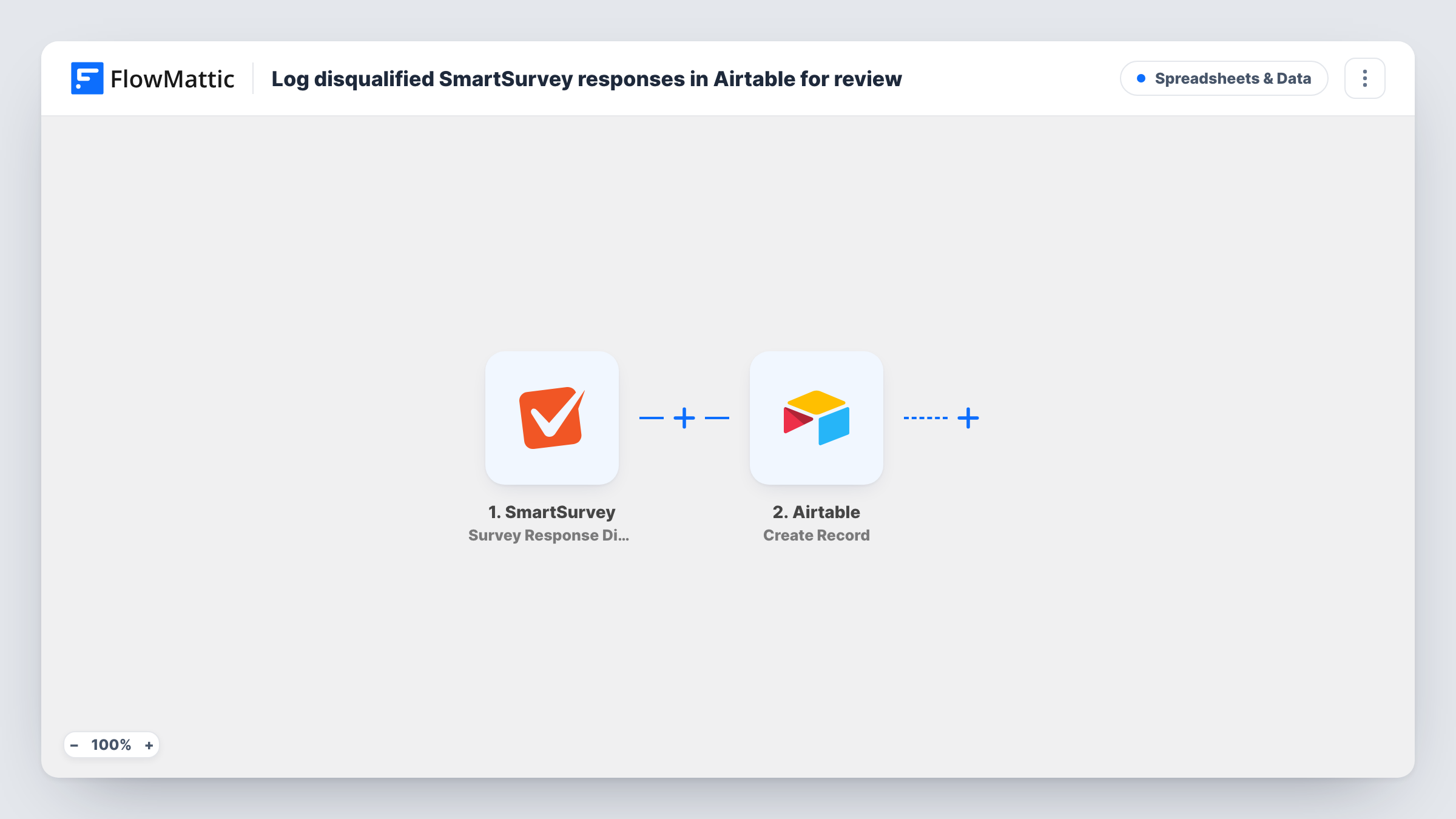
The SmartSurvey trigger fires when a survey response is disqualified. The data SmartSurvey sends about that response becomes available to map. The Airtable step then creates a new record in the base and table you choose, with the response values you place in each field.
Responses that complete the survey normally don't start this workflow, so the table holds disqualified ones only. Each one becomes a separate record, and Task History lists every run with what SmartSurvey sent and what Airtable created.
Reviewing a research screener
A market research team screens respondents by age and location. The Airtable table shows who was turned away, so the team can see if the quota rules are too strict.
Checking panel quality
An agency buys survey traffic from a panel. Disqualified responses logged in Airtable give a record to raise with the panel provider.
Following up with screened-out applicants
A programme uses a SmartSurvey form as an eligibility check. Staff review the Airtable records and point people who don't qualify to other options.
How this workflow runs
What happens at each step once the workflow is on, and what you need before you import it.
 SmartSurvey Survey Response Disqualified
Fires when SmartSurvey marks a survey response as disqualified. The details of that response are passed to the Airtable step.
- Airtable Create Record
Adds one Airtable record per disqualified response, in the base and table you choose. Map the SmartSurvey values to your table's fields after checking them in a test run.
What you need
- FlowMatticCore
- SmartSurvey AccountAccount
- Airtable AccountAccount
After importing, map your own data. To keep the template universal, not every step is pre-filled. Open each step in the builder and connect your accounts and fields (channels, lists, sheets, recipients) before you switch the workflow on.
Make it yours
Changes worth making after you import it.
- Add a Filter after the trigger if you run several surveys and only want disqualified responses from one of them in this table.
- Add a single-select field in Airtable, such as Review status, so your team can mark each record as checked once they have looked at it.
- Trigger a disqualification with a test response after import, then map the SmartSurvey values into the Airtable step before switching it on.
Questions about this workflow
Are completed SmartSurvey responses added to Airtable too?
No. This workflow only starts when a response is disqualified. Use a separate workflow on a completed-response trigger if you want those as well.
Do I need to set up the Airtable table first?
Yes. Create the base and table with the fields you want before mapping, since the Create Record step writes into fields that already exist.
Will disqualified responses from before import reach Airtable?
No. Only responses disqualified after the workflow is turned on start a run.
Can I send the disqualified response to Slack as well?
Yes. Add a Slack step after Airtable and map the same SmartSurvey values into the message.
More Spreadsheets & Data workflows
Other ready-to-import templates from the same category.




Import this workflow into your WordPress site
Download the JSON, import it from the Workflows screen and connect your accounts. Every run stays on your server, with no per-task fees.
30-day money-back guarantee Unlimited workflows and runs Self-hosted