

When someone registers for a webinar in WebinarKit, add row in Google Sheets
Every time someone registers for one of your WebinarKit webinars, FlowMattic adds a row to a Google Sheets spreadsheet, so your registrant list lives in a sheet you can sort, share and follow up from.
 WebinarKit
 Google Sheets
2 steps Setup ~5 min Used on 2.8k sites Free to import
What this workflow does
Webinar registrations are leads, and many hosts want them in a spreadsheet the moment they arrive: to share with a co-host, to plan reminder calls, or to compare sign-ups across sessions. Downloading registrant exports after each campaign leaves the list out of date. This workflow adds each sign-up to Google Sheets as it happens.
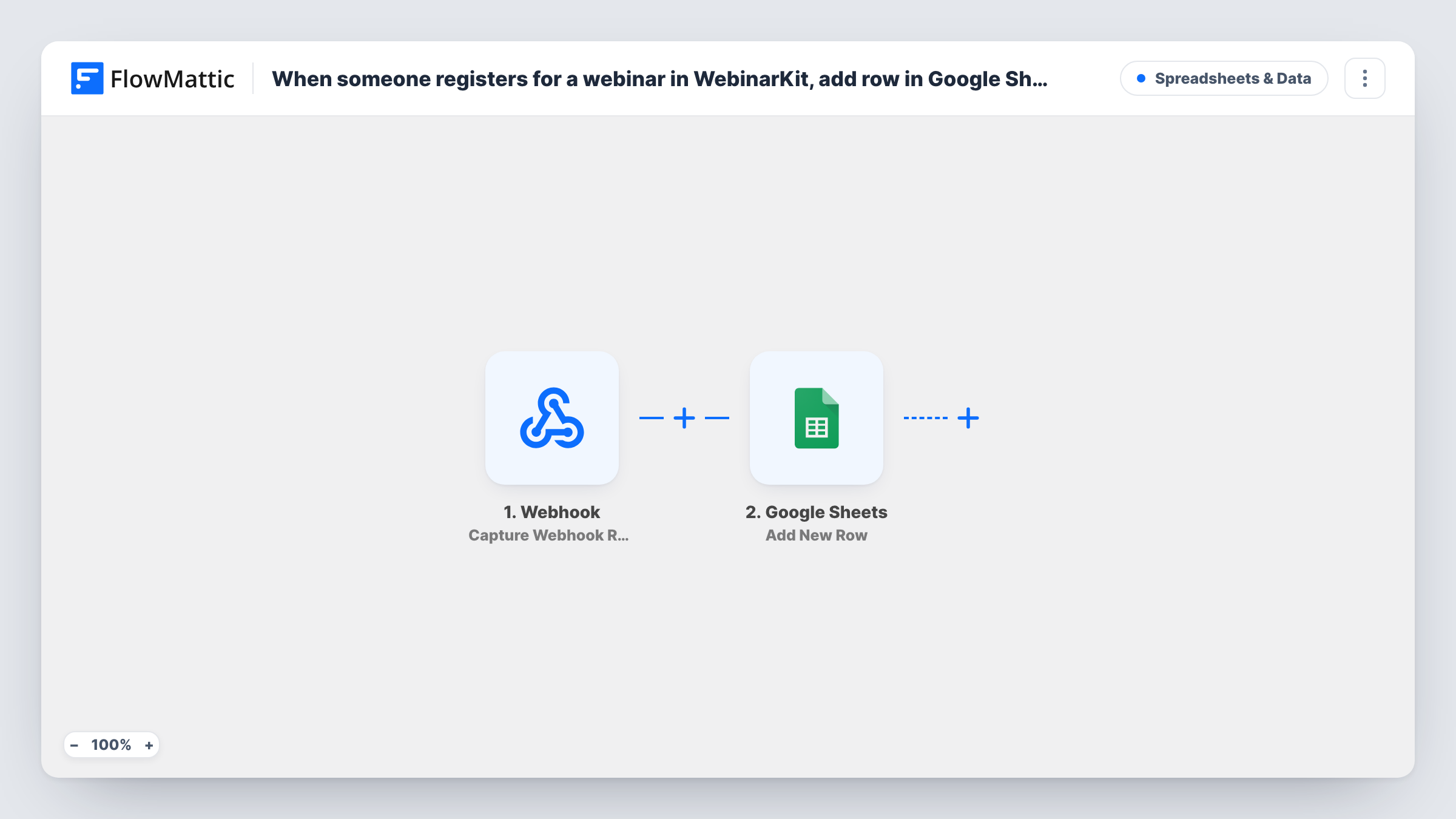
The WebinarKit trigger fires when someone registers for a webinar and passes the registration details to FlowMattic. Run a test registration to see what arrives, such as the person's name, email and the webinar they chose.
The Google Sheets Add New Row step then writes one row per registration. It ships unmapped: after import you connect your Google account, pick the spreadsheet and sheet, and map the registration values to your column headers. Add the headers to the sheet first so they show up when you map.
If one person registers for two webinars, or signs up twice for the same one, each registration adds its own row. Sort or use a formula on the email column in Google Sheets when you want a list of unique people.
Registrant list for a co-host
A coach running a joint webinar shares the Google Sheet with the guest speaker, who can see who signed up without a WebinarKit login.
Phone follow-up before a sales webinar
A sales team adds a call status column next to the registration rows and works down the sheet the day before the session.
Comparing sign-ups across topics
A marketer maps the webinar name into a column and uses a pivot table to see which topics draw the most registrations each month.
How this workflow runs
What happens at each step once the workflow is on, and what you need before you import it.
 WebinarKit New Webinar Registration
Starts a run each time someone registers for a webinar in your WebinarKit account. The registration details are passed on so you can map them into the sheet.
- Google Sheets Add New Row
Adds one row to the Google Sheets spreadsheet you choose for each registration. No columns are mapped in the template, so pick the sheet and match the registrant fields to your headers.
What you need
- FlowMatticCore
- WebinarKit AccountAccount
- Google Sheets AccountAccount
After importing, map your own data. To keep the template universal, not every step is pre-filled. Open each step in the builder and connect your accounts and fields (channels, lists, sheets, recipients) before you switch the workflow on.
Make it yours
Changes worth making after you import it.
- Map the registration time into its own column if WebinarKit sends one, so you can sort the sheet by the order people signed up.
- Map the webinar's name or ID into a column, so registrations for different webinars stay apart in one sheet.
- Put a Filter between the WebinarKit trigger and the Google Sheets step that continues only when the webinar name contains a word you choose, if this sheet should hold one webinar's sign-ups.
Questions about this workflow
Does each WebinarKit registration create a new row in Google Sheets?
Yes. Every registration starts its own run and the Add New Row step adds one row, even when the same person registers again.
Which registrant details end up in the sheet?
The ones you map. The Add New Row step ships empty, so after import you choose the spreadsheet and map the WebinarKit values you want into your columns. A test registration shows which values are available.
Are people who registered before I turned this on included?
No. The trigger reacts to sign-ups from the moment the workflow is switched on, so older ones never reach the sheet. Export earlier registrants from WebinarKit and paste them into the sheet if you need them.
Can one sheet hold registrations for several WebinarKit webinars?
Yes. The trigger fires for registrations to your webinars, so map the webinar's name into a column to tell them apart, or put a Filter between the WebinarKit trigger and the Google Sheets step to keep one webinar only.
More Spreadsheets & Data workflows
Other ready-to-import templates from the same category.



Import this workflow into your WordPress site
Download the JSON, import it from the Workflows screen and connect your accounts. Every run stays on your server, with no per-task fees.
30-day money-back guarantee Unlimited workflows and runs Self-hosted