

When a customer is deleted in Pabbly Subscriptions, delete a contact from Sendinblue
When you delete a customer in Pabbly Subscriptions, FlowMattic deletes the matching contact from Brevo (Sendinblue), so people you remove from billing stop sitting in your email audience.
 Pabbly Subscriptions
 Brevo ( Sendinblue )
2 steps Setup ~5 min Used on 730 sites Free to import
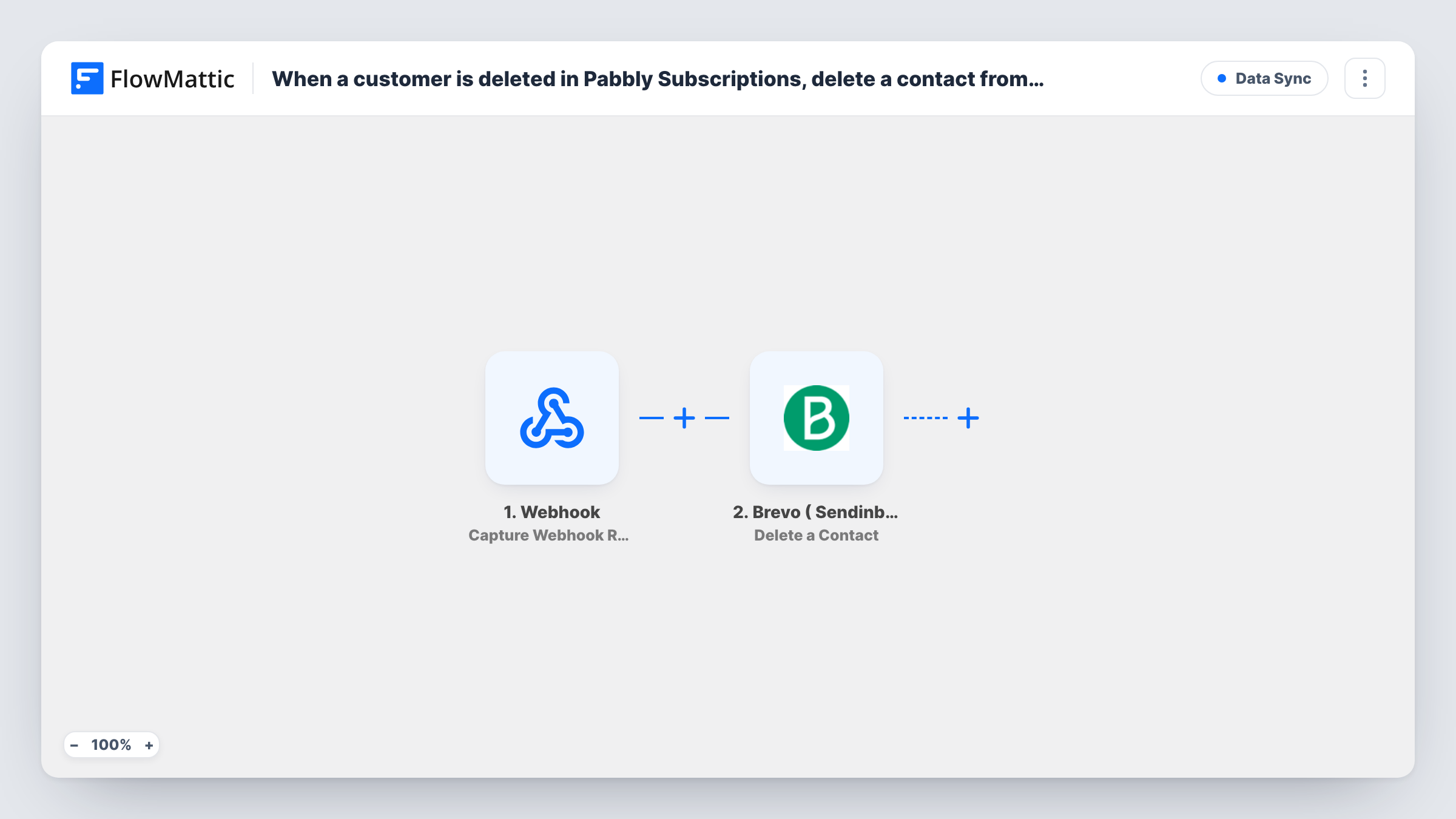
What this workflow does
Deleting a customer in your billing system rarely removes them from your email tool as well. Months later you are still sending newsletters to people you meant to remove, and your contact count keeps growing. This workflow carries the deletion across, so the two lists stay closer together.
The Pabbly Subscriptions trigger fires when a customer is deleted in your account and passes that customer's details to FlowMattic. Check a test run to confirm the customer's email address is among the values that arrive.
The Brevo ( Sendinblue ) Delete a Contact step then removes the contact from your Brevo account. Brevo identifies contacts by email, so map the deleted customer's email from the trigger into this step. It ships unmapped, so nothing is deleted until you set that up.
A deleted contact is gone from your Brevo account, so test with a customer you created for the purpose and a matching Brevo contact, then open Task History to see Brevo's response. If no contact has that email, Brevo may return an error, and Task History shows it.
Clearing out test and duplicate customers
A SaaS founder deletes trial accounts and duplicates in Pabbly Subscriptions, and their Brevo contacts are removed as well instead of lingering on the newsletter list.
Honouring a request to be forgotten
When a subscriber asks to have their data removed, the support team deletes them in Pabbly Subscriptions and the workflow removes the Brevo contact as part of the same action.
Keeping contact counts in check
A membership business tidies up old customer records in billing, and the matching contacts leave Brevo so the email audience only holds people still on record.
How this workflow runs
What happens at each step once the workflow is on, and what you need before you import it.
 Pabbly Subscriptions Customer Delete
Fires when a customer is deleted in Pabbly Subscriptions, handing FlowMattic the record of the person you removed. Run a test deletion to check that their email address comes through.
- Brevo ( Sendinblue ) Delete a Contact
Deletes a contact from your Brevo account. The step ships unmapped: connect Brevo and map the customer's email from the trigger, so the contact with that address is the one removed.
What you need
- FlowMatticCore
- Pabbly Subscriptions AccountAccount
- Brevo ( Sendinblue ) AccountAccount
After importing, map your own data. To keep the template universal, not every step is pre-filled. Open each step in the builder and connect your accounts and fields (channels, lists, sheets, recipients) before you switch the workflow on.
Make it yours
Changes worth making after you import it.
- Before turning this on, delete a test customer in Pabbly Subscriptions and confirm in Task History that the email reaches the Brevo step as you expect.
- If you would rather keep the contact in Brevo, swap Delete a Contact for Brevo's Update a Contact action and change the record instead. A test run shows what that step lets you set.
- Add a Google Sheets step after the Brevo step that logs the email and the date, so you have a record of which contacts the workflow removed.
Questions about this workflow
Does cancelling a Pabbly subscription delete the Brevo contact?
No. The trigger fires only when the customer record itself is deleted. Cancelled, expired or deleted subscriptions don't start a run.
How does Brevo know which contact to delete?
By the email address you map from the Pabbly Subscriptions trigger. Map the deleted customer's email into the Delete a Contact step after import.
What happens if the email isn't in Brevo?
There is no contact to delete, and Brevo may answer with an error for that run. Task History shows what Brevo returned.
Can I get a deleted Brevo contact back?
No, the workflow has no undo. Deleting removes the contact from Brevo, so you would have to add it again. Use Update a Contact instead if you may need the record later.
More Data Sync workflows
Other ready-to-import templates from the same category.







Import this workflow into your WordPress site
Download the JSON, import it from the Workflows screen and connect your accounts. Every run stays on your server, with no per-task fees.
30-day money-back guarantee Unlimited workflows and runs Self-hosted