

Format the date received in webhook to a new format and add to Google Sheet
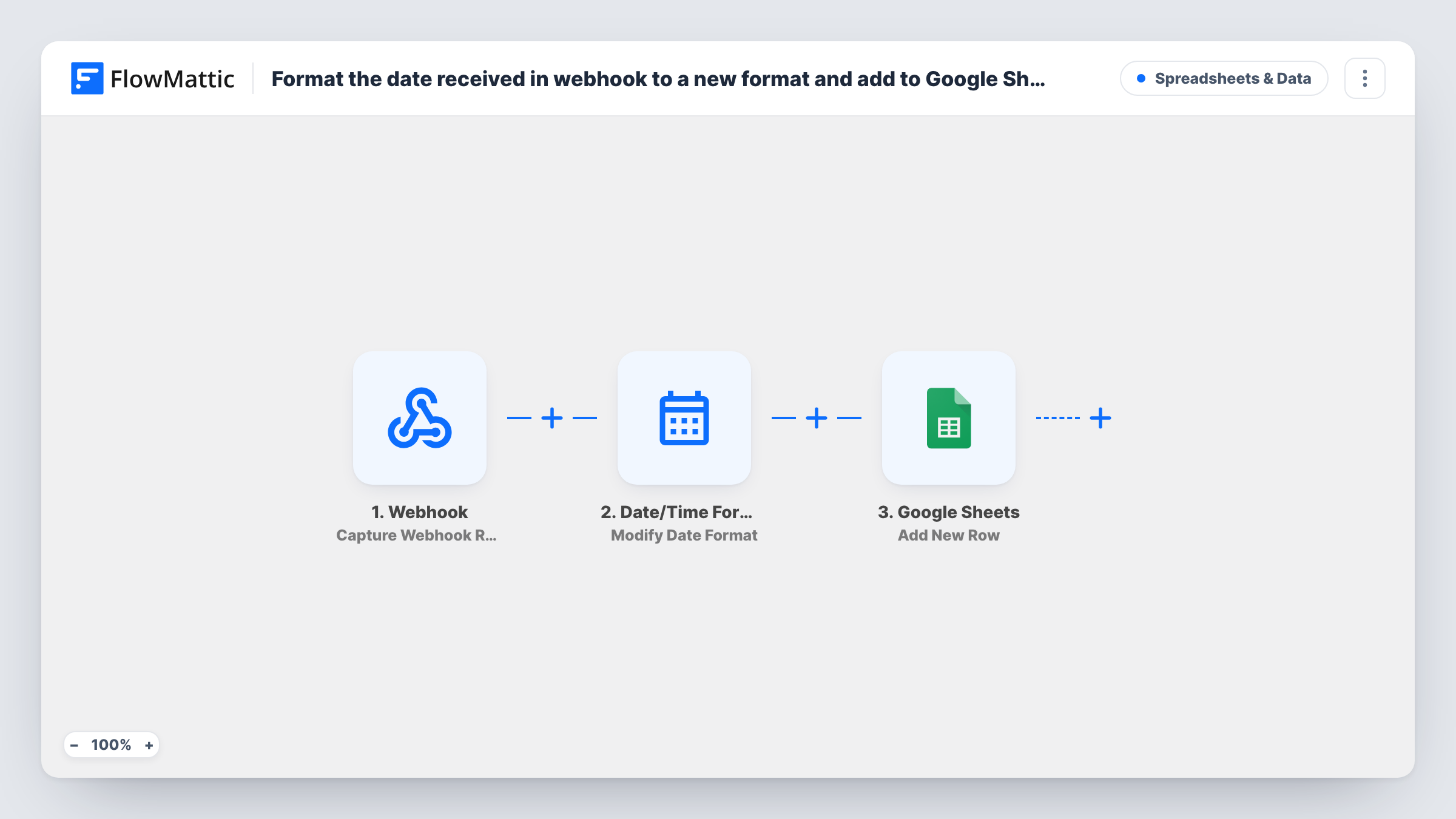
Send data with a date to a FlowMattic webhook, and this workflow converts that date to the format you choose before adding the record as a new row in Google Sheets, so the date column stays consistent.
 Webhook
 Date/Time Formatter
 Google Sheets
3 steps Setup ~5 min Used on 1.4k sites Free to import
What this workflow does
Different tools write dates differently. One sends a full timestamp, another sends day-month-year, a third uses the US order. When those values land in the same spreadsheet, sorting and filtering by date stops working. This workflow fixes the format on the way in.
The Webhook trigger gives you a URL that captures whatever data a service sends to it. The next step uses the Date/Time Formatter with its Modify Date Format action, which takes the date from the payload and returns it in the format you choose. The last step adds a row in Google Sheets, where you map the reformatted date and any other payload values to their columns.
Each request to the webhook adds one row. If a request carries no date or one the formatter cannot read, check that run in Task History to see what the formatter returned before trusting the sheet. Map the formatter's output, not the raw date, into the date column.
Combining sign-ups from several sources
Two lead sources post to the webhook with different date styles. The sheet shows every sign-up date in one format so you can sort by it.
Logging events from a custom app
Your app sends a full timestamp with each event. The formatter turns it into the plain date your team reads, then the event is logged in the sheet.
Preparing data for a report
A reporting sheet expects dates as year-month-day. Records arriving by webhook are converted first, so formulas and charts work without manual fixes.
How this workflow runs
What happens at each step once the workflow is on, and what you need before you import it.
 Webhook Capture Webhook Response
Captures each request sent to the workflow's webhook URL. Send a sample request after import so the payload, including its date value, is ready to map.
- Date/Time Formatter Modify Date Format
Takes the date from the webhook payload and returns it in a new format. Map the incoming date, then set the format you want the sheet to use.
- Google Sheets Add New Row
Writes one new Google Sheets row per request. Map the reformatted date from the previous step into the date column and the other payload values into their own columns.
What you need
- FlowMatticCore
- Google Sheets AccountAccount
After importing, map your own data. To keep the template universal, not every step is pre-filled. Open each step in the builder and connect your accounts and fields (channels, lists, sheets, recipients) before you switch the workflow on.
Make it yours
Changes worth making after you import it.
- Add a Filter after the Webhook trigger that continues only when the date value is not empty, so rows without a date never reach the sheet.
- Keep a second column with the original date from the payload while you test, so you can compare it with the formatted value side by side.
- Need more than one date changed? Add another Modify Date Format step for each extra date field before the Google Sheets step.
Questions about this workflow
Which date formats can the Date/Time Formatter produce for Google Sheets?
You pick the output format in the Modify Date Format step. Run a test with a real payload to check the result before mapping it into the sheet.
What if the webhook sends no date at all?
The formatter has nothing to convert, and the row may get an empty or unexpected date. Task History shows what happened, and a Filter can stop those requests.
Does the webhook need to come from a particular app?
No. Any service or script that can send data to a URL works, as long as the payload includes the date you want to convert.
Is the original webhook date kept in the Google Sheet?
Only if you map it. The template is built around the reformatted value, so add a column for the raw date if you want both.
More Spreadsheets & Data workflows
Other ready-to-import templates from the same category.




Import this workflow into your WordPress site
Download the JSON, import it from the Workflows screen and connect your accounts. Every run stays on your server, with no per-task fees.
30-day money-back guarantee Unlimited workflows and runs Self-hosted