

Log every completed Rendi FFmpeg command in a Google Sheets spreadsheet
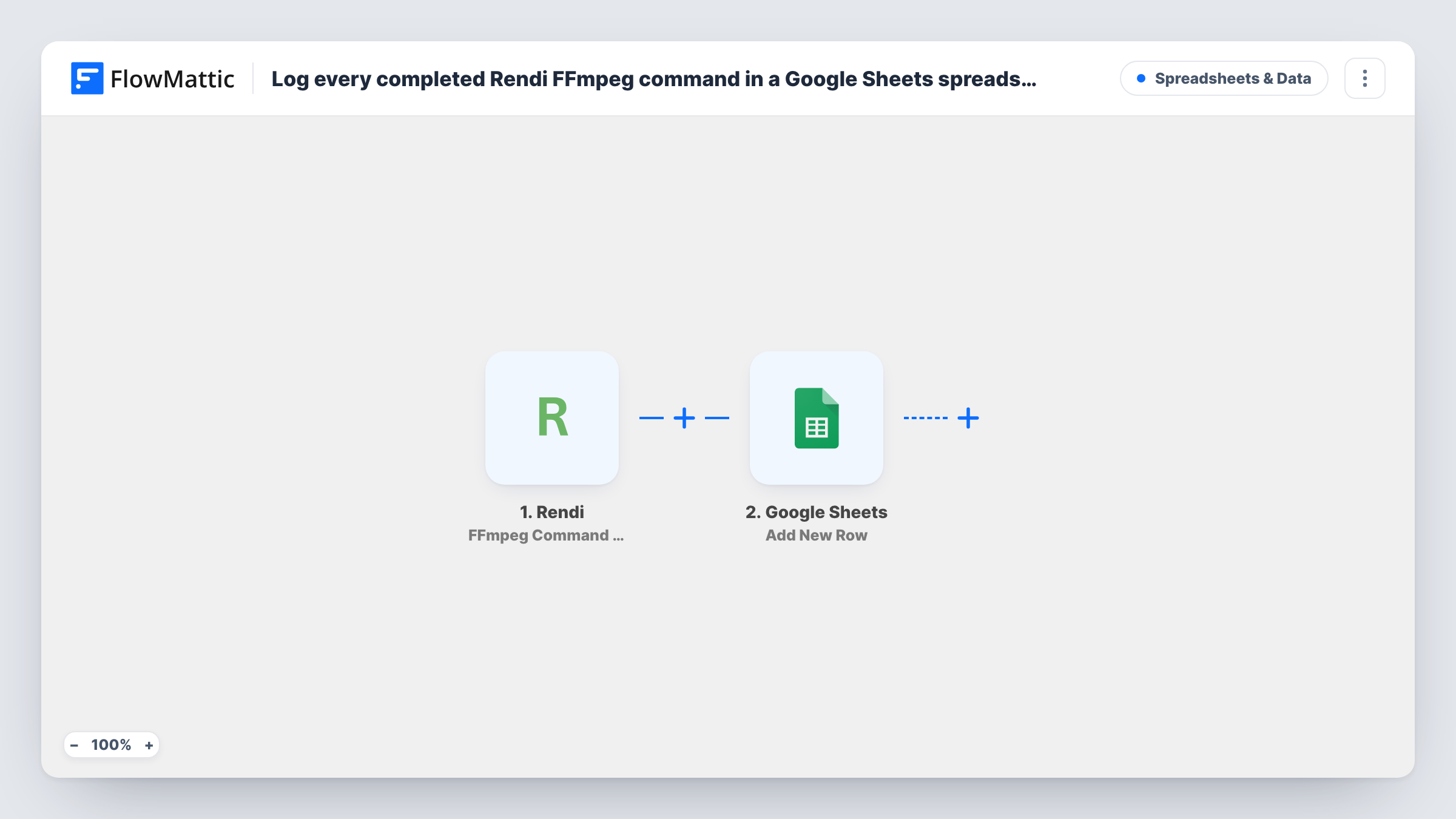
Each time an FFmpeg command finishes in Rendi, this workflow writes the details Rendi reports into a new Google Sheets row, building a log of your media processing jobs.
 Rendi
 Google Sheets
2 steps Setup ~5 min Used on 1.7k sites Free to import
What this workflow does
Rendi runs FFmpeg commands in the cloud, which is handy for converting, trimming or compressing media without your own servers. When you send many commands, you need a record of which ones finished and what they produced. This workflow keeps that record in Google Sheets.
The Rendi trigger fires when an FFmpeg command completes. FlowMattic receives the details Rendi sends about that command, and the Google Sheets Add New Row step writes them to the spreadsheet you choose. You decide which details become columns, for example an ID, a status or output file links, if Rendi includes them.
Every completion event adds a row, so the sheet grows with each job. The log only records what Rendi sends; it does not re-run or check commands. Look at the first run in Task History to see which fields are available before you set up your columns.
Audit trail for a video pipeline
A team that converts uploaded videos through Rendi keeps one sheet listing each finished command, so they can trace when a file was processed.
Collecting output links
Map any output file links Rendi sends into a column, giving editors a single sheet where they can find each processed file.
Reviewing job volume
Count rows by week in Google Sheets to see how many FFmpeg commands your workflows send to Rendi.
How this workflow runs
What happens at each step once the workflow is on, and what you need before you import it.
 Rendi FFmpeg Command Completed
Runs when an FFmpeg command completes in Rendi. The details Rendi reports for that command are passed on for mapping into the sheet.
- Google Sheets Add New Row
Adds a row for the finished command to the spreadsheet you choose. Map the Rendi details to columns and connect your Google account when you import.
What you need
- FlowMatticCore
- Rendi AccountAccount
- Google Sheets AccountAccount
After importing, map your own data. To keep the template universal, not every step is pre-filled. Open each step in the builder and connect your accounts and fields (channels, lists, sheets, recipients) before you switch the workflow on.
Make it yours
Changes worth making after you import it.
- If Rendi's data includes a status, add a Router with a route per status value, each with its own sheet step, to keep finished and failed commands in separate tabs.
- Add a Slack step after the row is added if your team also wants a message when a command finishes.
- Add a timestamp column and map a date value from the trigger data, if one is present, so you can sort jobs by completion time.
Questions about this workflow
Does every completed Rendi FFmpeg command add a row?
Yes. Each completion the trigger receives runs the Add New Row step once. There is no Filter, so add one after the trigger if you only want some commands logged.
Are failed Rendi commands logged too?
The trigger fires on command completion. Check the data from a test run for a status value; if failures arrive as completions, a Filter on that status can keep them out.
What Rendi details can go into the Google Sheet?
Whatever Rendi sends with the completion event. Run one command after import, then look in Task History for the available fields and map the ones you need.
Does this workflow start FFmpeg commands in Rendi?
No. It only reacts when a command finishes. Starting commands happens in Rendi or through another workflow.
More Spreadsheets & Data workflows
Other ready-to-import templates from the same category.




Import this workflow into your WordPress site
Download the JSON, import it from the Workflows screen and connect your accounts. Every run stays on your server, with no per-task fees.
30-day money-back guarantee Unlimited workflows and runs Self-hosted