

Add new Rippling employees to a Mailchimp internal newsletter audience
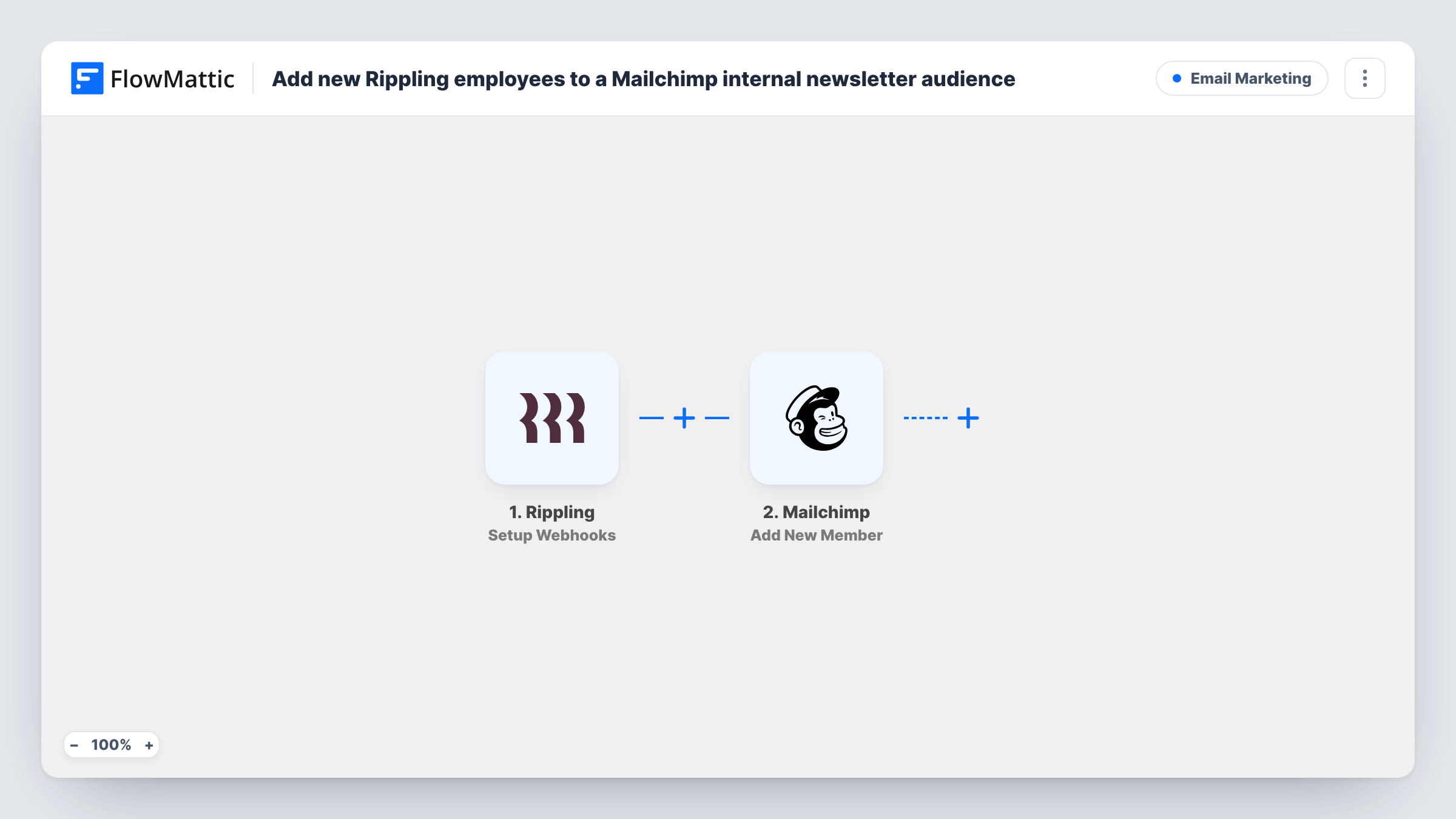
When Rippling sends FlowMattic the event you set up for new hires, this workflow adds that employee to the Mailchimp audience you use for your internal newsletter, or updates them if they are already on it.
 Rippling
 Mailchimp
2 steps Setup ~5 min Used on 2.7k sites Free to import
What this workflow does
An internal newsletter only works if new staff are on the list. When HR adds someone in Rippling and a different person manages Mailchimp, the newsletter list falls behind and new hires miss the first few issues. This workflow takes the hand-off out of the process.
The Rippling trigger is Setup Webhooks, which fires on the Rippling event you specify. For this flow, choose the event that marks a new employee, then send a test so FlowMattic captures the data Rippling includes. The Mailchimp step uses Add New Member, which adds a member to the audience you pick, or updates them if they already exist. Map the employee's work email and name from the Rippling data into it.
Nothing in the template removes people from Mailchimp when they leave. Every Rippling event that reaches the webhook runs the Mailchimp step, so if your setup sends more than new-hire events, add a Filter. Task History shows each run and what Mailchimp returned.
Company newsletter for a growing team
HR adds each hire in Rippling, and the person is on the internal newsletter audience in Mailchimp before their first issue goes out.
Onboarding email series
A Mailchimp automation tied to the internal audience sends welcome emails about benefits and tools to each new member the workflow adds.
Office news for several locations
If the Rippling data includes each person's office, map it into a Mailchimp field and segment internal updates by location.
How this workflow runs
What happens at each step once the workflow is on, and what you need before you import it.
 Rippling Setup Webhooks
Listens for whichever Rippling event you name in the trigger's webhook setup. Choose the one that marks a new employee, then send a test so the employee's details are available to map.
- Mailchimp Add New Member
Adds the employee to your chosen Mailchimp audience, or updates the member if that email is already there. Map the work email and name from the Rippling data.
What you need
- FlowMatticCore
- Rippling AccountAccount
- Mailchimp AccountAccount
After importing, map your own data. To keep the template universal, not every step is pre-filled. Open each step in the builder and connect your accounts and fields (channels, lists, sheets, recipients) before you switch the workflow on.
Make it yours
Changes worth making after you import it.
- If Rippling can also send an event when someone leaves, build a second workflow on it that uses Mailchimp's Archive Member action, so former staff drop off the internal audience.
- Add Mailchimp's Add Member Tag step after Add New Member to tag each hire, for example with their start month, so you can send a welcome issue to just that group.
- If the Rippling webhook sends events other than new hires, add a Filter after the trigger that checks the event type before the Mailchimp step runs.
Questions about this workflow
What if the Rippling employee is already in the Mailchimp audience?
Add New Member adds a new member or updates them if they already exist, so the person is not duplicated in that audience.
Which email address from Rippling should go to Mailchimp?
Whichever field you map. For an internal newsletter that is usually the work email. Check the test data from Rippling to find the right field.
Are current Rippling employees added when I turn this on?
No. The workflow reacts to events after it is live. Import your existing staff into the Mailchimp audience once, by hand or with a CSV.
Does this need a separate Mailchimp audience for staff?
The workflow adds people to whichever audience you pick in the Mailchimp step. Using a dedicated internal audience keeps staff apart from your customer lists.
More Email Marketing workflows
Other ready-to-import templates from the same category.




Import this workflow into your WordPress site
Download the JSON, import it from the Workflows screen and connect your accounts. Every run stays on your server, with no per-task fees.
30-day money-back guarantee Unlimited workflows and runs Self-hosted