

When an email with "invoice" in the subject arrives in Gmail (via IMAP), create a WooCommerce order
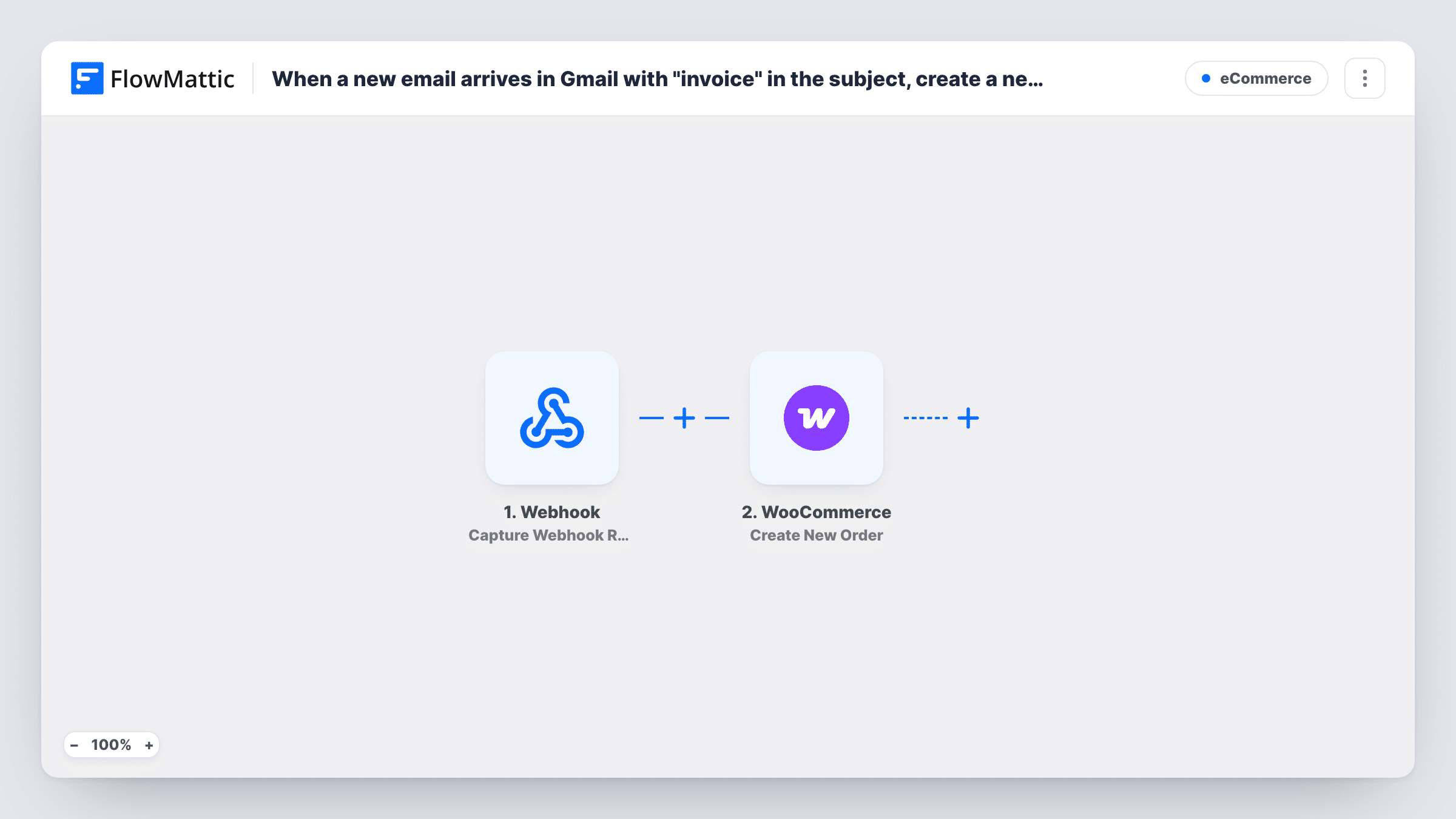
FlowMattic watches your Gmail inbox over IMAP for emails with “invoice” in the subject and creates a WooCommerce order for each one, built from the sender and email details you map.
 IMAP Email Parser
 WooCommerce
2 steps Setup ~5 min Used on 2.9k sites Free to import
What this workflow does
Some businesses get orders by email: a wholesale buyer sends an invoice or purchase request, and someone re-enters it in WooCommerce so stock, reports and fulfilment stay in one place. This workflow starts that order for you whenever such an email lands in your Gmail inbox.
The IMAP Email Parser trigger connects to your mailbox over IMAP and fires when a received email's subject contains the text you set. That text isn't filled in by the template. Enter "invoice" before turning the workflow on: in FlowMattic's IMAP app an empty subject text means no subject check, so every new email would create an order. The match ignores upper and lower case, so "Invoice" and "INVOICE" count too.
The WooCommerce Create New Order step then adds an order on your store. It ships unmapped. The trigger gives you the sender's email and name, the subject, the body as text and HTML, and attachment details, so map what fits, such as the sender as the customer. Products and amounts sit inside the email body, so you will likely need a parsing step to pull them out.
Run a test with a sample email and open Task History to check the order WooCommerce created before you rely on it.
Wholesale orders sent by email
A distributor's trade customers email invoices for restocks, and each one opens an order in WooCommerce for the warehouse team to pick.
Recording offline sales in the store
A shop that sells at markets emails itself an invoice after each sale, so those sales appear in WooCommerce reports beside online orders.
Placeholder orders that staff finish
A small team uses the created order as a placeholder that staff open, complete with products and confirm.
How this workflow runs
What happens at each step once the workflow is on, and what you need before you import it.
 IMAP Email Parser Email with Subject Contains
Fires when an email arrives in the connected Gmail inbox with the subject text you set, matched in any letter case. Set that text to "invoice" after import; left empty, any new email starts a run.
- WooCommerce Create New Order
Adds an order to your store for each matching email. The step ships unmapped: map the sender's email and name to the customer, and map items or amounts once you have pulled them from the email body.
What you need
- FlowMatticCore
- WooCommerce PluginPlugin
After importing, map your own data. To keep the template universal, not every step is pre-filled. Open each step in the builder and connect your accounts and fields (channels, lists, sheets, recipients) before you switch the workflow on.
Make it yours
Changes worth making after you import it.
- Put a Text Formatter or AI step between the IMAP trigger and Create New Order to pull the product, quantity and total out of the email body, then map those values into the order.
- Use a more specific subject text than "invoice", such as "Purchase invoice", if your inbox also gets newsletters or receipts that mention invoices.
- Connect a dedicated Gmail address for orders, so personal or support email never reaches this workflow.
Questions about this workflow
How does FlowMattic connect to Gmail for this workflow?
Through the IMAP Email Parser app, which reads the mailbox over IMAP. Gmail must have IMAP access available, and you sign in with the account's IMAP details, usually an app password.
Does an email with the subject "INVOICE 2041" start the workflow?
Yes. FlowMattic matches the subject text without regard to letter case, so that subject counts. Longer words that contain the text, such as "invoices", match as well.
Can the WooCommerce order include the products from the email?
Only if you extract them. The trigger passes the body as text and HTML, not as order lines, so add a parsing step between the trigger and the order step and map its output.
What if the sender isn't a customer in my WooCommerce store?
Map the sender's name and email into the order either way, then run a test with an address your store hasn't seen and check how WooCommerce saved that order.
More E-Commerce workflows
Other ready-to-import templates from the same category.






Import this workflow into your WordPress site
Download the JSON, import it from the Workflows screen and connect your accounts. Every run stays on your server, with no per-task fees.
30-day money-back guarantee Unlimited workflows and runs Self-hosted