

Send a Slack alert to the fulfillment team for every new Fourthwall order
Each order placed in your Fourthwall shop posts a message in the Slack channel your fulfillment team uses, so packing can start without anyone watching the Fourthwall dashboard.
 Fourthwall
 Slack
2 steps Setup ~5 min Used on 1.9k sites Free to import
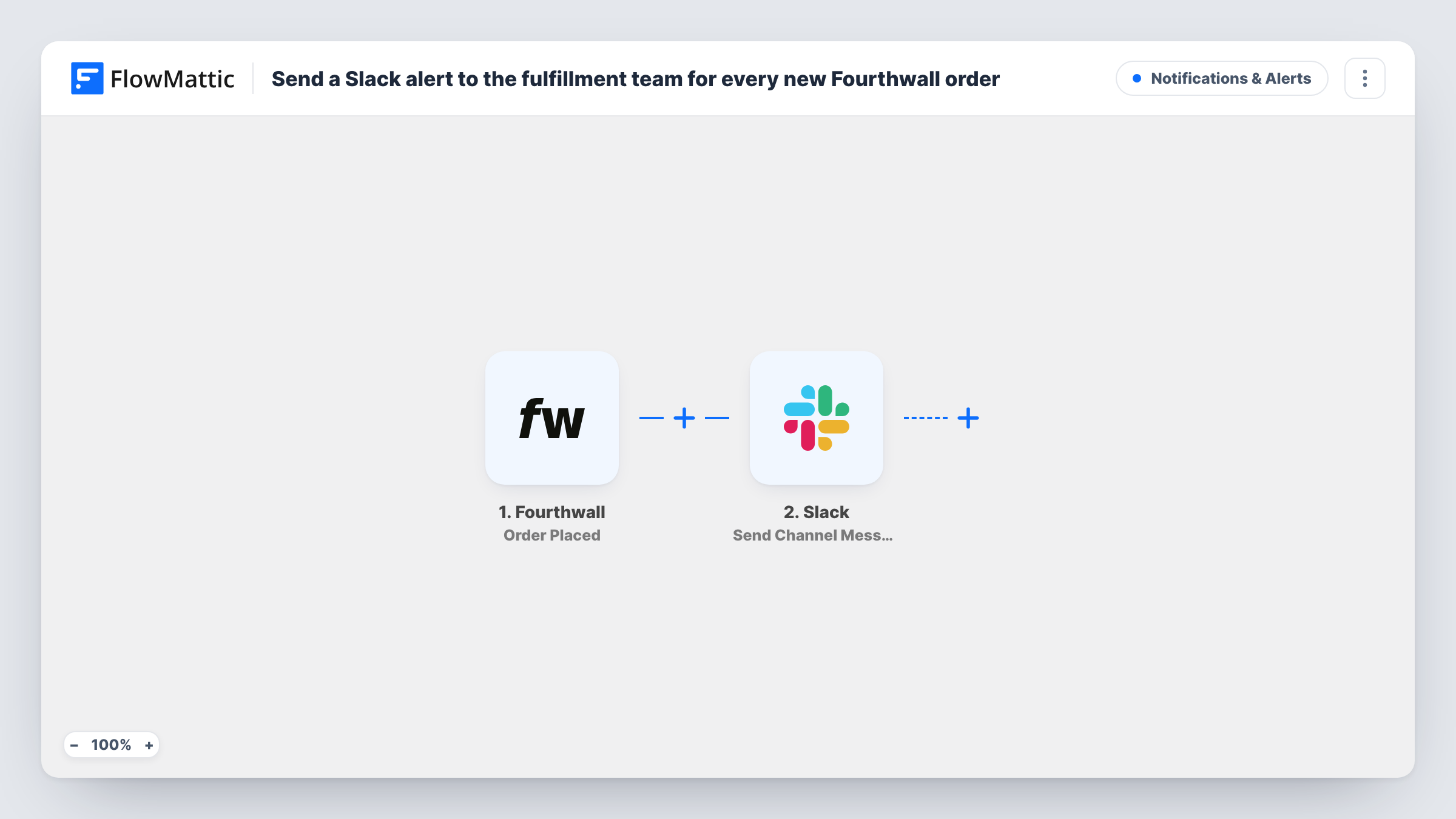
What this workflow does
If your team packs or ships Fourthwall orders themselves, they need to know what has been bought. Checking the shop dashboard through the day is easy to forget. This workflow brings each new order into the Slack channel where your fulfillment team already works.
The Fourthwall trigger is Order Placed, which fires when an order is placed in your shop. The order data Fourthwall sends becomes available to map. FlowMattic then posts in your Slack channel with Send Channel Message, using text you write and the order details you add, such as the items, quantities and shipping name.
There is one Slack post per order and no Filter, so every order reaches the channel. Later changes to the order are not posted, because Order Placed fires only when the order is first placed.
Self-fulfilled merch drops
A band packing its own shirts sees each Fourthwall order in a #fulfillment channel, with sizes and quantities in the message, and works through them in order.
Handmade items with a maker
A creator's partner who makes each piece to order watches Slack and starts on an item as soon as its order message appears.
Part-time packing help
A helper who comes in twice a week scrolls the Slack channel to see every order placed since their last shift.
How this workflow runs
What happens at each step once the workflow is on, and what you need before you import it.
 Fourthwall Order Placed
Fires when an order is placed in your Fourthwall shop. That order's data, such as the items and buyer, can be mapped into the Slack message.
- Slack Send Channel Message
Posts a message in the Slack channel you pick for each Fourthwall order. Write the text and map in the details your packers need, like item names and quantities.
What you need
- FlowMatticCore
- Fourthwall AccountAccount
- Slack AccountAccount
After importing, map your own data. To keep the template universal, not every step is pre-filled. Open each step in the builder and connect your accounts and fields (channels, lists, sheets, recipients) before you switch the workflow on.
Make it yours
Changes worth making after you import it.
- Add a Filter on the product field if your team only ships some items, so orders handled elsewhere stay out of the channel.
- Build a second workflow from Fourthwall's Order Updated trigger if your team also needs to hear about changes to existing orders.
- Add a Google Sheets step after Slack so each order also becomes a row your team can mark as packed.
Questions about this workflow
Does the Slack alert show what was in the Fourthwall order?
It shows whatever order fields you map into the message. Place or wait for a test order, then check Task History to see the item details Fourthwall sends.
Will the team hear when a Fourthwall order is changed or cancelled?
No. This workflow uses Order Placed only. Fourthwall's Order Updated trigger is available in FlowMattic if you want a separate alert for changes.
Can the order alert go to a private Slack channel?
As shipped, the Fourthwall order goes out with Send Channel Message. For a private channel, swap in Slack's Send Private Channel Message action, which FlowMattic also offers.
More Notifications & Alerts workflows
Other ready-to-import templates from the same category.



Import this workflow into your WordPress site
Download the JSON, import it from the Workflows screen and connect your accounts. Every run stays on your server, with no per-task fees.
30-day money-back guarantee Unlimited workflows and runs Self-hosted