

When a new post is published in WordPress, compress its featured image
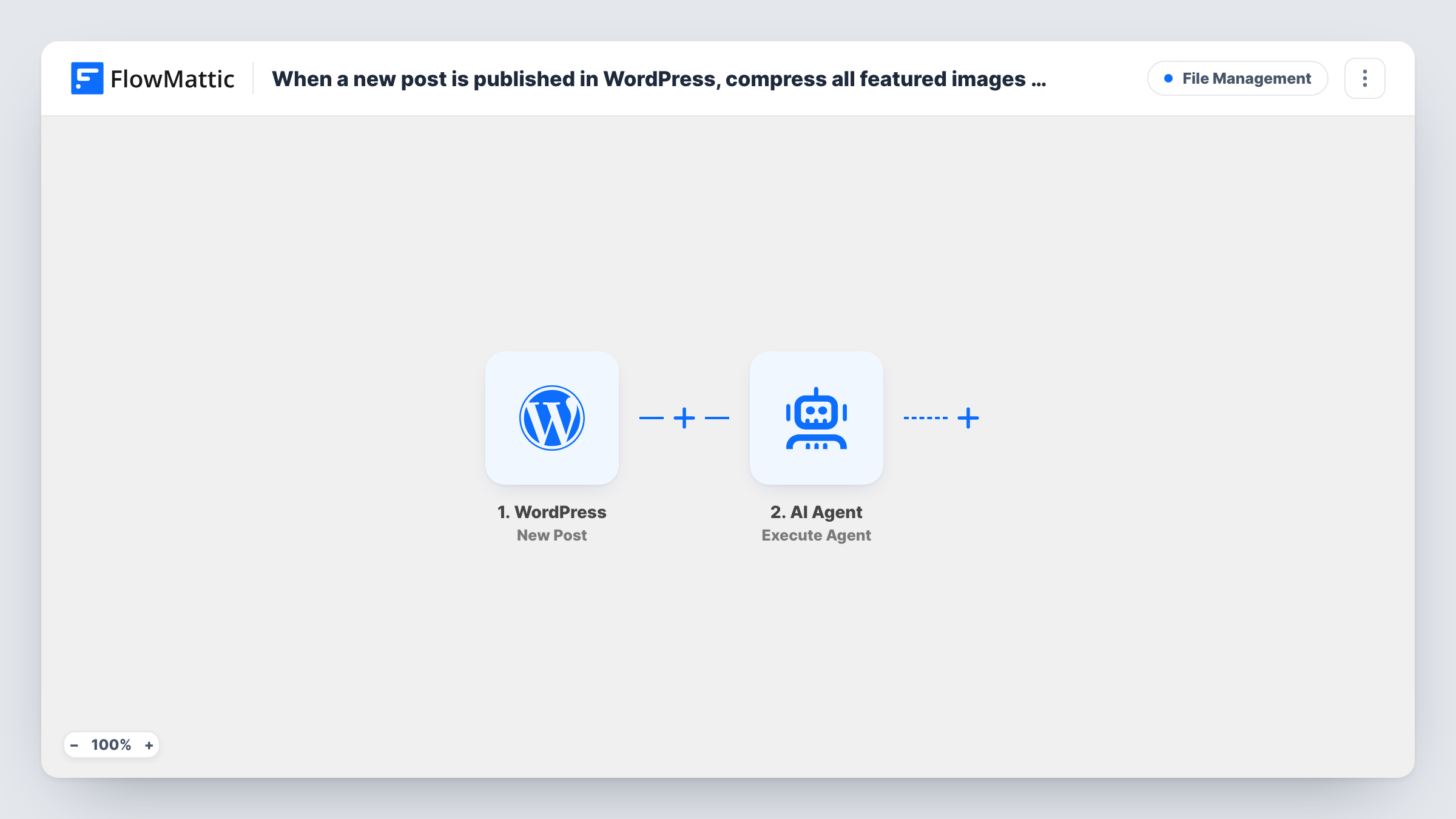
When a WordPress post is published for the first time, FlowMattic checks it has a featured image and, if so, saves a compressed copy of that image to your media library.
 WordPress
 Filter
 Image Compressor
3 steps Setup ~5 min Used on 3.0k sites Free to import
What this workflow does
Featured images are often uploaded at full size, straight from a camera or a design tool, and they show up on archive pages, social shares and the post itself. This workflow makes a lighter version of each new post's featured image as soon as the post goes live, so you have an optimised file ready without opening an image editor.
A run starts when a WordPress post reaches the published status for the first time. Edits to a post that is already live don't fire it, and pages never do. Posts of custom types start runs as well, unless the trigger's post type setting narrows it to a single type. The post's data includes the featured image URL when the post has one.
A Filter then continues only when that featured image value is not empty, so posts published without one stop here. For the rest, the Image Compressor step takes the featured image URL, already mapped in the template, and saves a compressed copy to the media library.
The compressed copy is a new file. The post keeps its original featured image, so swap it in yourself or add a step that sets it. Task History shows the media URL of each compressed copy.
Lighter images for a busy blog
A food blogger publishes several posts a week with large photos, and each featured image gets a compressed copy to reuse in newsletters and social posts.
News site with many authors
An online magazine whose writers upload featured images at any size keeps a compressed version of every new post's image in the media library.
Portfolio posts with big artwork
A designer who publishes project write-ups as posts gets a compressed version of each project's featured image for faster gallery pages.
How this workflow runs
What happens at each step once the workflow is on, and what you need before you import it.
 WordPress New Post
Fires once when a post is first published. Updates to live posts don't fire it, and pages never do. The post data, including the featured image URL when one is set, passes to the Filter.
- Filter Continue If Condition Meet
Continues only when the post's featured image is not empty. Posts published without a featured image stop here, so nothing is compressed for them.
- Image Compressor Compress Image
Downloads the featured image from the URL mapped in the template, compresses it and saves the result to the WordPress media library as a new file. The original image and the post are not changed.
What you need
- FlowMatticCore
After importing, map your own data. To keep the template universal, not every step is pre-filled. Open each step in the builder and connect your accounts and fields (channels, lists, sheets, recipients) before you switch the workflow on.
Make it yours
Changes worth making after you import it.
- To use the smaller file on the post, add the WordPress Set Post Thumbnail action after the Image Compressor step, map the post and the compressed file into it, and test on one post first.
- If you only want this for one content type, set the New Post trigger's post type to it, so custom post types don't start runs.
- Look at the first few compressed images in the media library and compare their quality with the originals before you leave the workflow running.
Questions about this workflow
Does editing a published WordPress post compress its featured image again?
No. The trigger reacts only to a post's first publication, never to later saves of a live post. Changing the featured image on a live post later doesn't start a run.
Is the post's featured image replaced with the compressed one?
Not as imported. Image Compressor saves a new file in the media library and leaves the post alone. Add a step that sets the featured image if you want the swap made for you.
What happens to posts published without a featured image?
They stop at the Filter, because its condition checks that the featured image is not empty. Image Compressor runs only for posts that have one.
Are images inside the post content compressed too?
No. Only the featured image is mapped into the Image Compressor step. Images placed in the post body are left as they are.
More File Management workflows
Other ready-to-import templates from the same category.







Import this workflow into your WordPress site
Download the JSON, import it from the Workflows screen and connect your accounts. Every run stays on your server, with no per-task fees.
30-day money-back guarantee Unlimited workflows and runs Self-hosted