

When a new lead is created in Pagemaker, send a notification via WhatsApp Cloud API
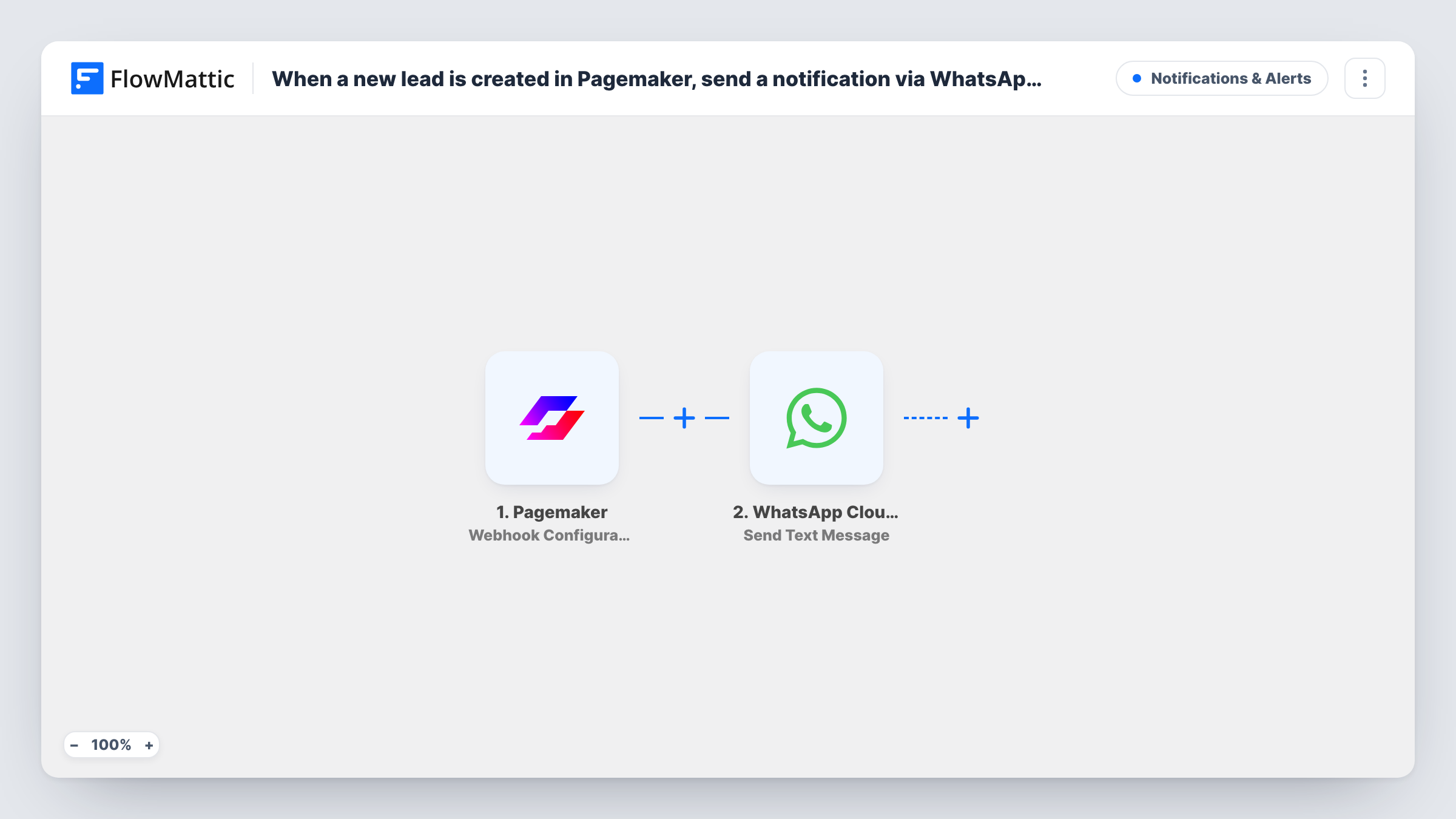
When a lead comes in through a Pagemaker landing page form, this workflow sends a WhatsApp text through the WhatsApp Cloud API to the number you set, with the lead’s details in the message.
 Pagemaker
 WhatsApp Cloud API
2 steps Setup ~5 min Used on 2.4k sites Free to import
What this workflow does
Leads from a landing page are worth most in the first minutes after they arrive. If the only alert is an email or a dashboard, nobody may notice until later. This workflow sends a WhatsApp message instead, so the lead's details reach a phone.
The Pagemaker trigger is Webhook Configuration, which fires when a lead is created from the landing page form. The lead data Pagemaker sends, such as name, email and phone, can be mapped. FlowMattic then calls Send Text Message in the WhatsApp Cloud API, using your Meta business number to send the text you write to the recipient number you set.
Be aware of one WhatsApp rule. Free-form text is only delivered within 24 hours of the recipient messaging your business number. A teammate who has not written to that number recently, or a new lead, will usually not receive it. For dependable delivery, switch to Send Template Message with a template WhatsApp has approved.
Sales rep on the road
A rep who keeps a running chat with the business number gets each Pagemaker lead's name and phone number on WhatsApp and can call them back from the car.
Ad campaign launch day
During a paid campaign, the marketer watches WhatsApp for the leads each landing page brings in, without refreshing the Pagemaker dashboard.
Local service business
A plumber's landing page form sends each enquiry to the owner's WhatsApp so they can reply between jobs.
How this workflow runs
What happens at each step once the workflow is on, and what you need before you import it.
 Pagemaker Webhook Configuration
Fires when a lead is created from a Pagemaker landing page form. The lead's fields, such as name, email and phone, are passed on to the WhatsApp step.
- WhatsApp Cloud API Send Text Message
Sends a WhatsApp text through the Cloud API to the number you set. Map in the lead's details. Free-form text only arrives if the recipient messaged your business number in the last 24 hours.
What you need
- FlowMatticCore
- Pagemaker AccountAccount
- WhatsApp Cloud API AccountAccount
After importing, map your own data. To keep the template universal, not every step is pre-filled. Open each step in the builder and connect your accounts and fields (channels, lists, sheets, recipients) before you switch the workflow on.
Make it yours
Changes worth making after you import it.
- Switch this step to WhatsApp Cloud API's Send Template Message with an approved template if the recipient has not messaged your business number in the last 24 hours.
- Add a Filter after the trigger if only some Pagemaker leads deserve a WhatsApp alert, for example ones whose phone field is not empty.
- Add a Google Sheets step to keep a log of every Pagemaker lead, so nothing depends on the WhatsApp message alone.
Questions about this workflow
Why did a Pagemaker lead alert not arrive on WhatsApp?
WhatsApp only delivers free-form text to someone who messaged your business number in the last 24 hours. Check Task History for the Cloud API's reply, and switch to an approved template message if the window has closed.
Can I send the WhatsApp message to the lead instead of my team?
You can map the lead's phone number as the recipient, but a new lead has not messaged you, so free-form text will usually not reach them. Use Send Template Message with an approved template for that.
Do I need a Meta business account for the WhatsApp Cloud API?
Yes. The Cloud API sends from a WhatsApp business number set up through Meta, which you connect to FlowMattic before the step can send.
Are Pagemaker leads from before the import sent?
No. Only leads created after the workflow is turned on send a message.
More Notifications & Alerts workflows
Other ready-to-import templates from the same category.





Import this workflow into your WordPress site
Download the JSON, import it from the Workflows screen and connect your accounts. Every run stays on your server, with no per-task fees.
30-day money-back guarantee Unlimited workflows and runs Self-hosted