

Send a Slack alert when an EasySend transaction is completed
When every step of an EasySend transaction is done, this workflow posts a message to a Slack channel you choose, so the people waiting on that form or signature know it is finished.
 EasySend
 Slack
2 steps Setup ~5 min Used on 1.5k sites Free to import
What this workflow does
An EasySend transaction can pass through several steps before it is complete, and the team that acts next often only finds out by checking. A Slack message at the moment it finishes saves that checking. This workflow sends one for every completed transaction.
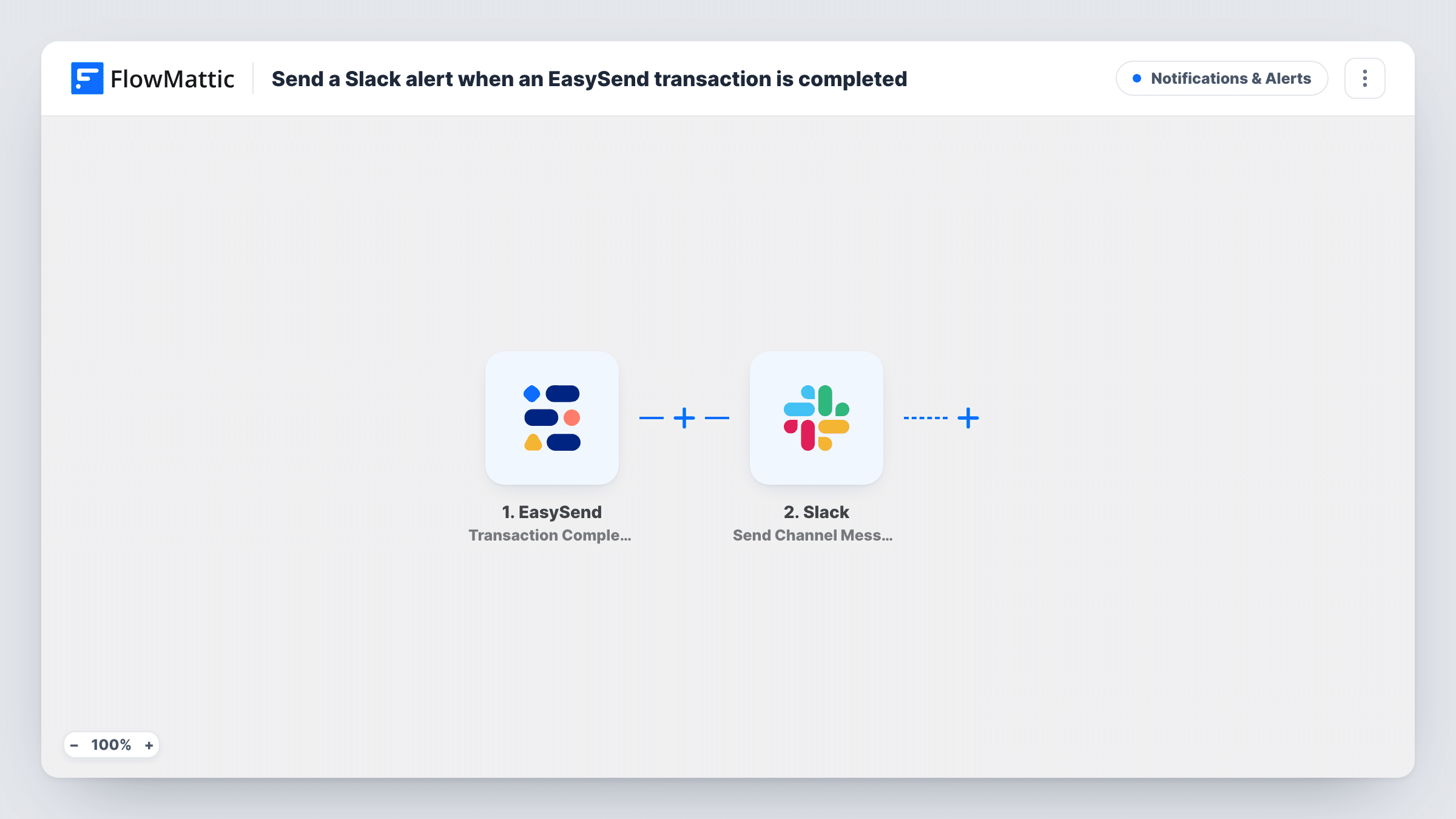
The EasySend trigger fires when an entire transaction is completed, meaning all of its steps are done. FlowMattic passes the transaction data to the Slack step, which posts a message to the channel you pick. You write the message text and drop in EasySend fields, such as who completed it or which process it belongs to, from the data captured in a test.
Transactions still in progress do not start a run, so the channel only hears about finished ones. Task History keeps a record of each run and what was posted.
Insurance claim forms
A claims team gets a Slack message when a customer finishes every step of a claim transaction in EasySend, so a handler can start the review.
Account opening at a bank or lender
Once an applicant completes the full onboarding flow, the operations channel is told it is ready for checks.
Signed agreements for a sales team
When a client completes an agreement transaction, the deal channel gets the news and the account manager can move to the next stage.
How this workflow runs
What happens at each step once the workflow is on, and what you need before you import it.
 EasySend Transaction Completed
Runs when a whole EasySend transaction is completed, with all its steps done. The transaction data is passed on for use in the Slack message.
- Slack Send Channel Message
Sends the completion notice to a Slack channel of your choosing. Connect your Slack workspace, pick the channel and write the text, adding EasySend fields that identify the transaction.
What you need
- FlowMatticCore
- EasySend AccountAccount
- Slack AccountAccount
After importing, map your own data. To keep the template universal, not every step is pre-filled. Open each step in the builder and connect your accounts and fields (channels, lists, sheets, recipients) before you switch the workflow on.
Make it yours
Changes worth making after you import it.
- Complete one test transaction in EasySend after import so FlowMattic captures its fields, then build the Slack message from them.
- Use a Router with a Slack step on each route when different processes should alert different channels, with each route matching a value that tells the processes apart.
- Add a second action after Slack, such as a Google Sheets row, if you also want a running log of completed transactions.
Questions about this workflow
Does Slack get a message for each step of an EasySend transaction?
No. The trigger fires once the entire transaction is completed, not at each step along the way.
Can the Slack message mention a person?
The message is text you write, with EasySend fields mapped in. Use Slack's own mention format in that text if you want to tag someone, and check the result with a test.
Which EasySend and Slack accounts does this need?
An EasySend account whose transactions you want to watch, and a Slack workspace where FlowMattic can post to the channel you pick.
More Notifications & Alerts workflows
Other ready-to-import templates from the same category.




Import this workflow into your WordPress site
Download the JSON, import it from the Workflows screen and connect your accounts. Every run stays on your server, with no per-task fees.
30-day money-back guarantee Unlimited workflows and runs Self-hosted