

Log each executed Pushcut action in a Google Sheets spreadsheet
Every time an action is executed in Pushcut, this workflow adds a row to a Google Sheets spreadsheet with the details you map, building a running record of which notification actions were tapped and run.
 Pushcut
 Google Sheets
2 steps Setup ~5 min Used on 1.9k sites Free to import
What this workflow does
Pushcut puts actions on your phone's notifications, so a task runs with a tap. Once the tap is done, there is no easy list of what you ran. This workflow writes each executed action into a spreadsheet so you can see what ran over time.
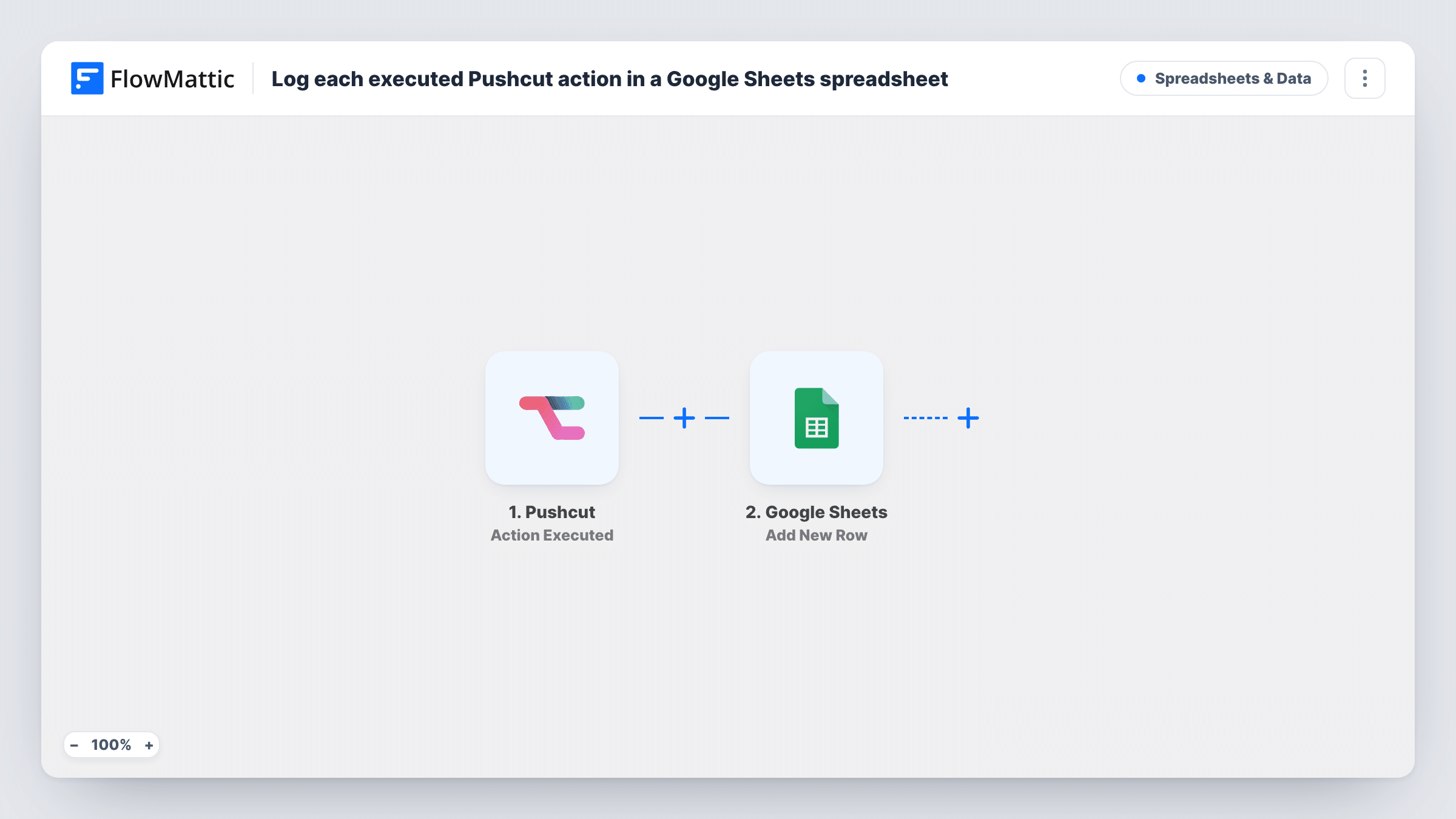
The Pushcut trigger fires when an action is executed, and the event's details reach FlowMattic as fields. The Google Sheets step then runs Add New Row on the spreadsheet you select, with those details mapped to your columns.
Each executed action adds exactly one row, and existing rows are never edited, so the sheet works as an append-only log. Check a test run to see whether Pushcut sends a timestamp you can map into a date column. Task History shows every run with the data received and the row created.
Approval taps from your phone
You approve requests from a Pushcut notification. The sheet lists the approvals you tapped, ready for the weekly review with your team.
Home automation history
Actions you run through Pushcut for your smart home are logged, so you can see how often each one is used and spot any you never touch.
Personal habit tracking
A daily Pushcut reminder has a Done action. Each tap adds a row, so the sheet fills up as you keep the habit; map a date field if the event provides one.
How this workflow runs
What happens at each step once the workflow is on, and what you need before you import it.
 Pushcut Action Executed
Fires when an action is executed in Pushcut. The details Pushcut sends about that action become fields you can map into the sheet.
- Google Sheets Add New Row
Adds one row to the Google Sheets spreadsheet you choose for each executed action. Connect your Google account and map the Pushcut details to your column headers.
What you need
- FlowMatticCore
- Pushcut AccountAccount
- Google Sheets AccountAccount
After importing, map your own data. To keep the template universal, not every step is pre-filled. Open each step in the builder and connect your accounts and fields (channels, lists, sheets, recipients) before you switch the workflow on.
Make it yours
Changes worth making after you import it.
- Run one Pushcut action after import so FlowMattic captures what Pushcut sends, then build your sheet's header row around those fields.
- Add a Google Sheets column for the Pushcut action's name if the event carries it, then sort or filter the sheet by that column to count how often each action runs.
- If you only care about one action, add a Filter after the trigger that continues only when the action's name matches, keeping the log focused.
Questions about this workflow
Which Pushcut action details reach the Google Sheets row?
The ones Pushcut includes with the Action Executed event, mapped to columns you pick. Execute a test action and check Task History to see exactly what arrives.
Does every Pushcut action executed get its own row?
Yes. Each time the trigger fires, the Google Sheets step adds a new row. Nothing is merged or overwritten.
Can I see actions that ran before I imported the workflow?
No. The log starts with the first action executed after you switch the workflow on.
What accounts does the Pushcut to Google Sheets log need?
Your Pushcut account for the trigger and a Google account with edit access to the spreadsheet the rows go into.
More Spreadsheets & Data workflows
Other ready-to-import templates from the same category.





Import this workflow into your WordPress site
Download the JSON, import it from the Workflows screen and connect your accounts. Every run stays on your server, with no per-task fees.
30-day money-back guarantee Unlimited workflows and runs Self-hosted