

Log every new Weezly booking to a Google Sheets spreadsheet
Each time an invitee schedules an event through Weezly, this workflow adds the booking as a new row in Google Sheets, building a running list of appointments you can sort, count and share.
 Weezly
 Google Sheets
2 steps Setup ~5 min Used on 2.8k sites Free to import
What this workflow does
Booking tools show what is coming up, but they are less handy for looking back. How many bookings came in last month, or which service people picked most, are questions a spreadsheet answers quickly. This workflow keeps that spreadsheet filled.
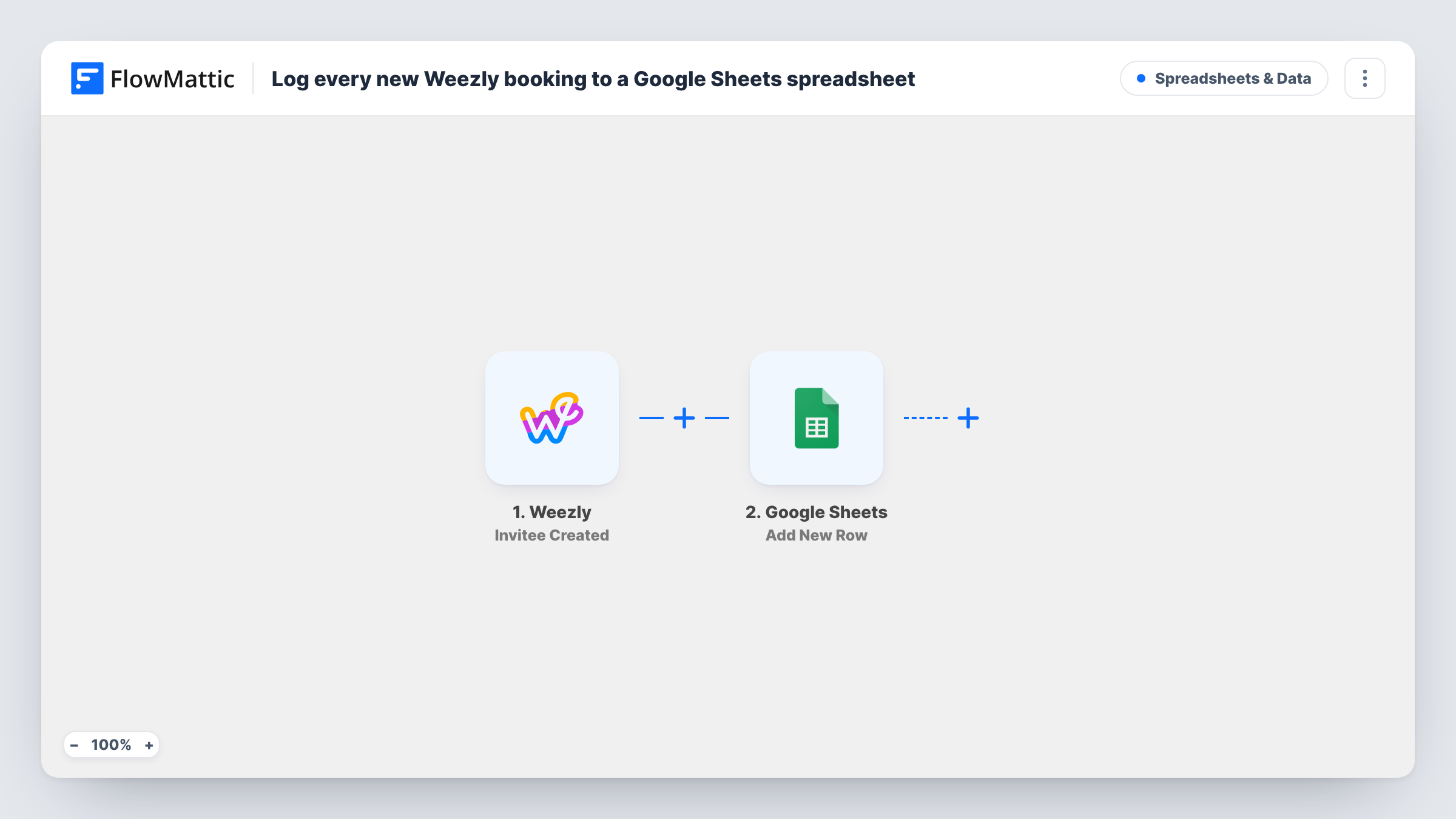
The Weezly trigger, Invitee Created, starts a run whenever someone books a slot with you. FlowMattic sends the booking data to Google Sheets, and Add New Row writes it to the sheet you choose, with each detail in the column you map.
Every booking adds a row, and nothing is ever updated or removed. A cancelled booking keeps its row, so add a status column if you want to mark cancellations by hand or with a second workflow. Task History shows each run and the values sent to the sheet.
Monthly booking report
A coach totals sessions per month with a pivot table built on the Weezly rows.
Sharing bookings with a bookkeeper
A bookkeeper who has no Weezly access checks the sheet to match sessions against invoices.
Spotting popular time slots
A small studio sorts the booking times in the sheet to see which hours fill first and plans staff around them.
How this workflow runs
What happens at each step once the workflow is on, and what you need before you import it.
 Weezly Invitee Created
Runs for every new Weezly invitee, the moment their booking is made. The booking details are captured so they can be written to the sheet.
- Google Sheets Add New Row
Appends a row to the Google Sheets spreadsheet you select for each Weezly booking. Connect your Google account, pick the sheet and map the booking details to its columns.
What you need
- FlowMatticCore
- Weezly AccountAccount
- Google Sheets AccountAccount
After importing, map your own data. To keep the template universal, not every step is pre-filled. Open each step in the builder and connect your accounts and fields (channels, lists, sheets, recipients) before you switch the workflow on.
Make it yours
Changes worth making after you import it.
- Add a Status column and a second workflow on Weezly's Invitee Canceled trigger that adds a row marked Cancelled, so the sheet records both bookings and cancellations.
- Map the booking time into its own column, separate from the date the row was added, so you can sort by appointment time.
- Book a test appointment after import so FlowMattic captures Weezly's fields, then map them before turning the workflow on.
Questions about this workflow
Are past Weezly bookings copied into the sheet?
No. Rows are added only for invitees who schedule after the workflow is on.
What happens to the row when a Weezly booking is cancelled?
Nothing. The row stays as it was. Use the Invitee Canceled trigger in another workflow if you want cancellations recorded.
Can I choose which Weezly booking details go in the sheet?
Yes. Only the columns you map are filled. Leave out any detail you don't want stored.
More Spreadsheets & Data workflows
Other ready-to-import templates from the same category.



Import this workflow into your WordPress site
Download the JSON, import it from the Workflows screen and connect your accounts. Every run stays on your server, with no per-task fees.
30-day money-back guarantee Unlimited workflows and runs Self-hosted