

When a new form submission is received in forms.app, send a confirmation email via Gmail
When someone submits a forms.app form, this workflow emails them a confirmation through FlowMattic’s Email step, which sends with WordPress mail or an SMTP server you set, such as Gmail’s. The address comes from the form.
 forms.app
 Email
2 steps Setup ~5 min Used on 540 sites Free to import
What this workflow does
People who fill in a form want to know it arrived. A confirmation email from your own address does that and gives them a copy of what they sent. This workflow sends one each time a forms.app form is submitted.
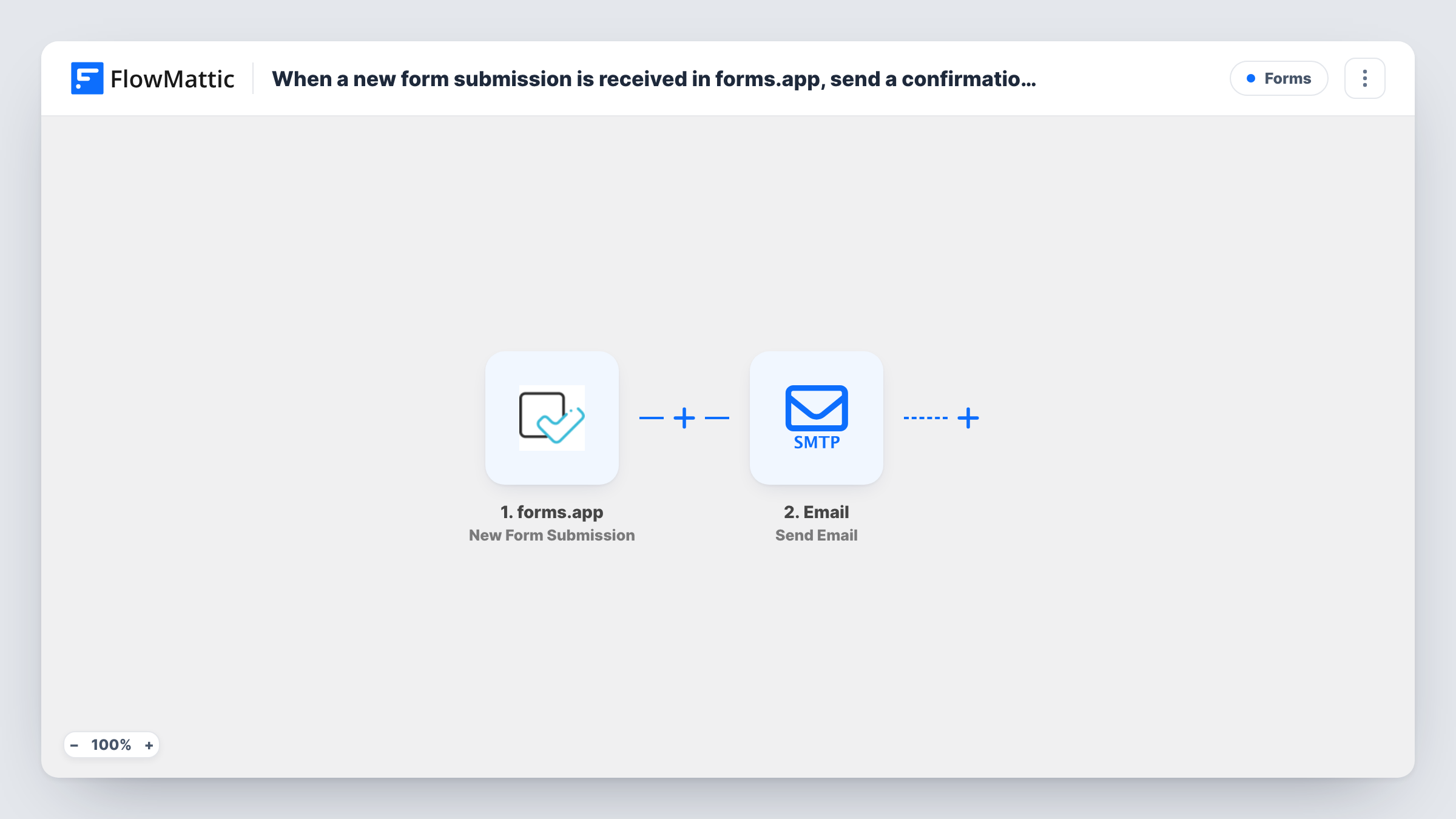
The forms.app trigger fires when a new submission is received for a form, and the answers become fields in FlowMattic. The second step is FlowMattic's Email module with Send Email. It sends either through WordPress's built-in mail function or through a custom SMTP server. You map the respondent's email address as the recipient and write the message with their answers in it.
The template doesn't use the Gmail app step. To send from a Gmail address, enter Gmail's SMTP server details in the Email step, or replace it with the Gmail app's Send Email action and connect your Google account. Each email sent is listed in Task History.
Event registration receipts
Attendees who register through a forms.app form get an email repeating the session they chose, which they can keep until the day.
Quote and enquiry acknowledgements
A small business replies to every enquiry form at once, telling the sender their request arrived and when to expect a reply.
Survey thank-you notes
Respondents to a customer survey receive a short thank-you email from your own address after they submit.
How this workflow runs
What happens at each step once the workflow is on, and what you need before you import it.
 forms.app New Form Submission
Fires when a new submission is received for your forms.app form. Every answer, including the respondent's email, becomes a field to map.
 Email Send Email
Sends an email using WordPress mail or a custom SMTP server you configure. Put the respondent's email address in the recipient, write the subject and body, and include their answers.
What you need
- FlowMatticCore
- forms.app AccountAccount
After importing, map your own data. To keep the template universal, not every step is pre-filled. Open each step in the builder and connect your accounts and fields (channels, lists, sheets, recipients) before you switch the workflow on.
Make it yours
Changes worth making after you import it.
- Make the email question required in forms.app, so every submission has an address the confirmation can go to.
- To send from your Gmail account, swap this step for the Gmail app's Send Email action, or enter Gmail's SMTP details in the Email step.
- Add a second Email step that sends the same answers to your own inbox, so you get a copy of every forms.app submission too.
Questions about this workflow
Does this forms.app workflow send through Gmail?
Not by default. It uses FlowMattic's Email step, which sends with WordPress mail or a custom SMTP server. Use Gmail's SMTP details there, or switch to the Gmail app's Send Email action.
Where does the confirmation address come from?
From the email answer in the forms.app submission, which you map as the recipient. Send a test submission so the field shows up for mapping.
Can the confirmation repeat the person's forms.app answers?
Yes. Every answer from the submission is available in the Email step, so place the ones you want in the subject or body. Leave out anything sensitive you'd rather not send by email.
Are forms.app responses from before the import emailed?
No. Only submissions received after you turn the workflow on get a confirmation.
More Forms workflows
Other ready-to-import templates from the same category.







Import this workflow into your WordPress site
Download the JSON, import it from the Workflows screen and connect your accounts. Every run stays on your server, with no per-task fees.
30-day money-back guarantee Unlimited workflows and runs Self-hosted