

Send WhatsApp Notifications messages for new JetFormBuilder submissions
Each JetFormBuilder submission on your WordPress site sends a WhatsApp text message through the WhatsApp Cloud API, built from the form answers. Read the 24-hour messaging rule below before relying on it.
 JetFormBuilder
 WhatsApp Cloud API
2 steps Setup ~5 min Used on 2.5k sites Free to import
What this workflow does
Form notifications usually arrive by email, where they compete with everything else in the inbox. A WhatsApp message is harder to overlook. This workflow sends one for each JetFormBuilder entry, using your own WhatsApp Business number through the Cloud API.
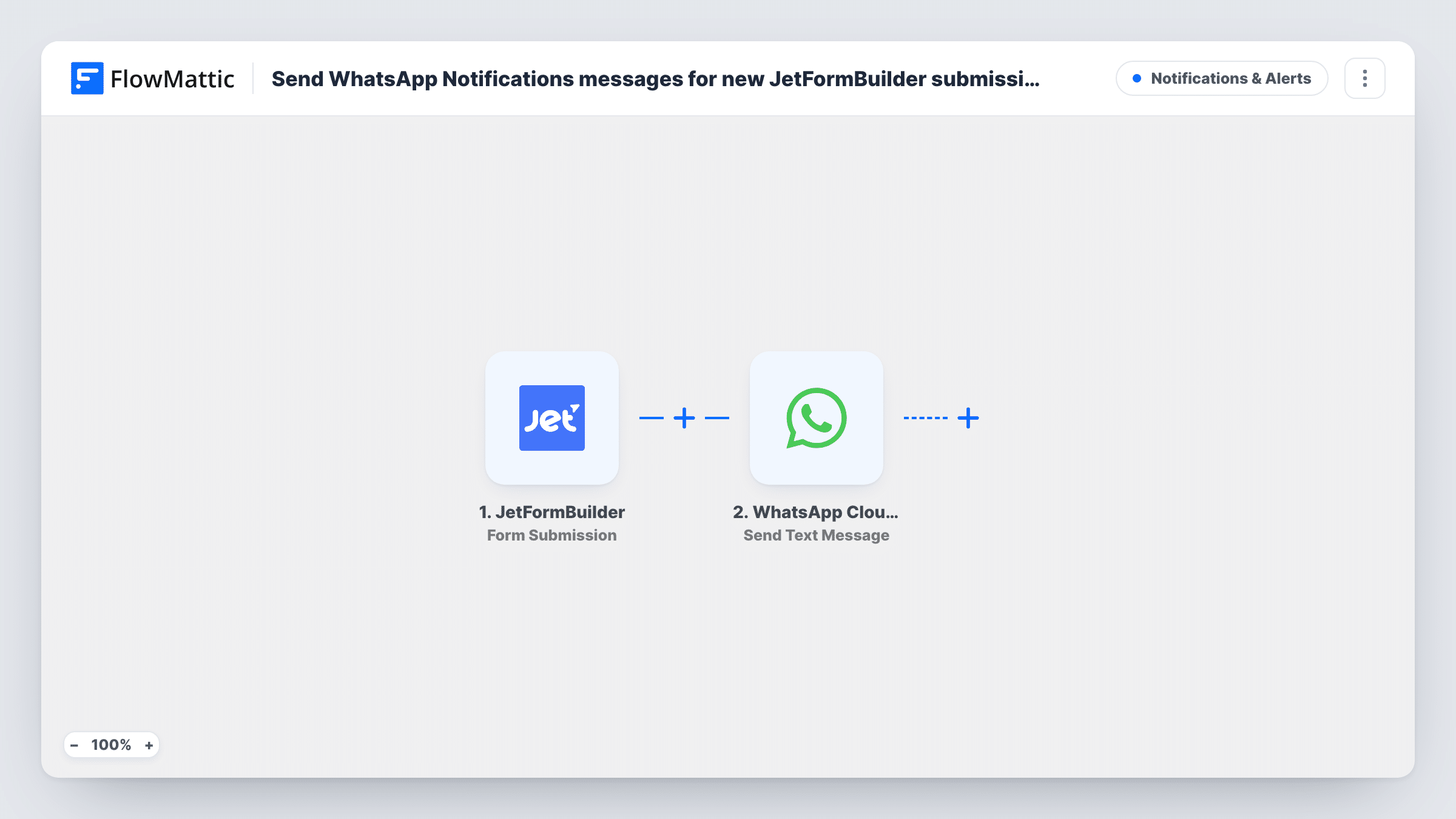
The JetFormBuilder Form Submission trigger fires when a form is submitted on your site. FlowMattic passes the answers to WhatsApp Cloud API, where the Send Text Message action sends a free-form text. You map the phone number to send to and write the message with form answers mixed in.
There is one important limit. A free-form WhatsApp text reaches someone only if they wrote to your business number in the previous 24 hours. A person who just filled in your form has usually never written to you, so a message aimed at them will normally not arrive. It works best for alerts to your own staff phone, after that phone has messaged the business number recently. To reach new customers, switch the action to Send Template Message with a template WhatsApp has approved.
Booking alerts to the owner's phone
A salon takes appointment requests through JetFormBuilder. The owner's phone gets a WhatsApp text with the name and requested time, as long as it messaged the business number in the last 24 hours.
Replies to customers already in a chat
Customers who are mid-conversation with you on WhatsApp are sent to a JetFormBuilder order form. Their submission is confirmed by a text in that same chat.
Field team notifications
A maintenance company's request form notifies the on-duty technician on WhatsApp, as long as the technician's phone has recently messaged the business number.
How this workflow runs
What happens at each step once the workflow is on, and what you need before you import it.
 JetFormBuilder Form Submission
Fires when a visitor submits a JetFormBuilder form on your site. Each field in the submission can be mapped into the WhatsApp message.
- WhatsApp Cloud API Send Text Message
Sends a free-form WhatsApp text from your Cloud API number. Map the recipient's phone number and write the message using form answers. Delivery only works within 24 hours of the recipient messaging your number.
What you need
- FlowMatticCore
- JetFormBuilder AccountAccount
- WhatsApp Cloud API AccountAccount
After importing, map your own data. To keep the template universal, not every step is pre-filled. Open each step in the builder and connect your accounts and fields (channels, lists, sheets, recipients) before you switch the workflow on.
Make it yours
Changes worth making after you import it.
- To message people who just filled in the form, replace Send Text Message with Send Template Message and use a template approved in your WhatsApp Business account.
- Make the phone field required in JetFormBuilder and ask for the number with its country code, so the WhatsApp step receives a number it can send to.
- Add a Filter after the trigger if only one form, or only some answers, should send a WhatsApp message.
Questions about this workflow
Will a new JetFormBuilder lead receive the WhatsApp text?
Usually not. Someone who submitted the form but never wrote to your number on WhatsApp in the past day is outside the window for free-form text. For new contacts, switch to the Send Template Message action with an approved template.
Which WhatsApp number do the JetFormBuilder messages come from?
From the business phone number you set up in the WhatsApp Cloud API and connect to FlowMattic. Messages are sent through that account.
Can I send the JetFormBuilder alert to my own phone?
Yes. Enter your own number as the recipient instead of mapping a form answer. Message your business number from that phone first, since the 24-hour rule applies to you as well.
What happens if WhatsApp refuses to deliver the message?
The run still completes, and Task History shows the error response on the WhatsApp step. The JetFormBuilder entry itself is not affected.
More Notifications & Alerts workflows
Other ready-to-import templates from the same category.





Import this workflow into your WordPress site
Download the JSON, import it from the Workflows screen and connect your accounts. Every run stays on your server, with no per-task fees.
30-day money-back guarantee Unlimited workflows and runs Self-hosted