

Log every new Flipsnack order in a Google Sheets spreadsheet
Orders placed through the order form in your Flipsnack interactive catalog are added to a Google Sheets spreadsheet, one row per order, so you can sort, total and share them outside Flipsnack.
 Flipsnack
 Google Sheets
2 steps Setup ~5 min Used on 1.8k sites Free to import
What this workflow does
An interactive catalog in Flipsnack can collect orders, but a spreadsheet is often where you count them, plan stock or hand them to someone else. Retyping each order invites typos. With this workflow, every submitted order form lands in Google Sheets on its own.
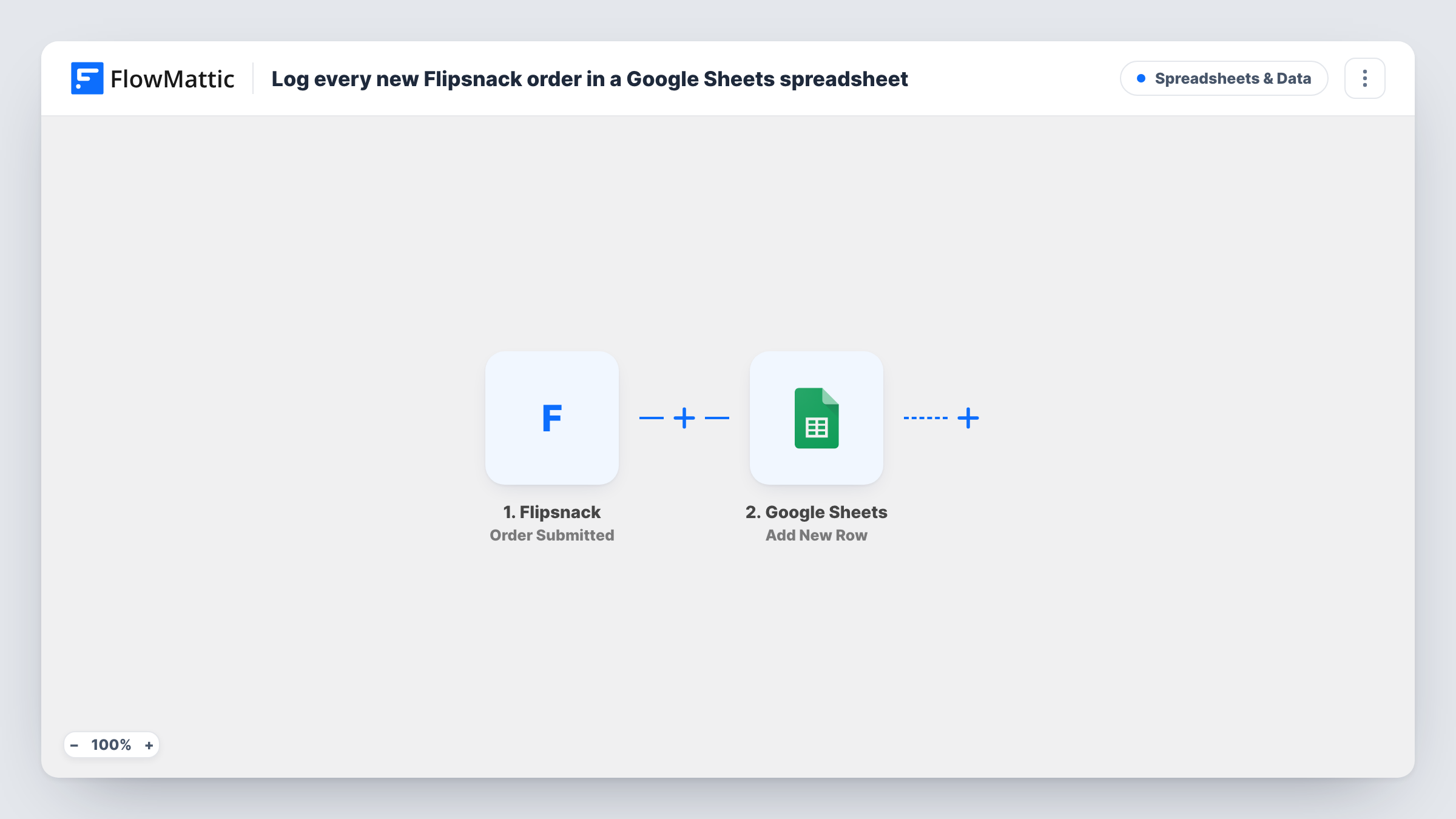
The Flipsnack Order Submitted trigger fires when a customer sends the order form in one of your catalogs. FlowMattic passes the order details to Google Sheets, which appends a row to the spreadsheet you pick. You choose which detail goes in which column.
Every order gets a row, with no checks in between, so the sheet mirrors what customers submitted. The workflow doesn't confirm the order to the customer or change anything in Flipsnack. To see exactly which details Flipsnack sends, place a test order and look at the trigger data before mapping.
Seasonal catalog sales tally
A gift shop sends its holiday catalog to customers, and the sheet becomes the running list of orders to total by product at the end of each week.
Trade show order capture
Sales reps take orders on a tablet through a Flipsnack catalog at a stand, and the office sees each one in the shared spreadsheet.
Stock planning from catalog orders
A small manufacturer pivots the order rows by item to see which products to restock first.
How this workflow runs
What happens at each step once the workflow is on, and what you need before you import it.
 Flipsnack Order Submitted
Runs when a customer submits the order form in a Flipsnack interactive catalog. The submitted order details are passed on for the spreadsheet.
- Google Sheets Add New Row
Adds one row per order to the Google Sheets spreadsheet you choose. Map each order detail to a column after connecting your Google account.
What you need
- FlowMatticCore
- Flipsnack AccountAccount
- Google Sheets AccountAccount
After importing, map your own data. To keep the template universal, not every step is pre-filled. Open each step in the builder and connect your accounts and fields (channels, lists, sheets, recipients) before you switch the workflow on.
Make it yours
Changes worth making after you import it.
- Add a Slack or email step after the row, so someone hears about a new Flipsnack order as well as seeing it in the sheet.
- Leave a status column at the end of the sheet for your team to mark each order as packed or shipped by hand.
- If you run several catalogs, map the catalog name into a column, if the trigger data includes it, so you can filter orders by catalog.
- Place a test order through your catalog after import so FlowMattic captures the order fields to map.
Questions about this workflow
Does every Flipsnack catalog order get its own row?
Yes. Each Order Submitted event runs the workflow once and appends one row. The step does not look for an existing row first.
Is the customer told their Flipsnack order was received?
Not by this workflow. It only writes to the sheet. Add an email step after it if you want to send a confirmation.
Are older Flipsnack orders added to the spreadsheet?
No. Only orders submitted after you turn the workflow on reach Google Sheets.
Can I also log Flipsnack contact form entries?
Flipsnack's Contact Form Submitted trigger is available in FlowMattic. Use it in a second workflow that writes to another tab.
More Spreadsheets & Data workflows
Other ready-to-import templates from the same category.




Import this workflow into your WordPress site
Download the JSON, import it from the Workflows screen and connect your accounts. Every run stays on your server, with no per-task fees.
30-day money-back guarantee Unlimited workflows and runs Self-hosted