

When a Prodigi order status changes, update the row in Google Sheets and notify the team in Slack
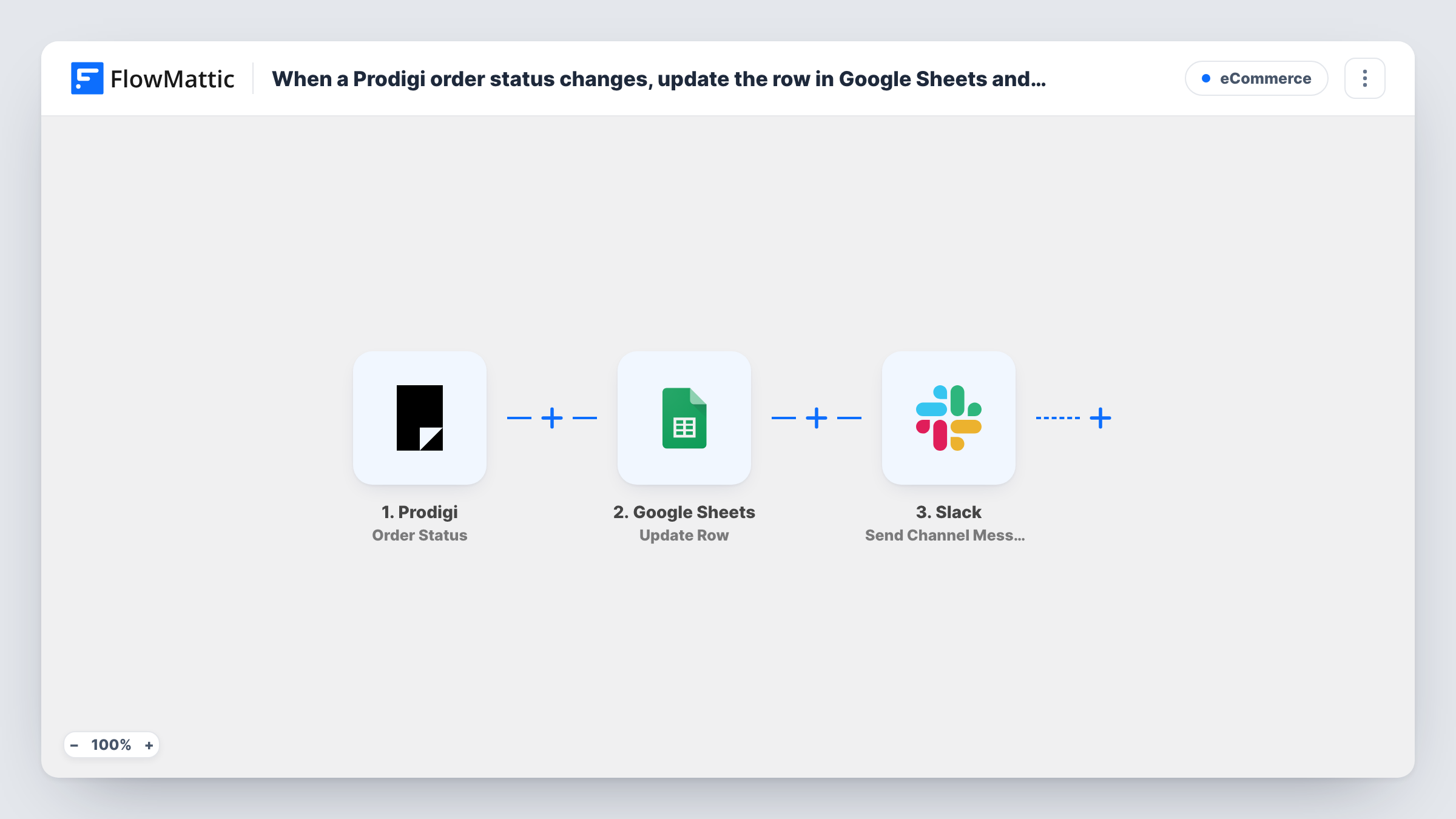
Each time a Prodigi order changes status, FlowMattic finds that order’s row in your Google Sheets spreadsheet, updates it with the new details and posts a message to a Slack channel for your team.
 Prodigi
 Google Sheets
 Slack
4 steps Setup ~8 min Used on 473 sites Free to import
What this workflow does
A spreadsheet of print-on-demand orders is only useful while its statuses are current, and the people packing, answering customers or reordering stock also want to hear when something moves. This workflow covers both: it keeps the order's row up to date and tells the team in Slack, every time Prodigi reports a change.
The Prodigi trigger starts a run when an order's status changes. After it come two Google Sheets steps. The first looks up the row that holds the order, and the second updates that row. Neither is mapped in the template, so after import you pick the spreadsheet and sheet, tell the lookup which column holds the order ID and what value to search for, then map the row the lookup found and the new status into the update.
The last step sends a message to a Slack channel. It also ships empty: choose the channel and write the text, mapping in the order ID and status so people can see which order changed.
The sheet has to hold a row for each order before its status changes; the workflow updates rows, it doesn't add them. Every status change runs all three steps, so a busy order produces several Slack messages. Test with an order that already has a row and check Task History to see what the lookup returned.
Shared order sheet for a print brand
A clothing label keeps each Prodigi order on a Google Sheet and wants the status column to change without anyone copying it from the Prodigi dashboard.
Fulfilment channel in Slack
The team follows a #fulfilment channel where each Prodigi status change shows up with the order ID, so nobody has to refresh a dashboard.
Support replies from one place
Support staff read the latest status off the sheet when a buyer asks about a print, and see the change in Slack as it happens.
How this workflow runs
What happens at each step once the workflow is on, and what you need before you import it.
 Prodigi Order Status
Fires whenever a Prodigi order's status changes. The order's data, such as its ID and new status, is passed to the next steps; run a test to see the exact field names Prodigi sends.
- Google Sheets Lookup Row Data
Searches the spreadsheet for the row that holds this order. The step ships unmapped: pick the spreadsheet and sheet, choose the column with your order IDs and map the order ID from Prodigi as the value to find.
- Google Sheets Update Row
Updates the row the lookup found with the data you map. Map the row reference from the lookup step so the right row changes, then map the new status and any other order fields into their columns.
- Slack Send Channel Message
Sends the team a note in a Slack channel. The template leaves it empty, so pick a channel and write the text, mapping in the order ID and new status from Prodigi.
What you need
- FlowMatticCore
- Prodigi AccountAccount
- Google Sheets AccountAccount
- Slack AccountAccount
After importing, map your own data. To keep the template universal, not every step is pre-filled. Open each step in the builder and connect your accounts and fields (channels, lists, sheets, recipients) before you switch the workflow on.
Make it yours
Changes worth making after you import it.
- Put a Filter between the Lookup Row Data step and the Update Row step that continues only when the lookup found a row. Orders missing from the sheet then stop there, and no Slack message is sent for them either.
- To post only for some statuses, such as shipped, put a Filter between the Update Row step and the Slack step. Every change still updates the sheet, and only the statuses you pick reach Slack.
- For a private channel, swap in Slack's Send Private Channel Message action; Send Channel Message is for the public channels you choose.
- Add a column for the time of the last update and map the run's date into it, so the sheet shows when Prodigi last reported each order.
Questions about this workflow
Does this add a new Google Sheets row for new Prodigi orders?
No. The workflow only finds a row that's already there and changes it. Each order needs a row with its order ID before its status changes, for example from another workflow that logs new orders.
Which columns does the Update Row step change?
Only the ones you map. The step ships empty, so after import you choose the sheet, map the row the lookup returned, and fill the status column and any other columns you keep.
How many Slack messages does one Prodigi order produce?
One per status change. Each change starts a run, and every run ends with the Slack step, so an order that moves through several stages posts several messages unless you put a Filter between the Update Row step and the Slack step.
Can the Prodigi update go to one Slack user rather than a channel?
Yes. Replace the Send Channel Message step with Slack's Send Direct Message action and pick the person who should get the updates.
More E-Commerce workflows
Other ready-to-import templates from the same category.




Import this workflow into your WordPress site
Download the JSON, import it from the Workflows screen and connect your accounts. Every run stays on your server, with no per-task fees.
30-day money-back guarantee Unlimited workflows and runs Self-hosted