

Send a customer an order-shipped email via Gmail when a MyParcel label is created
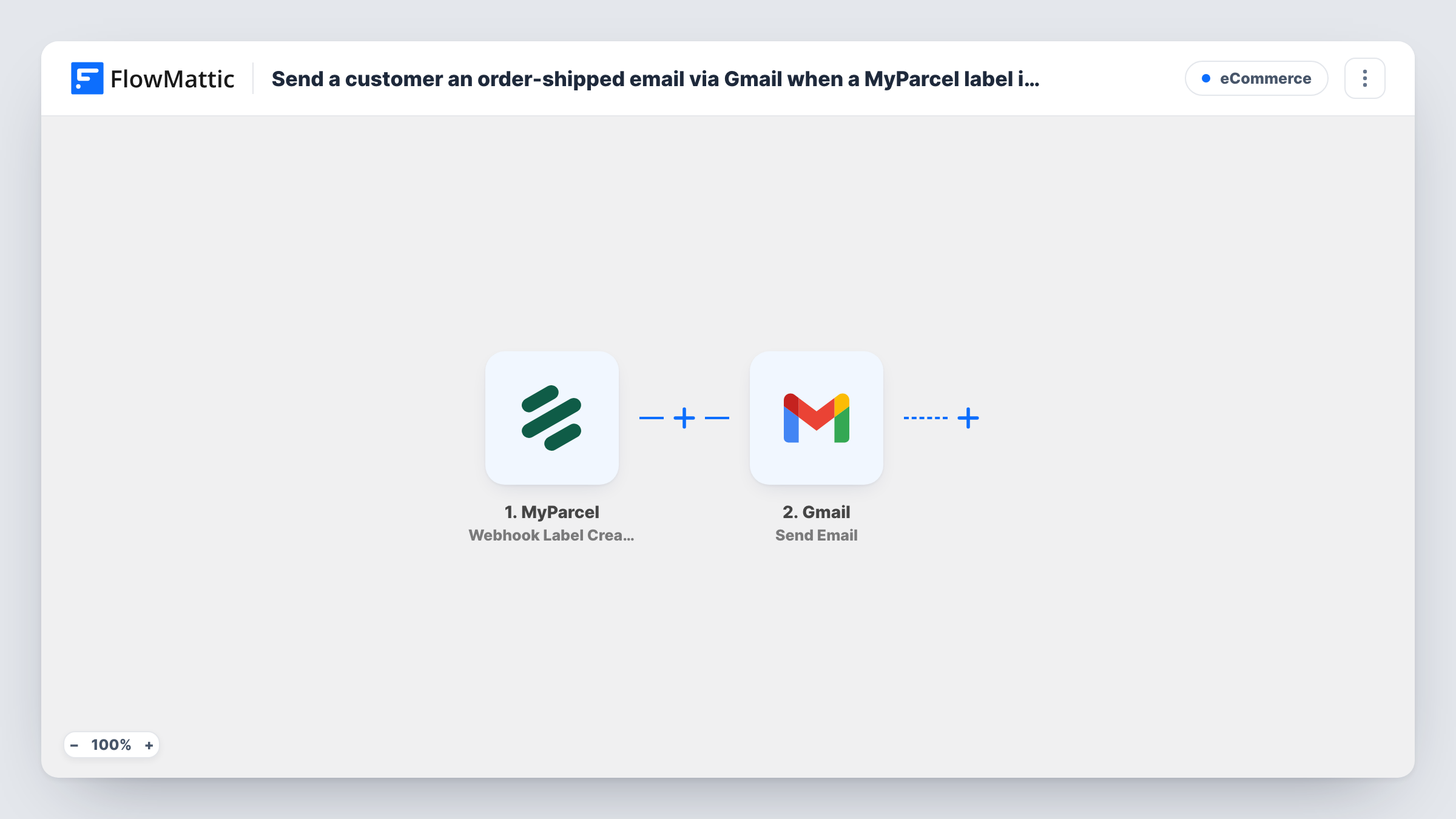
When a new shipping label is created in MyParcel, this workflow sends the customer an email from your Gmail account to tell them their order is being shipped, using the shipment details MyParcel provides.
 MyParcel
 Gmail
Gmail2 steps Setup ~5 min Used on 3.3k sites Free to import
What this workflow does
Customers like to know when their order leaves the warehouse stage. If you create shipping labels in MyParcel and write shipping emails by hand, some customers never hear from you. This workflow sends a Gmail message each time a label is made.
The MyParcel trigger is Webhook Label Created, which fires right after a new shipping label is created. The shipment data MyParcel sends with it becomes available to map. Note the timing: a label is usually made before the carrier collects the parcel, so word your email to fit that, for example that the order is packed and on its way soon.
The Gmail step sends an email from the Google account you connect. You map the recipient address and write the subject and body, adding values such as the customer's name or a tracking code if MyParcel includes them. The email only reaches customers when the shipment carries their address, so check a test run before you rely on it.
Small web shop packing orders in batches
You create labels in MyParcel at the end of each packing session. Each label sends the buyer an email from your shop's Gmail account saying the parcel is ready to go.
Handmade goods seller with a personal touch
Each label triggers a short thank-you email from your own Gmail address, written in your voice and naming the buyer if MyParcel passes their name.
Sharing tracking details
If the label data includes a barcode or tracking link, map it into the email so the customer can follow the parcel without contacting you.
How this workflow runs
What happens at each step once the workflow is on, and what you need before you import it.
 MyParcel Webhook Label Created
Fires right after a new shipping label is created in MyParcel. The shipment data from MyParcel is passed on for mapping. Create a test label first so you can see which recipient fields arrive.
- Gmail Send Email
Sends the shipping notice through the Gmail account you link on import. Map the customer's email from the MyParcel data as the recipient, then write the subject and body and drop in shipment details.
What you need
- FlowMatticCore
- MyParcel AccountAccount
- Gmail AccountAccount
After importing, map your own data. To keep the template universal, not every step is pre-filled. Open each step in the builder and connect your accounts and fields (channels, lists, sheets, recipients) before you switch the workflow on.
Make it yours
Changes worth making after you import it.
- Check a test run for the recipient's email in the MyParcel data. If your shipments are created without one, there is no address to send to, and Task History shows the Gmail step's error.
- Add a Filter after the trigger that continues only when the recipient email is not empty, so labels made without an address don't produce failed sends.
- If you want the email to go out later in the day, add a Delay between the trigger and Gmail so the message arrives closer to carrier collection.
Questions about this workflow
Does this email go out when the parcel is handed to the carrier?
No. It goes out when the label is created in MyParcel. MyParcel's separate Webhook Status Change trigger fires on any status change, so this template uses label creation instead.
Where does the MyParcel workflow get the buyer's email address?
From the shipment data MyParcel sends with the label event, if the shipment has one. Run a test with a real label and confirm the address appears before turning the workflow on.
Will a customer get a second email if I make another label?
Each label created event starts its own run. If you create a second label for the same order, expect the customer to receive the email again.
More E-Commerce workflows
Other ready-to-import templates from the same category.






Import this workflow into your WordPress site
Download the JSON, import it from the Workflows screen and connect your accounts. Every run stays on your server, with no per-task fees.
30-day money-back guarantee Unlimited workflows and runs Self-hosted