

Create Todoist tasks from new orders in WooCommerce
Every new WooCommerce order creates a task in Todoist, so the person packing, shipping or preparing the order has it on their to-do list without checking the store admin.
 WooCommerce
 Todoist
2 steps Setup ~5 min Used on 3.4k sites Free to import
What this workflow does
If you run a small store, orders often arrive while you are working on something else. Checking the WooCommerce admin for new orders and writing them into your to-do list is one more thing to remember. This workflow puts each order into Todoist as a task the moment WooCommerce records it.
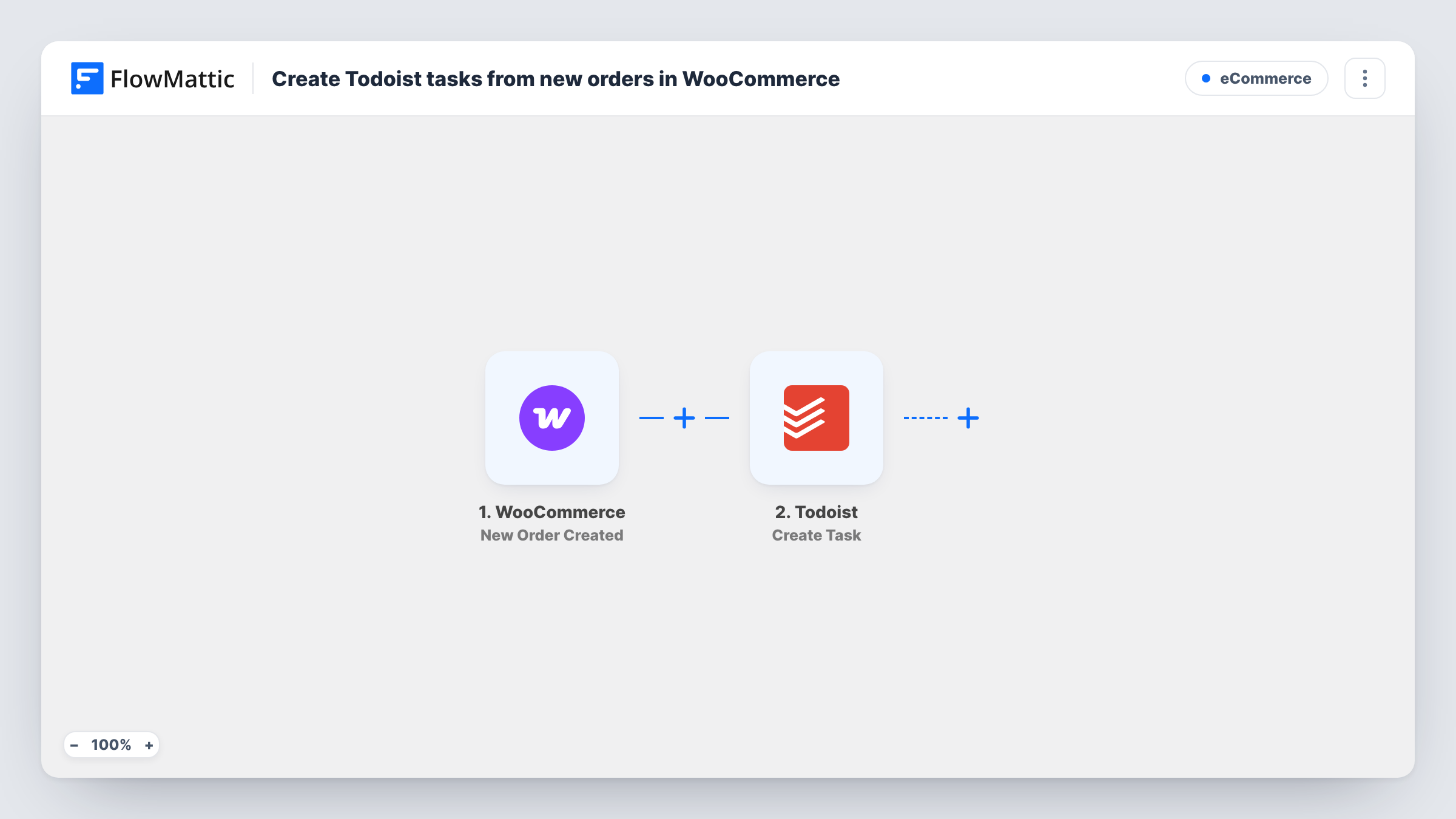
The WooCommerce trigger fires when a new order is created on your WordPress store. FlowMattic then creates a task in Todoist with the order details you map, such as the order number, the customer's name and what they bought.
The task is created once per order. Later changes in WooCommerce, like a status moving to completed or a refund, don't update or close the Todoist task, so you tick it off yourself when the work is done. Each run appears in Task History with the order data and the Todoist response.
Handmade goods made to order
Each order becomes a Todoist task so you can see what to make next and tick items off as they are finished and shipped.
Small team sharing fulfilment
Orders land in a shared Todoist project where whoever is packing that day picks up the next task.
Service bookings sold through WooCommerce
A consultant who sells sessions as products gets a task for each purchase as a reminder to email the customer and schedule the call.
How this workflow runs
What happens at each step once the workflow is on, and what you need before you import it.
 WooCommerce New Order Created
Runs for each order your WooCommerce shop records. The order's number, customer details and line items become available to map into the Todoist task.
- Todoist Create Task
Creates a task in Todoist for the order. Connect your Todoist account, then map the order details you want into the task, and use a test order to confirm how the task looks.
What you need
- FlowMatticCore
- WooCommerce PluginPlugin
- Todoist AccountAccount
After importing, map your own data. To keep the template universal, not every step is pre-filled. Open each step in the builder and connect your accounts and fields (channels, lists, sheets, recipients) before you switch the workflow on.
Make it yours
Changes worth making after you import it.
- Start the task text with the WooCommerce order number so you can search Todoist for it when a customer asks about their order.
- Add a Filter after the trigger that checks the payment method or order status if you only want tasks for orders that need manual handling.
- Place a test order after import so FlowMattic captures real order data, then map the fields into the Todoist step and check the task it creates.
Questions about this workflow
Does every WooCommerce order create a Todoist task?
Yes, as imported. Every new order starts a run, because nothing filters them. Add a Filter after the trigger to limit which orders become tasks.
Is the Todoist task closed when the WooCommerce order is completed?
No. This template has no step that edits Todoist tasks after creating them. Completing or cancelling the order in WooCommerce doesn't change it, so you close the task in Todoist.
Are orders placed before I turn on the workflow added?
No. Only orders created after the workflow is on reach Todoist.
Must WooCommerce and FlowMattic share one WordPress site for Todoist tasks?
Yes. The trigger listens to WooCommerce inside WordPress, so both plugins must run on the same site. Todoist is connected through your Todoist account.
More E-Commerce workflows
Other ready-to-import templates from the same category.






Import this workflow into your WordPress site
Download the JSON, import it from the Workflows screen and connect your accounts. Every run stays on your server, with no per-task fees.
30-day money-back guarantee Unlimited workflows and runs Self-hosted