

Get notified of new orders in WooCommerce via SMS in Twilio
When a new order is created in WooCommerce, this workflow sends a text message through Twilio to the number you choose, so you hear about orders on your phone without watching the dashboard.
 WooCommerce
 Twilio
2 steps Setup ~5 min Used on 2.9k sites Free to import
What this workflow does
Shop owners who pack orders themselves, or who sell perishable or made-to-order goods, want to know about an order soon after it is placed. Email alerts are easy to miss among everything else in an inbox. A text message is harder to overlook. This workflow sends one for each new order.
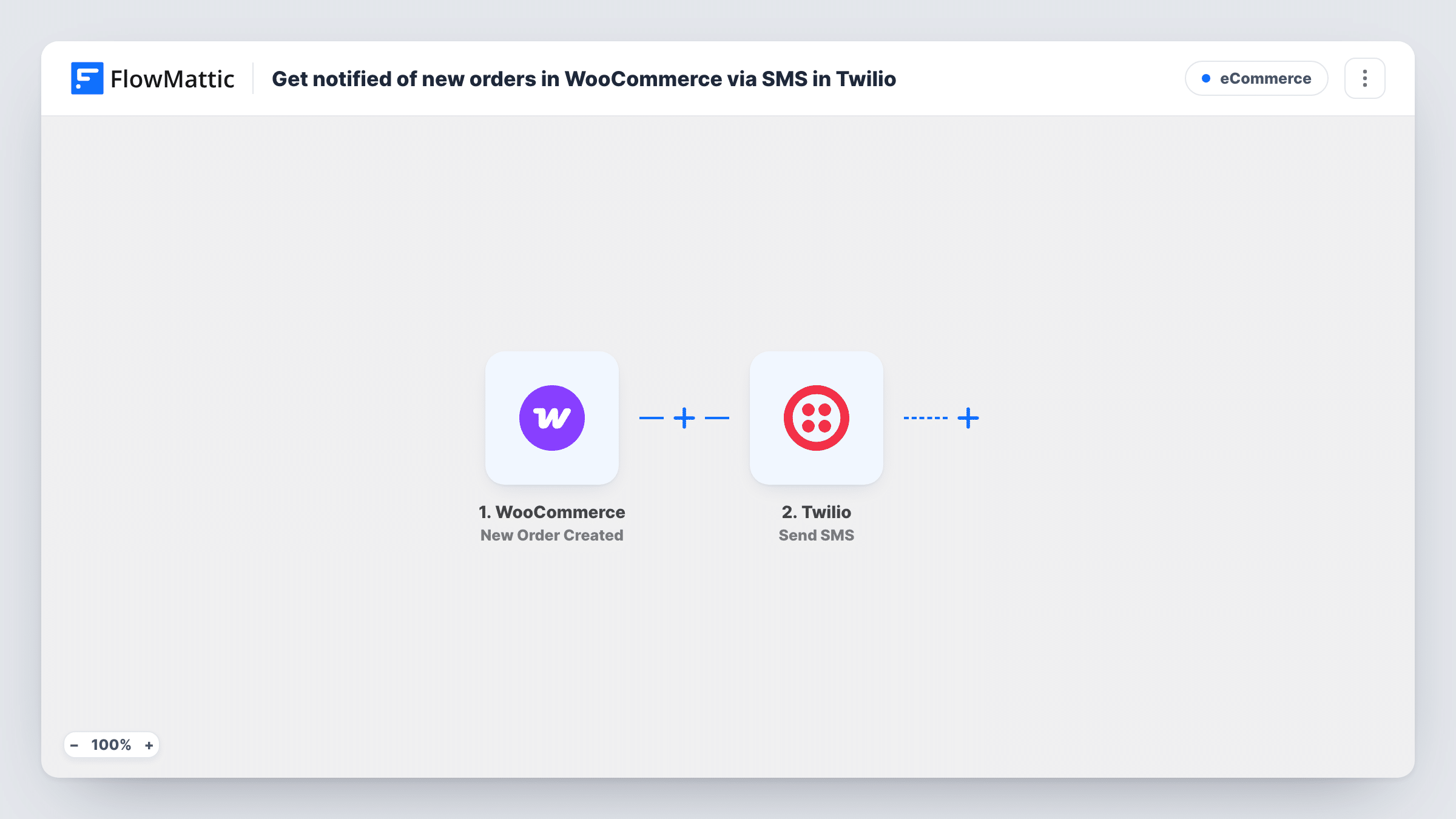
The WooCommerce trigger, New Order Created, fires when an order is created in your store and passes the order details to FlowMattic. The second step uses Twilio Send SMS to text a number using your Twilio account. You set the number and write the message, adding order values such as the order number and total.
The template sends one text per new order. If your store takes many orders a day, that can be a lot of messages, so consider a Filter. Place a test order after import to see which details WooCommerce provides and how the text reads on your phone.
A bakery taking orders for collection
Each new order texts the baker's phone, so they can start on it without checking the WooCommerce admin.
Small shops packed by the owner
The owner gets a text for every order while away from the computer and can plan the day's packing.
Alerting the person on shift
Point the SMS at a shared on-call phone, so whoever is working that day hears about new orders.
How this workflow runs
What happens at each step once the workflow is on, and what you need before you import it.
 WooCommerce New Order Created
Runs each time WooCommerce creates an order in your shop. The order details become available to place in the text message.
- Twilio Send SMS
Texts the number you choose using your connected Twilio account. Enter the number, then write the message using values from the WooCommerce order.
What you need
- FlowMatticCore
- WooCommerce PluginPlugin
- Twilio AccountAccount
After importing, map your own data. To keep the template universal, not every step is pre-filled. Open each step in the builder and connect your accounts and fields (channels, lists, sheets, recipients) before you switch the workflow on.
Make it yours
Changes worth making after you import it.
- Add a Filter after the trigger on the order total if you only want texts for larger orders. The comparison uses whole numbers, so 49.99 counts as 49.
- Keep the text short with the order number, total and customer name, and open the order in WooCommerce for the full details.
- Add a second Send SMS step if two people need the alert, each with their own number.
Questions about this workflow
Does the Twilio SMS go to me or to the WooCommerce customer?
It goes to whichever number you put in the Send SMS step. As built, the template is meant to alert you. Map the customer's phone from the order instead if you want to text them, and make sure they agreed to receive texts.
Do I need a Twilio phone number to send these texts?
Yes. Twilio sends each SMS from a number on your Twilio account, which you connect in the Send SMS step.
Will I get a text for orders that haven't been paid yet?
The trigger fires when an order is created, not when it is paid. Place a test order with a slow payment method to see how your store behaves, and add a Filter on the order status if needed.
Are existing WooCommerce orders texted when I turn this on?
No. Only orders created after the workflow is active send a text.
More E-Commerce workflows
Other ready-to-import templates from the same category.





Import this workflow into your WordPress site
Download the JSON, import it from the Workflows screen and connect your accounts. Every run stays on your server, with no per-task fees.
30-day money-back guarantee Unlimited workflows and runs Self-hosted