

When a new ticket is created in Freshdesk, create text-to-speech ticket summary in Murf AI
For each new Freshdesk ticket, an AI agent writes a short spoken-style summary, can turn it into audio with Murf AI and can email the summary and audio link to your support team.
 Freshdesk
 AI Agent
 Murf AI
 Email
4 steps Setup ~8 min Used on 1.3k sites Free to import
What this workflow does
Support staff who are away from a screen still want to know what just came in. A two-sentence audio summary of each new ticket lets someone on the road or on the shop floor hear the issue without opening Freshdesk. This workflow asks an AI agent to prepare that summary, voice it and send it on.
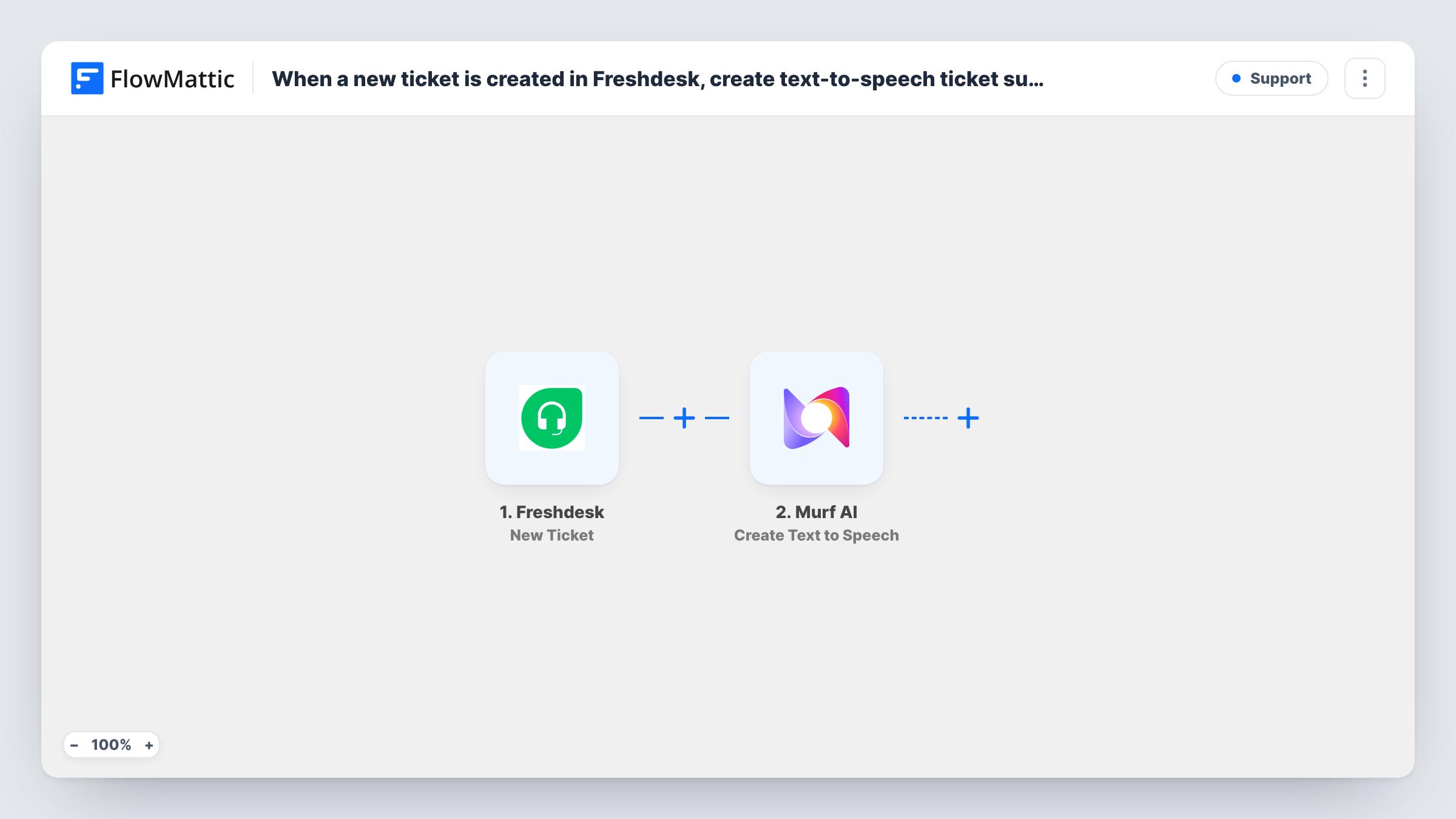
The Freshdesk trigger starts a run when a new ticket is created. The ticket's subject and description text are handed to an AI Agent running GPT-4o. Its instructions are to summarise the ticket in two or three short sentences meant to be read aloud, covering who wrote, what is wrong and how urgent it is.
The agent has two tools. The first is Murf AI Create Text to Speech, which voices the summary. The second is the Email Send Email tool, for which the agent writes the subject and body. The instructions tell the agent to use both, but the agent decides when to call a tool, so check Task History during testing to confirm it voiced and emailed each summary.
The template doesn't show who receives the email. Set your support team's address in the Send Email tool before you go live.
On-call agents who are driving
An on-call support lead listens to the audio summary of each new Freshdesk ticket from their inbox while travelling, and decides whether to pull over and respond.
Field technicians hearing new faults
A repair company's technicians get each new fault ticket as a short spoken summary they can play between jobs with their hands full.
Morning catch-up for a small help desk
The team lead plays the overnight ticket summaries back to back over coffee instead of reading each ticket in Freshdesk.
How this workflow runs
What happens at each step once the workflow is on, and what you need before you import it.
 Freshdesk New Ticket
Starts a run when a new ticket is created in Freshdesk. The ticket's subject and description text are passed to the AI agent.
- AI Agent Execute Agent
Runs an AI agent on GPT-4o that summarises the ticket in two or three short sentences written to be spoken, then is told to create the audio and email the team. Connect your AI provider after import.
- Murf AI Create Text to Speech
Agent tool that voices the ticket summary with Murf AI text to speech. The agent supplies the text it wrote; connect your Murf AI account and look at a test run to see the audio link it returns.
 Email Send Email
Agent tool that emails the summary and the audio link to your team. Subject and body come from the agent, while you set the recipient address and your mail settings in the tool.
What you need
- FlowMatticCore
- Freshdesk AccountAccount
- AI ProviderAccount
- Murf AI AccountAccount
After importing, map your own data. To keep the template universal, not every step is pre-filled. Open each step in the builder and connect your accounts and fields (channels, lists, sheets, recipients) before you switch the workflow on.
Make it yours
Changes worth making after you import it.
- Add your team's shared support address as the recipient in the Send Email tool, since the template leaves who receives the email for you to set.
- Add a Filter between the Freshdesk trigger and the AI Agent step that continues only for high or urgent priority, if only important tickets need an audio summary. Check your test run for the priority field and value.
- Edit the agent's instructions to add details you care about, such as the product or customer plan, if those appear in the ticket text.
Questions about this workflow
Will the AI agent always create Murf AI audio and send the email?
It is instructed to do both, but an AI agent chooses when to use its tools. Test with a few tickets and check Task History to see which tools it called and what Murf AI returned.
What ticket information does the AI agent read from Freshdesk?
The ticket subject and the description text. Other fields, such as priority or requester, aren't passed in unless you add them to the agent's input.
Do I need an OpenAI connection as well as Murf AI and Freshdesk?
Yes. The agent is set to OpenAI's GPT-4o, so you need an AI provider connection for it, plus Freshdesk and Murf AI accounts. You can switch the model in the agent settings.
Who receives the email with the Freshdesk ticket summary?
The address you set in the Send Email tool. The template doesn't include one, so add your support team's email before you turn the workflow on.
More Support workflows
Other ready-to-import templates from the same category.






Import this workflow into your WordPress site
Download the JSON, import it from the Workflows screen and connect your accounts. Every run stays on your server, with no per-task fees.
30-day money-back guarantee Unlimited workflows and runs Self-hosted