

When agent replies to a ticket, notify customer on WhatsApp about ticket status using WhatsApp Cloud API
When one of your agents replies to a Fluent Support ticket, this workflow sends the customer a WhatsApp template message through the WhatsApp Cloud API, so they know their ticket has moved without waiting for an email.
 Fluent Support
 WhatsApp Cloud API
2 steps Setup ~5 min Used on 3.1k sites Free to import
What this workflow does
Ticket replies from Fluent Support go out by email, and email is easy to miss. Customers who would rather hear on WhatsApp keep checking back or open a second ticket. This workflow adds a WhatsApp nudge each time your team answers, so the customer knows there is a reply to read.
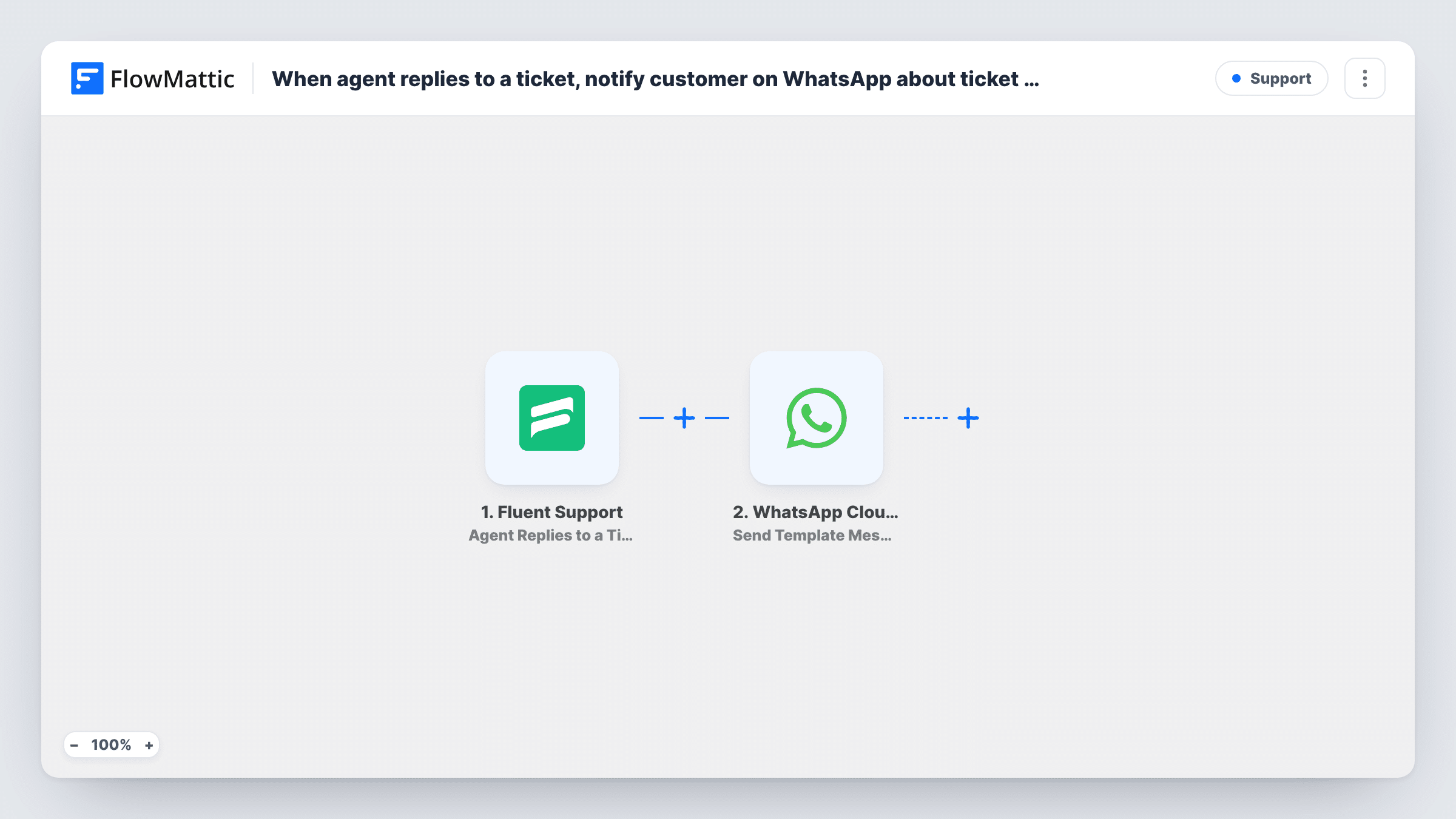
The Fluent Support trigger fires whenever an agent adds a reply to a ticket on your WordPress helpdesk. FlowMattic then passes the ticket and customer data to the WhatsApp Cloud API step, which sends a template message to the phone number you map. The template is one you have created and had approved in your WhatsApp Business account, and you choose it and fill it with ticket data after import.
Because this is a template message, WhatsApp can deliver it even if the customer has never messaged your business number. The step needs a phone number for each customer, so make sure your tickets collect one. Each run shows up in Task History, including any error WhatsApp returns.
Customers who rarely check email
A store whose buyers mostly live on WhatsApp sends a short template saying an agent has answered, with the ticket title, so the buyer opens the reply sooner.
Service businesses with phone-first clients
A repair or installation company tells clients on WhatsApp that their support request has a new reply, matching how those clients already talk to the business.
Multi-reply troubleshooting
On long tickets with several back-and-forth replies, each agent answer triggers a WhatsApp message, so the customer knows there is something new each time.
How this workflow runs
What happens at each step once the workflow is on, and what you need before you import it.
 Fluent Support Agent Replies to a Ticket
Runs every time an agent adds a reply to a Fluent Support ticket. The ticket and customer data from that event is passed on for mapping in the WhatsApp step.
- WhatsApp Cloud API Send Template Message
Messages the ticket's customer on WhatsApp using one of your approved templates. Connect your WhatsApp Cloud API account, pick the template, and map the customer's phone number and any ticket values the template uses.
What you need
- FlowMatticCore
- Fluent Support PluginPlugin
- WhatsApp Cloud API AccountAccount
After importing, map your own data. To keep the template universal, not every step is pre-filled. Open each step in the builder and connect your accounts and fields (channels, lists, sheets, recipients) before you switch the workflow on.
Make it yours
Changes worth making after you import it.
- Make sure your Fluent Support customers have a phone number on file, so the WhatsApp step always has a number to send to. Post a test reply after import to see which customer data the trigger carries.
- Add a Filter after the trigger if only some tickets should get a WhatsApp message, for example tickets in one product or mailbox, using a value the trigger passes on.
- Want a message when the ticket is closed too? Build a second workflow on Fluent Support's Agent Closes a Ticket trigger with a different WhatsApp template.
Questions about this workflow
Do I need an approved WhatsApp template for this Fluent Support workflow?
Yes. The step is Send Template Message, so it sends a template that WhatsApp has approved for your business account. Create and get the template approved first, then select it in the step.
Will the customer get a message for every agent reply?
Yes, as imported. The trigger fires on each agent reply, so a ticket with five replies sends five WhatsApp messages. A Filter after the trigger can cut that down to the replies you care about.
What happens if a Fluent Support customer has no phone number?
The WhatsApp Cloud API has no number to send to, so that message is not delivered. Task History shows the error on the WhatsApp step for that run.
Does this change the email that Fluent Support sends?
No. Fluent Support handles its own reply emails as before. The workflow only adds the WhatsApp message alongside them.
More Support workflows
Other ready-to-import templates from the same category.




Import this workflow into your WordPress site
Download the JSON, import it from the Workflows screen and connect your accounts. Every run stays on your server, with no per-task fees.
30-day money-back guarantee Unlimited workflows and runs Self-hosted