

When the tags on a LiveChat chat change, add a row to the issue tracker in Smartsheet
Each time the tag list on a LiveChat chat changes, FlowMattic adds a row to your Smartsheet issue tracker with the chat details you map, so tagged conversations become items your team can follow up.
 LiveChat
 Smartsheet
2 steps Setup ~5 min Used on 3.5k sites Free to import
What this workflow does
Support agents in LiveChat often tag chats to mark what they were about: a bug report, a billing question, a complaint. Those tags help inside LiveChat, but the follow-up work is often tracked somewhere else. This workflow sends tagged chats into a Smartsheet issue tracker, so the people who fix problems see them in the sheet they already work from.
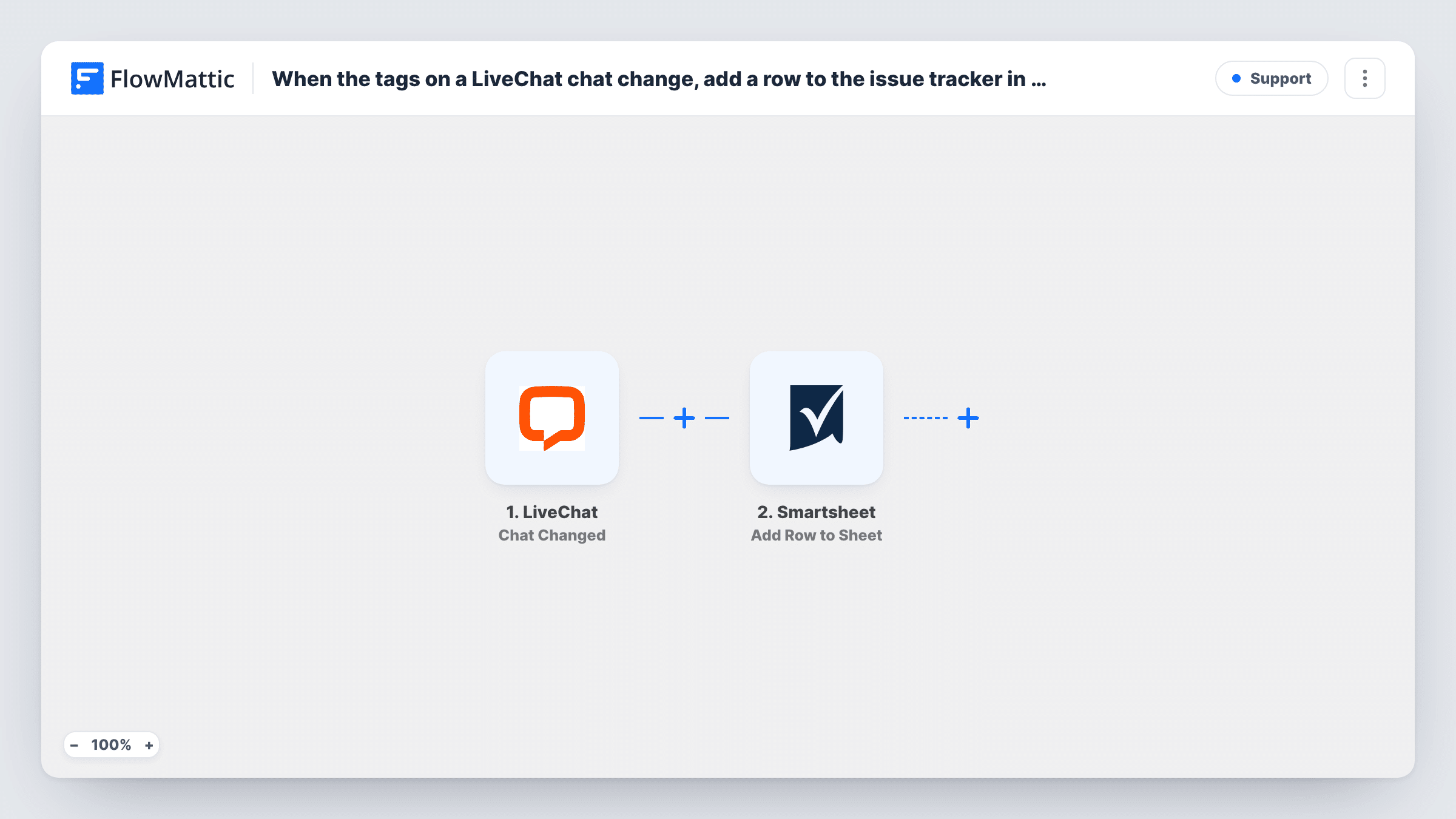
The LiveChat trigger is Chat Changed. FlowMattic describes it as firing when the tag list for a chat changes, so it runs when an agent adds a tag and also when one is removed. The chat's data, including its tags, is passed on; tag a test chat after import to see the exact values.
The Smartsheet step adds a row to your sheet. It ships unmapped: connect Smartsheet, choose the issue tracker sheet and map values such as the chat ID, the tags, the visitor's name and the date into its columns.
There is no condition in the template, so every tag change adds a row, whatever the tag. A chat that is tagged twice adds two rows. If your tracker should hold only some kinds of chat, add a tag check between the two steps, as shown in the tips.
Complaints in front of the operations team
Agents tag unhappy customers' chats as complaint in LiveChat. With a Filter on that tag, each one lands as a row in the Smartsheet tracker the operations manager reviews every morning.
Bug reports from chat
A software company's agents tag chats that mention errors with bug. The rows give the product team a list of reports with chat IDs to look up later.
Reviewing how agents tag
A support lead keeps every tag change in a sheet for a month to see which tags agents use most and where tagging is inconsistent.
How this workflow runs
What happens at each step once the workflow is on, and what you need before you import it.
 LiveChat Chat Changed
Starts whenever the tag list on a LiveChat chat changes, either when a tag is added or removed. The chat's data, including its tags, is passed to Smartsheet.
- Smartsheet Add Row to Sheet
Adds a row to your Smartsheet sheet for each tag change. The step ships unmapped: choose the issue tracker sheet and map chat values such as the chat ID and tags into its columns.
What you need
- FlowMatticCore
- LiveChat AccountAccount
- Smartsheet AccountAccount
After importing, map your own data. To keep the template universal, not every step is pre-filled. Open each step in the builder and connect your accounts and fields (channels, lists, sheets, recipients) before you switch the workflow on.
Make it yours
Changes worth making after you import it.
- To log only one kind of chat, put a Filter between the LiveChat trigger and the Smartsheet step that continues when the tags contain a word such as complaint, in any capitalisation. The tag is an example, so use the one your team applies.
- Add a Status column in Smartsheet that the workflow leaves blank, so your team can mark each issue as open or done by hand.
- Map the chat ID into its own column, so anyone working an issue can find the full conversation in LiveChat.
Questions about this workflow
Does removing a tag from a LiveChat chat also add a row?
Yes. The trigger fires whenever the tag list changes, which includes removals. A Filter on the tags between the trigger and the Smartsheet step keeps rows for chats that still carry the tag you track.
Will one chat appear more than once in the Smartsheet tracker?
It can. Each change to the chat's tags is a new run, so a chat tagged in two steps gets two rows.
Which columns does the Smartsheet row fill?
Only the ones you map. The template leaves the Add Row to Sheet step empty, so after import you match LiveChat values to the columns in your tracker.
Are chats tagged before I import this added?
No. Only tag changes made after the workflow is turned on start a run.
More Support workflows
Other ready-to-import templates from the same category.





Import this workflow into your WordPress site
Download the JSON, import it from the Workflows screen and connect your accounts. Every run stays on your server, with no per-task fees.
30-day money-back guarantee Unlimited workflows and runs Self-hosted