

Create a Google Docs file from every new Kommunicate unread message
When an incoming Kommunicate message stays unread for a set time, this workflow creates a Google Docs file for it, giving you a written record of each conversation that waited without an answer.
 Kommunicate
 Google Docs
2 steps Setup ~5 min Used on 1.6k sites Free to import
What this workflow does
Chat messages that nobody reads are the ones customers remember. If you want to review where your support chat falls behind, you need a record of those messages outside the chat tool. This workflow writes one into Google Docs each time a message goes unread.
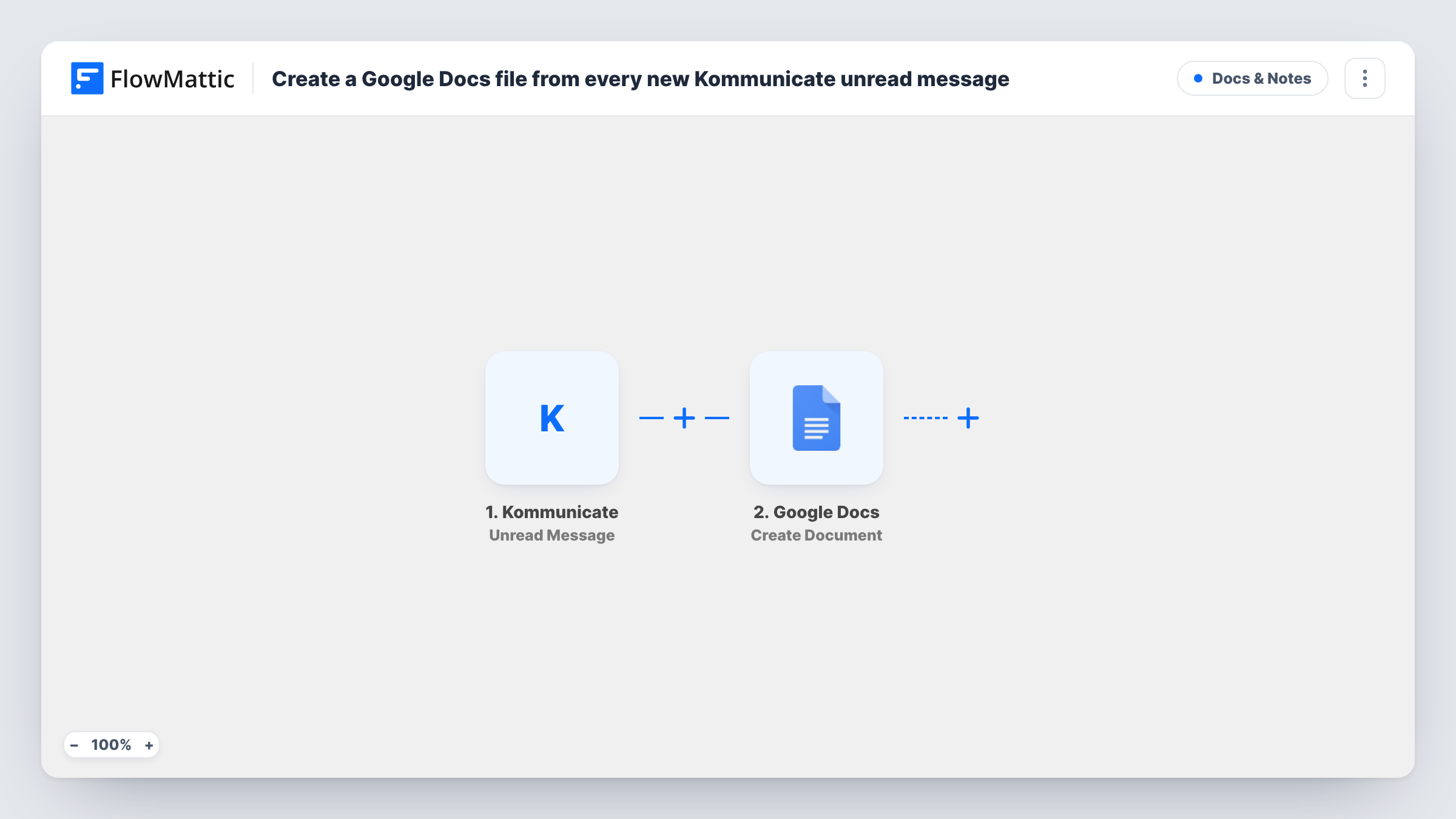
A run begins once an incoming Kommunicate chat message has sat unread past the set wait. FlowMattic passes the message data to Google Docs, where the Create Document action makes a new Google Doc. Content is optional in that step, so you decide what goes in the document, such as the message text and the conversation details Kommunicate sends.
Each unread message creates its own document, which can add up on a busy day. The workflow does not reply to the customer or mark the message as read in Kommunicate. Task History records each run and the document details Google returns.
Weekly review of missed chats
A support lead reads the documents created during the week to see which questions went unanswered and when.
Evidence for staffing changes
A growing folder of unread-message documents during evening hours shows a manager when chat cover is thin.
Follow-up list for sales chats
Prospects who wrote in while nobody was online get a document each, which a sales rep works through the next morning.
How this workflow runs
What happens at each step once the workflow is on, and what you need before you import it.
 Kommunicate Unread Message
Fires when an incoming Kommunicate message stays unread for the specified time. The message and conversation data is passed to Google Docs.
- Google Docs Create Document
Creates a new Google Doc for the unread message. Connect your Google account and map the Kommunicate message details into the new document.
What you need
- FlowMatticCore
- Kommunicate AccountAccount
- Google Docs AccountAccount
After importing, map your own data. To keep the template universal, not every step is pre-filled. Open each step in the builder and connect your accounts and fields (channels, lists, sheets, recipients) before you switch the workflow on.
Make it yours
Changes worth making after you import it.
- Include the date and the customer's name in what you map, if Kommunicate sends them, so each document is easy to identify later.
- Add a Slack or email step after the document is created so someone hears about the unread message, not just the archive.
- If one running document suits you better than many, replace Create Document with Append Text to Document and point it at a single Google Doc.
Questions about this workflow
Does every unread Kommunicate message create a new Google Doc?
Yes. Each time the trigger fires, the Create Document step makes a separate file. Use Append Text to Document instead if you want one file.
Does this answer the customer in Kommunicate?
No. The workflow only reads the unread message and writes it to Google Docs. Your team still replies in Kommunicate.
How long must a Kommunicate message stay unread before it is logged?
FlowMattic describes the trigger as firing once a message stays unread for a specified time. Confirm how long that wait is for your setup with a test after import.
More Docs & Notes workflows
Other ready-to-import templates from the same category.





Import this workflow into your WordPress site
Download the JSON, import it from the Workflows screen and connect your accounts. Every run stays on your server, with no per-task fees.
30-day money-back guarantee Unlimited workflows and runs Self-hosted