

When a story is published in Storyblok, create a new post in WordPress
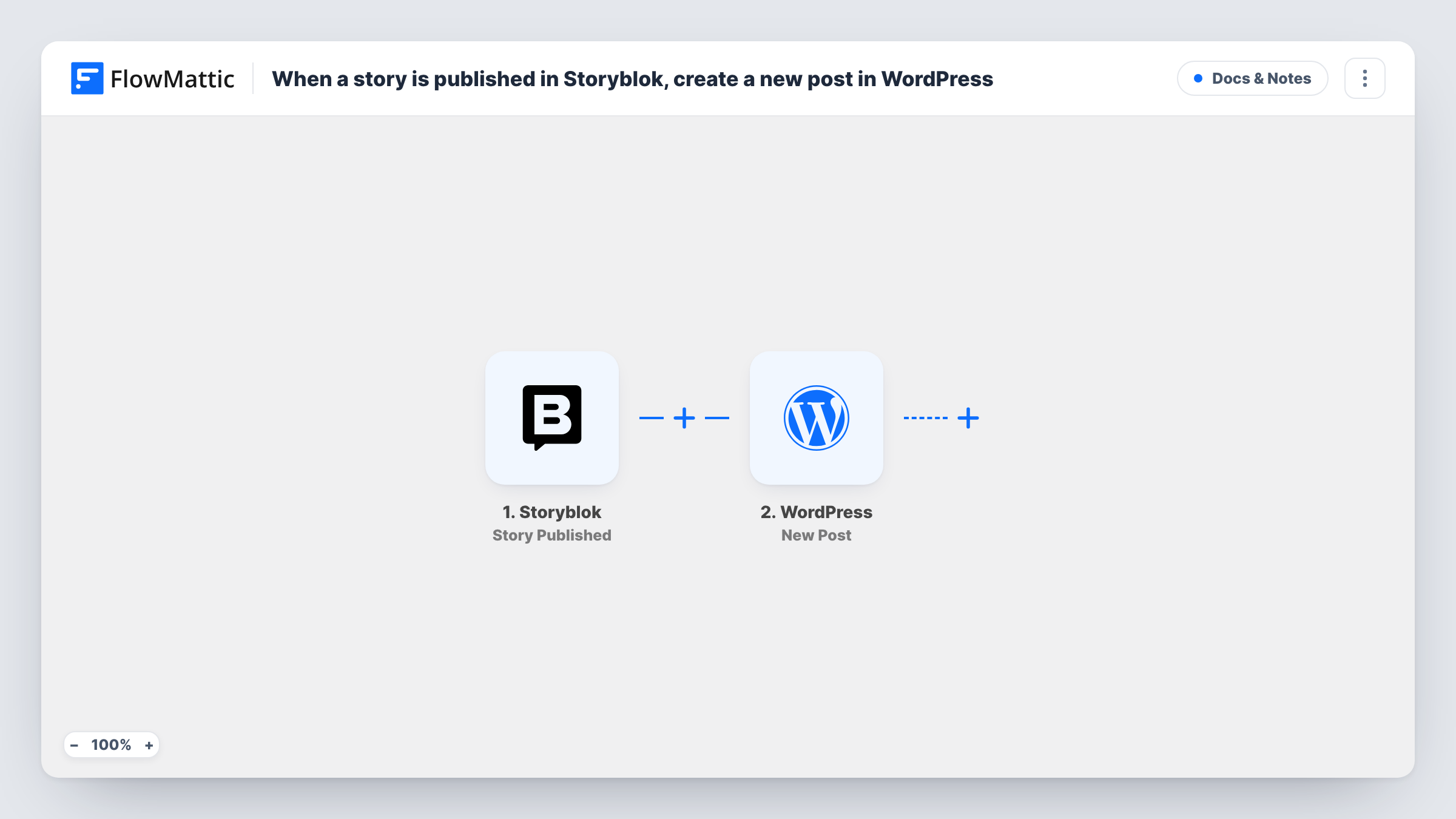
When you publish a story in Storyblok, FlowMattic creates a new post on your WordPress site from the story data you map, so content written in Storyblok also appears on a WordPress blog.
 Storyblok
 WordPress
2 steps Setup ~5 min Used on 2.9k sites Free to import
What this workflow does
Teams that write in a headless CMS sometimes still run a WordPress blog, for a separate audience or an older site. Copying each article across by hand means two editors and two chances for mistakes. This workflow turns each published Storyblok story into a WordPress post.
The Storyblok trigger, Story Published, fires when a story is published, and passes the event data to FlowMattic. The WordPress step then creates a new post on the site where FlowMattic is installed, using the story values you map into it.
The post can only hold what the Storyblok event sends. Publish a test story after import and look at the captured data before you map anything, so you know whether the story's text arrives or only details such as its name and slug. Each publish starts its own run, so publishing the same story again, for example after an edit, creates another WordPress post.
Keeping a legacy WordPress blog alive
Your new site runs on Storyblok, but an older WordPress blog still has readers. Each story you publish also appears there as a post.
Drafts for a WordPress editor to finish
A WordPress editor gets a post for each Storyblok story and adds categories, images or a local intro before it reaches that site's readers.
A record of what went live
A private WordPress site collects a post for every Storyblok publish, giving the team a dated list of each story that went out.
How this workflow runs
What happens at each step once the workflow is on, and what you need before you import it.
 Storyblok Story Published
Fires when a story is published in Storyblok. The event data for that story is captured so the WordPress step can use it.
- WordPress New Post
Creates a new post on your WordPress site from the Storyblok data you map. Send a test publish and check in Task History what the post contains before you turn the workflow on.
What you need
- FlowMatticCore
- Storyblok AccountAccount
After importing, map your own data. To keep the template universal, not every step is pre-filled. Open each step in the builder and connect your accounts and fields (channels, lists, sheets, recipients) before you switch the workflow on.
Make it yours
Changes worth making after you import it.
- Publish a test story first and check the captured fields. If the story body is not in the event data, the post can only carry what is, so plan the mapping around that.
- Add a Filter after the trigger that continues only for stories in one folder, if the event data includes the story's slug and only part of your Storyblok content belongs on WordPress.
- Republishing a story creates a second post, so finish edits in Storyblok before the first publish, or delete the extra post in WordPress afterwards.
Questions about this workflow
Does editing a Storyblok story update the existing WordPress post?
No. The workflow only creates posts. Publishing the story again starts a new run, which creates another post instead of changing the first one.
Will the WordPress post include the full Storyblok story text?
Only if the Story Published event sends it. Publish a test story and look at the captured data in FlowMattic to see which story values you can map into the post.
Do I need to connect another WordPress site?
No. The WordPress step creates the post on the WordPress site where FlowMattic runs. Storyblok is the only outside app you set up, for the trigger.
Are stories I published before importing copied to WordPress?
No. Only stories published after the workflow is turned on start a run. Older stories need to be copied by hand.
More Docs & Notes workflows
Other ready-to-import templates from the same category.




Import this workflow into your WordPress site
Download the JSON, import it from the Workflows screen and connect your accounts. Every run stays on your server, with no per-task fees.
30-day money-back guarantee Unlimited workflows and runs Self-hosted