

When a new survey response is received in Webask, store customer feedback in Notion
When WebAsk sends out a new survey response, this workflow creates an item in a Notion database with the answers you map, so customer feedback is stored where your team already plans and writes.
 WebAsk
 Notion
2 steps Setup ~5 min Used on 3.1k sites Free to import
What this workflow does
Survey answers are most useful where the team reads them. If product notes, roadmaps and meeting docs live in Notion, a separate WebAsk dashboard is one more place nobody checks. This workflow brings each response into a Notion database as it arrives.
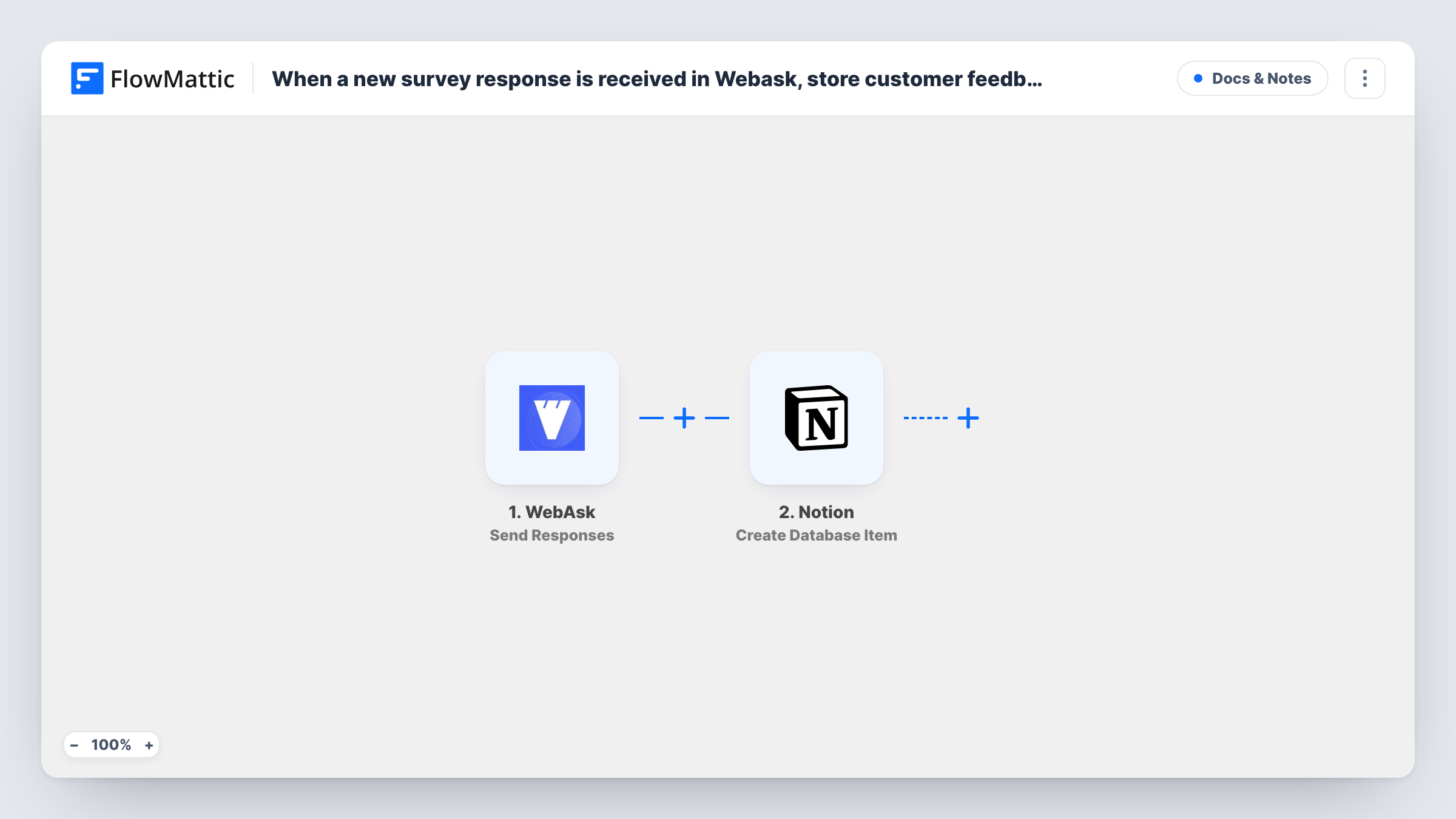
The WebAsk trigger, called Send Responses, fires when WebAsk sends a survey response out to an integration. In practice, each new response WebAsk passes along starts a run. The answers become fields you can map. FlowMattic then uses Notion's Create Database Item action to add an item to a database, with each property filled from the answers you choose.
Each response gives one Notion item. Answers to open questions can go into a text property, and ratings or choices into matching properties, so you can sort and group them in Notion views. Task History records every run, with the data WebAsk passed and the reply from Notion.
Product feedback board
A post-onboarding WebAsk survey asks what users want next. Each answer becomes a Notion item the product team tags and links to roadmap pages.
Event follow-up surveys
Attendees rate sessions in WebAsk after a workshop. The ratings land in a Notion database where the organiser groups them by session.
Customer satisfaction after support
A short WebAsk satisfaction survey goes out after support chats. Low scores and comments are easy to review together in a Notion view.
How this workflow runs
What happens at each step once the workflow is on, and what you need before you import it.
 WebAsk Send Responses
Fires when WebAsk sends a new survey response to FlowMattic. Every answer in that response is passed on for mapping in the Notion step.
- Notion Create Database Item
Creates one Notion database item per WebAsk response. Map the WebAsk answers to the database's properties and connect your Notion account, making sure that connection has access to the database.
What you need
- FlowMatticCore
- WebAsk AccountAccount
- Notion AccountAccount
After importing, map your own data. To keep the template universal, not every step is pre-filled. Open each step in the builder and connect your accounts and fields (channels, lists, sheets, recipients) before you switch the workflow on.
Make it yours
Changes worth making after you import it.
- Create the Notion database before import, with one property per question you want to keep, so mapping is a one-to-one match.
- Submit a test response in WebAsk after import, then check Task History to see how each answer is named before mapping it into Notion.
- Add a Filter after the trigger that continues only when a rating is below a value you set, if you only want low-score feedback in Notion. A blank rating counts as 0, so it passes that check too.
Questions about this workflow
What does the WebAsk Send Responses trigger mean?
It is WebAsk's way of passing each new survey response to an outside tool. In this workflow every response it sends creates one Notion item.
Why doesn't the response show up in my Notion database?
One likely cause is that the Notion connection FlowMattic uses has no access to that database. Task History shows Notion's reply for the run, which usually names the problem.
Are WebAsk responses from before the import added to Notion?
No. Only responses WebAsk sends after the workflow is on are stored. Add any earlier feedback you need to Notion by hand.
More Docs & Notes workflows
Other ready-to-import templates from the same category.




Import this workflow into your WordPress site
Download the JSON, import it from the Workflows screen and connect your accounts. Every run stays on your server, with no per-task fees.
30-day money-back guarantee Unlimited workflows and runs Self-hosted