

Archive created or updated Hudby stories as Notion pages for the content calendar
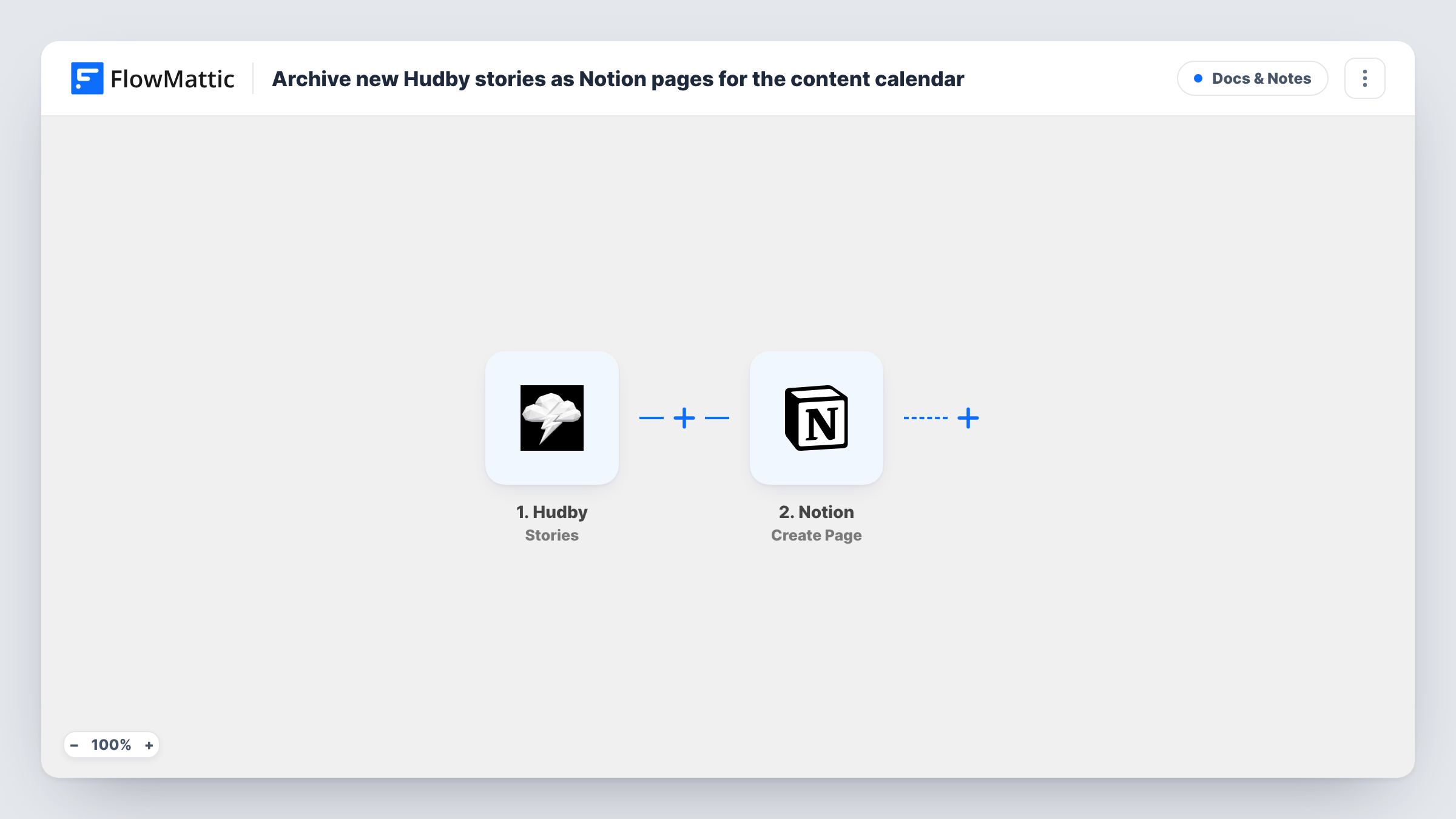
Each time a story is created or updated in Hudby, FlowMattic creates a new Notion page for it, so your content calendar keeps a page for every version you publish or revise.
 Hudby
Hudby
 Notion
2 steps Setup ~5 min Used on 1.4k sites Free to import
What this workflow does
Content teams that write stories in Hudby but plan in Notion end up copying titles and text between the two by hand. This workflow does the copying for you: every story event in Hudby produces a page in your Notion workspace, where it can sit alongside the rest of your calendar.
The Hudby Stories trigger fires when a story is created and again when a story is updated. FlowMattic passes the story data it receives on to the next step. Check a test run to see exactly which story fields Hudby sends.
The Notion step creates a page inside a parent page you choose. It ships unmapped: after import you connect Notion, pick the parent page that holds your calendar, and map the story details, such as the title and text, into the new page.
Because the action creates a page rather than updating one, an edited story gets a fresh Notion page each time it changes. That gives you a page per version, which suits an archive. If you only want one page per story, see the tips below. Task History shows each run and what Notion returned.
Version history for edited stories
An editor revises a Hudby story three times before launch. Each save adds its own Notion page, so the team can compare what changed between drafts.
Story backlog under a calendar page
A marketing lead keeps a Notion page called Content Calendar and has every new or revised Hudby story land under it for weekly planning.
Backup of story text outside Hudby
A small agency keeps a copy of each client story in Notion, so the wording is still at hand if a story is changed or removed in Hudby.
How this workflow runs
What happens at each step once the workflow is on, and what you need before you import it.
 Hudby Stories
Fires when a story is created in Hudby and again whenever a story is updated. The story data from Hudby becomes available to map into Notion; run a test to see which story fields Hudby includes.
- Notion Create Page
Creates a new page inside the Notion parent page you pick. The step ships unmapped, so after import connect your Notion account, choose the parent page and map the Hudby story fields into the page.
What you need
- FlowMatticCore
- Hudby AccountAccount
- Notion AccountAccount
After importing, map your own data. To keep the template universal, not every step is pre-filled. Open each step in the builder and connect your accounts and fields (channels, lists, sheets, recipients) before you switch the workflow on.
Make it yours
Changes worth making after you import it.
- Map the story title into the Notion page title, and add the time of the run to it, so several versions of one story are easy to tell apart.
- If the data Hudby sends has a field that tells a new story from an edit, put a Filter between the Hudby trigger and the Notion step on that field, so only new stories get a page. Check a test run first to see whether such a field arrives.
- Make a dedicated parent page in Notion for this archive, so story pages don't mix with your other notes.
Questions about this workflow
Does editing a Hudby story update its existing Notion page?
No. The Notion step creates a page every time, so each update to a story adds another page under your parent page. That is how the archive keeps one page per version.
Which Hudby story details end up in Notion?
Only what you map. The Create Page step is empty when you import it, so run a test with a real story, look at the data Hudby sent, and map the fields you want into the page.
Can stories go into a Notion database instead of under a page?
Yes. FlowMattic's Notion integration also has a Create Database Item action. Swap it in for Create Page and map the story fields to your database properties.
Do I need anything set up in Notion before importing?
A parent page for the new pages to sit under, which your Notion connection in FlowMattic is allowed to access. You choose that page when you set up the Create Page step.
More Docs & Notes workflows
Other ready-to-import templates from the same category.




Import this workflow into your WordPress site
Download the JSON, import it from the Workflows screen and connect your accounts. Every run stays on your server, with no per-task fees.
30-day money-back guarantee Unlimited workflows and runs Self-hosted