

When a new note is created in Notion, extract images in Image Extractor
When a new item is added to a Notion database, FlowMattic passes a web address from it to Image Extractor, which pulls the images from that page, so links you save in Notion come back with their images ready to use.
 Notion
 Image Extractor
2 steps Setup ~5 min Used on 862 sites Free to import
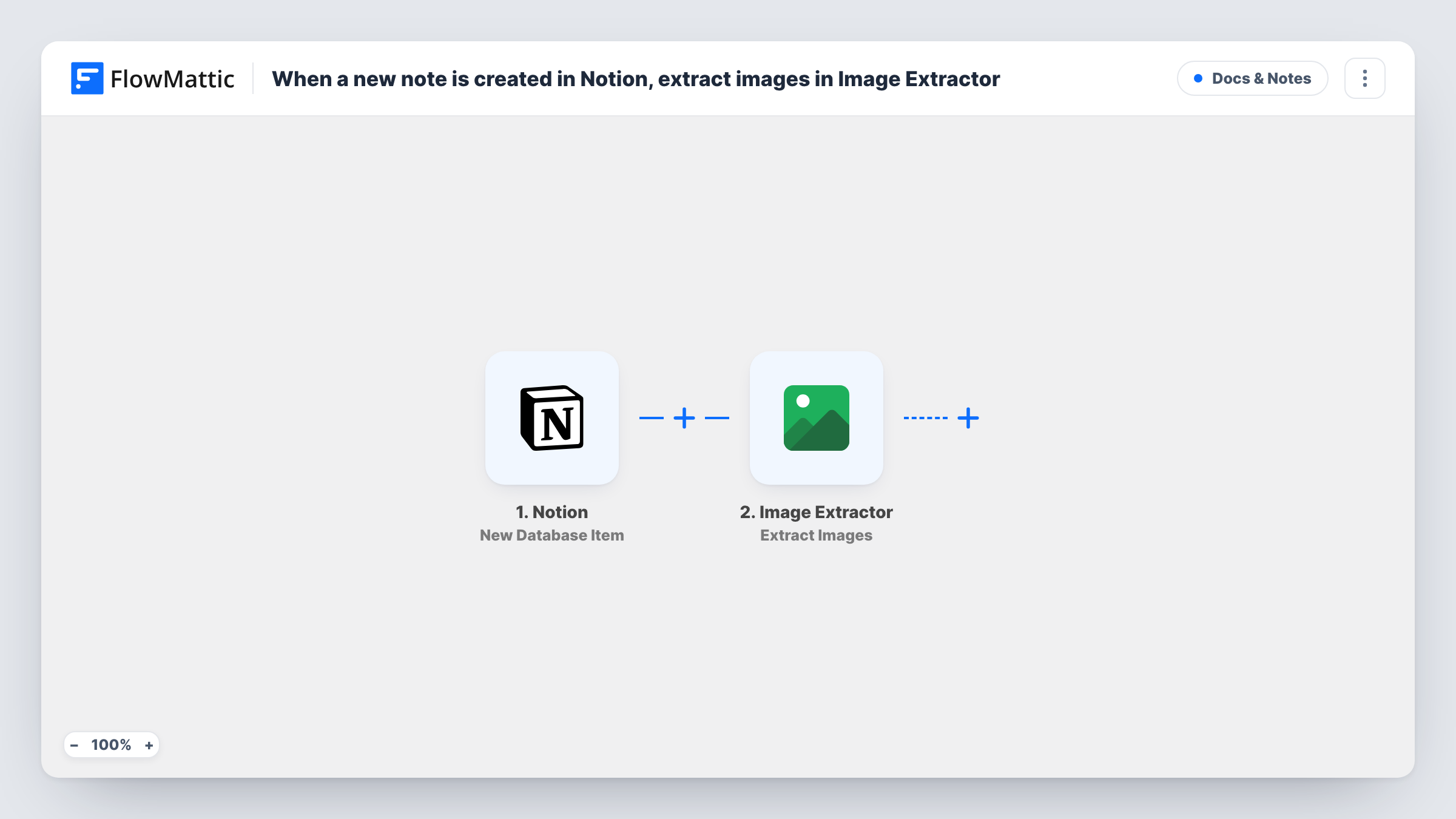
What this workflow does
Notion is a handy place to save links: articles to reference, product pages, competitor sites. Getting the images off those pages is another manual job. This workflow sends a URL from each new Notion database item to Image Extractor, which collects the images found at that address.
The Notion trigger fires when a new item is created in the database you connect, and makes its properties available to map. FlowMattic then runs Extract Images in Image Extractor, which extracts images from one or more URLs. Map the Notion property that holds the page address into this step.
So the database needs a property with a web address in it, such as a URL column. Image Extractor works on the web page at that address, not on the text or files inside your Notion item. As imported, the result stays in the run, and nothing is written back to Notion. Check Task History after a test to see what Image Extractor returned.
Mood board research
A designer saves inspiration links in a Notion database. Each new link has its page images extracted, ready to review for a mood board.
Product page image collection
A store owner logs supplier product URLs in Notion. Image Extractor pulls the product images from each page you add.
Content team reference library
Writers drop source articles into a Notion database, and the images on each article page are extracted for the editor to check before use.
How this workflow runs
What happens at each step once the workflow is on, and what you need before you import it.
 Notion New Database Item
Starts a run each time an item is added to your chosen Notion database. The item's properties, including any URL property, are passed on for mapping.
- Image Extractor Extract Images
Extracts the images found at one or more URLs. Connect your Image Extractor account and map the Notion property that holds the web address.
What you need
- FlowMatticCore
- Notion AccountAccount
- Image Extractor AccountAccount
After importing, map your own data. To keep the template universal, not every step is pre-filled. Open each step in the builder and connect your accounts and fields (channels, lists, sheets, recipients) before you switch the workflow on.
Make it yours
Changes worth making after you import it.
- Add a URL property to your Notion database and fill it on every new item, since Image Extractor needs a web address to work on.
- Add a Filter after the trigger that continues only when the URL property is not empty, so items without a link don't start an extraction.
- Add a Notion step after Image Extractor to write the result back onto the item, if you want the extracted images listed in Notion.
Questions about this workflow
Does Image Extractor pull images from inside my Notion page?
No. It works on the web address you map from the Notion item. Images stored in the Notion item itself are not what it extracts.
Where do the extracted images end up?
As imported, the Image Extractor result stays in the workflow run, visible in Task History. Add a step after it to store or send the result somewhere.
Will Notion items created before import be processed?
No. Only items created in the database after you turn the workflow on start a run.
Do I need an Image Extractor account as well as Notion?
Yes. You connect both: Notion for the database, and Image Extractor for the extraction step.
More Docs & Notes workflows
Other ready-to-import templates from the same category.





Import this workflow into your WordPress site
Download the JSON, import it from the Workflows screen and connect your accounts. Every run stays on your server, with no per-task fees.
30-day money-back guarantee Unlimited workflows and runs Self-hosted