

When user completes a course in Tutor LMS, download and send the certificate from Canva designs
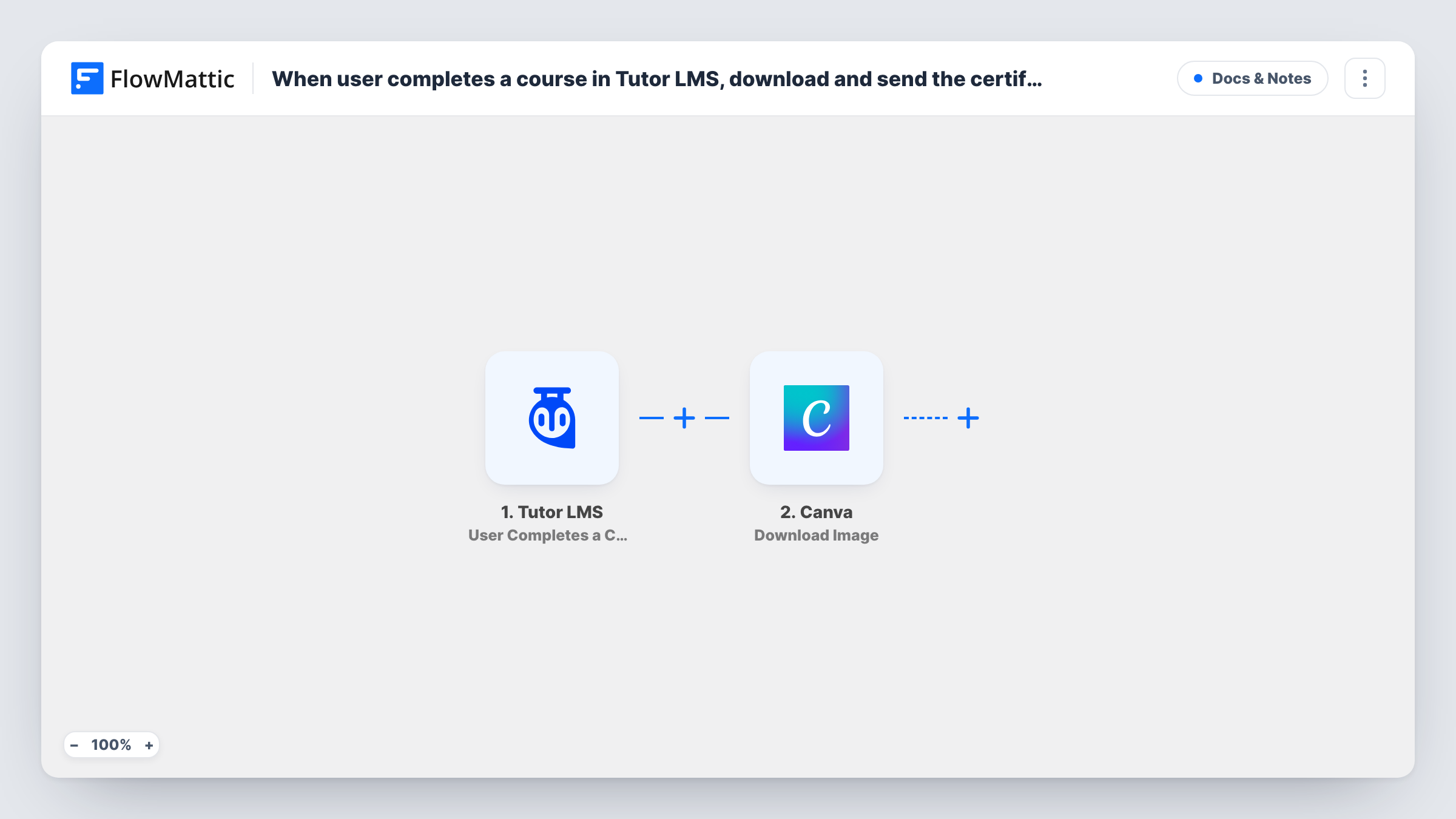
When a student completes a Tutor LMS course, FlowMattic downloads your certificate design from Canva as a PDF and sends an email with the subject “Your course certificate”.
 Tutor LMS
 Canva
Canva
 Email
Email3 steps Setup ~5 min Used on 1.7k sites Free to import
What this workflow does
Students like a certificate they can keep, and a course creator wants it out the door without opening Canva for every graduate. This workflow reacts to course completions in Tutor LMS, pulls a PDF of your Canva certificate design and emails it out.
The Tutor LMS trigger fires when a user completes a course, and passes on details of the student and the course. Check a test completion to see which fields arrive, including the student's email.
The Canva Download PDF step exports a design from your Canva account as a PDF. It ships unmapped, so after import you pick the certificate design. The step downloads that design as it is: it doesn't type the student's name onto it, so the same PDF goes to everyone unless your design is generic or you add a step that personalises it. A test run shows what the step returns, such as a link to the file.
Delivery is handled by FlowMattic's Email module, using either WordPress mail or an SMTP account you add. Only the subject, "Your course certificate", is set. You map the student's email as the recipient and write the body, including the PDF link from the Canva step. After a test completion, Task History lists the Canva and Email results for that student.
Completion certificate for a short course
A yoga instructor sells a beginner course in Tutor LMS and emails every graduate the same branded Canva certificate as a keepsake.
Proof of training for staff
A company runs safety training in Tutor LMS, and each employee who finishes gets the Canva certificate PDF by email to forward to their manager.
Workshop badge for a free mini-course
A marketer offers a free Tutor LMS mini-course and sends a Canva-designed completion badge PDF that students can share.
How this workflow runs
What happens at each step once the workflow is on, and what you need before you import it.
 Tutor LMS User Completes a Course
Fires when a user completes a course in Tutor LMS. Details of the student and the course become available for the Canva and Email steps; check a test completion for the exact fields.
- Canva Download PDF
Downloads a design from your Canva account as a PDF. The step ships unmapped: connect Canva and pick your certificate design. It exports the design as saved and doesn't add the student's name.
 Email Send Email
Sends an email through WordPress mail or your SMTP account with the subject "Your course certificate". Map the student's email as the recipient, write the message, and include the PDF link from the Canva step.
What you need
- FlowMatticCore
- Tutor LMS PluginPlugin
- Canva AccountAccount
After importing, map your own data. To keep the template universal, not every step is pre-filled. Open each step in the builder and connect your accounts and fields (channels, lists, sheets, recipients) before you switch the workflow on.
Make it yours
Changes worth making after you import it.
- If you teach several courses with different certificates, put a Filter between the Tutor LMS trigger and the Canva step on the course from a test run, and copy the workflow for each course and design.
- Mention the course name in the email body by mapping it from the Tutor LMS trigger, so students know which certificate they received.
- Send the first test email to yourself, then open the PDF link from the message on another device to confirm it downloads.
Questions about this workflow
Does the Canva certificate show the student's name?
Not as imported. Download PDF exports the design you pick exactly as it is saved in Canva, so every student gets the same file. Use a design without a name field, or add a step that personalises it.
Is the certificate attached to the email or linked?
Map what the Canva step returns into the email body, such as a link to the PDF. Check a test run in Task History to see what Download PDF gives you before you write the message.
Can I send the certificate through Gmail instead of WordPress mail?
Yes. Enter Gmail's SMTP details in the Email step, or replace it with the Gmail app's Send Email action and map the same recipient, subject and body.
Who receives the email after a Tutor LMS course is completed?
The student, once you map them as the recipient. The template only sets the subject, so map the student's email from the Tutor LMS trigger into the Email step.
More Docs & Notes workflows
Other ready-to-import templates from the same category.




Import this workflow into your WordPress site
Download the JSON, import it from the Workflows screen and connect your accounts. Every run stays on your server, with no per-task fees.
30-day money-back guarantee Unlimited workflows and runs Self-hosted