

When a new contact is created in FluentCRM, update a template in Documint
When a new contact is added to FluentCRM, this workflow updates an existing Documint template with data from that contact, so the template reflects the latest person to join your CRM.
 FluentCRM
 Documint
2 steps Setup ~5 min Used on 1.2k sites Free to import
What this workflow does
This is a narrow workflow with a specific job. It does not create a document for each contact. It changes a template that already exists in Documint, every time FluentCRM gets a new contact. That suits you if a Documint template should carry details from your most recent contact, for example while you design and check a template against real CRM data.
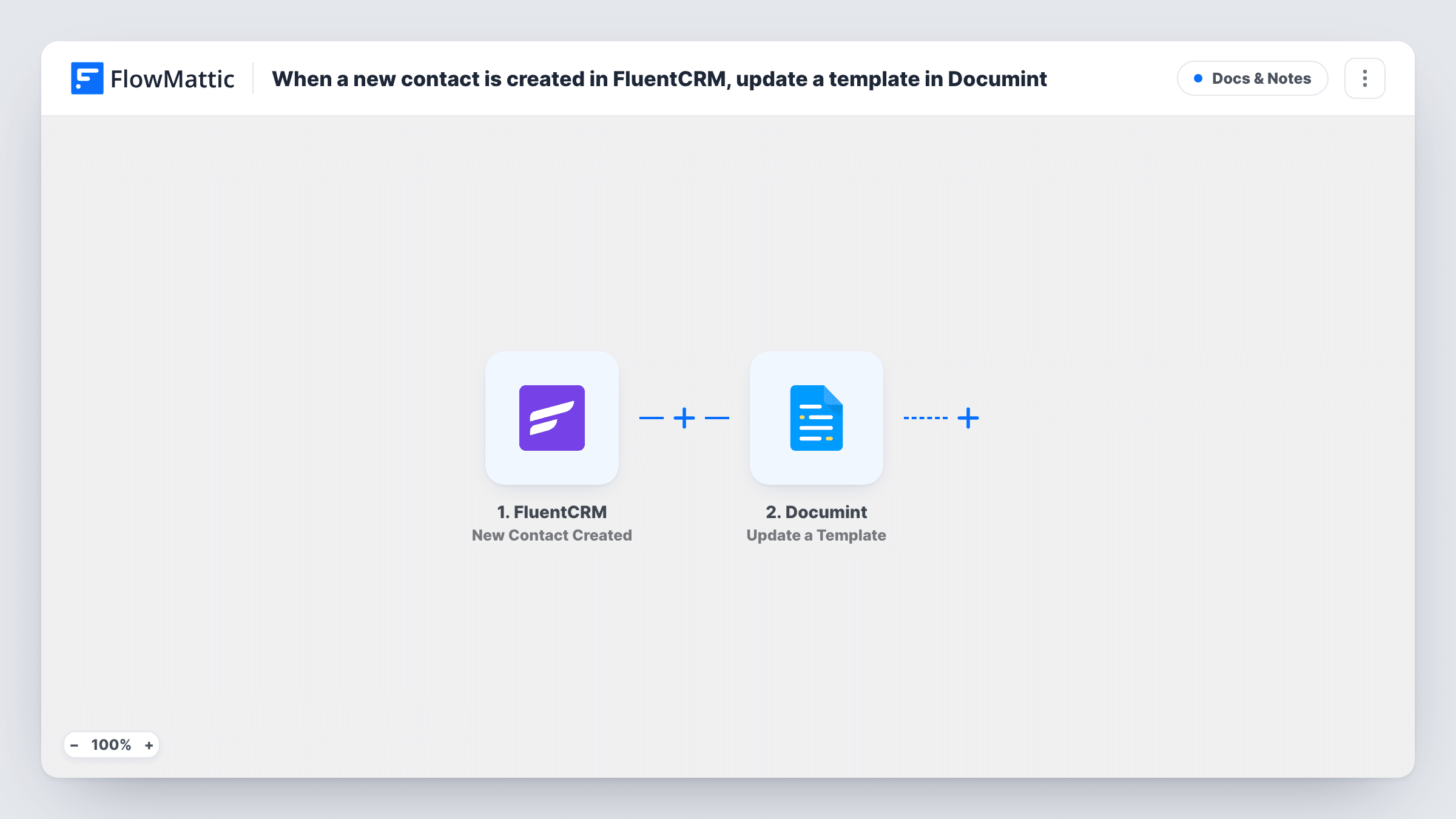
The FluentCRM trigger runs when a contact is created in your CRM, whether it came from a form, an import or a manual entry. FlowMattic passes that contact's fields to Documint, where the Update a Template action edits the template you point it at. You map the contact data into the step after import.
Because each new contact runs the update again, the template only ever holds the last contact's data. Earlier values are replaced. If you need one finished document per contact instead, swap the Documint action for one that creates a document. Task History lists every run with what was sent to Documint.
Test a template against real CRM records
While you build a Documint template, each contact that lands in FluentCRM writes its details into it, so you check the layout with genuine names and fields instead of placeholder text.
A template that shows the newest contact
Your team keeps one Documint template as a reference for the most recent person added to FluentCRM, and it changes each time someone new is created.
How this workflow runs
What happens at each step once the workflow is on, and what you need before you import it.
 FluentCRM New Contact Created
Runs each time a contact is created in FluentCRM on your WordPress site. The new contact's fields become available to map in the Documint step.
- Documint Update a Template
Updates an existing template in your Documint account with the data you map from the contact. Connect Documint, choose what the update changes, then run a test and open the template in Documint to confirm the result.
What you need
- FlowMatticCore
- FluentCRM PluginPlugin
- Documint AccountAccount
After importing, map your own data. To keep the template universal, not every step is pre-filled. Open each step in the builder and connect your accounts and fields (channels, lists, sheets, recipients) before you switch the workflow on.
Make it yours
Changes worth making after you import it.
- Add a Filter after the FluentCRM trigger that checks a tag or list, so only the contacts you care about rewrite the Documint template.
- If a template that changes with every contact is not what you need, replace the step with a Documint action that creates a document, and keep the same FluentCRM mapping.
- Keep a copy of the Documint template before you switch this on. Each new contact overwrites the previous update, so a copy gives you a version to return to.
Questions about this workflow
Does this create a Documint document for every FluentCRM contact?
No. It updates one existing template each time. For a document per contact, use a Documint action that creates documents in place of Update a Template.
Which FluentCRM contacts start the workflow?
Every contact created in FluentCRM, however it was added. Contacts that already exist when you turn it on do not trigger it. Add a Filter if only some new contacts should count.
What happens when two FluentCRM contacts are created close together?
Each one runs the workflow, so the template is updated twice. The second update replaces the first, and Task History shows both runs.
Do I need a Documint account for this template?
Yes. The update runs through your Documint account, connected in FlowMattic, and the template you update must already exist there.
More Docs & Notes workflows
Other ready-to-import templates from the same category.







Import this workflow into your WordPress site
Download the JSON, import it from the Workflows screen and connect your accounts. Every run stays on your server, with no per-task fees.
30-day money-back guarantee Unlimited workflows and runs Self-hosted