

When a new article is published in NeetoKB, add it as a new entry in a Notion database
Each time an article is published in NeetoKB, this workflow creates an item for it in a Notion database, giving your team a running index of published help content inside the workspace they already plan in.
 NeetoKB
 Notion
2 steps Setup ~5 min Used on 1.1k sites Free to import
What this workflow does
Your help centre lives in NeetoKB, while content planning, reviews and team notes happen in Notion. Keeping a list of what has gone live usually means someone pasting titles and links into a Notion table after each release, and that list falls behind the moment they forget.
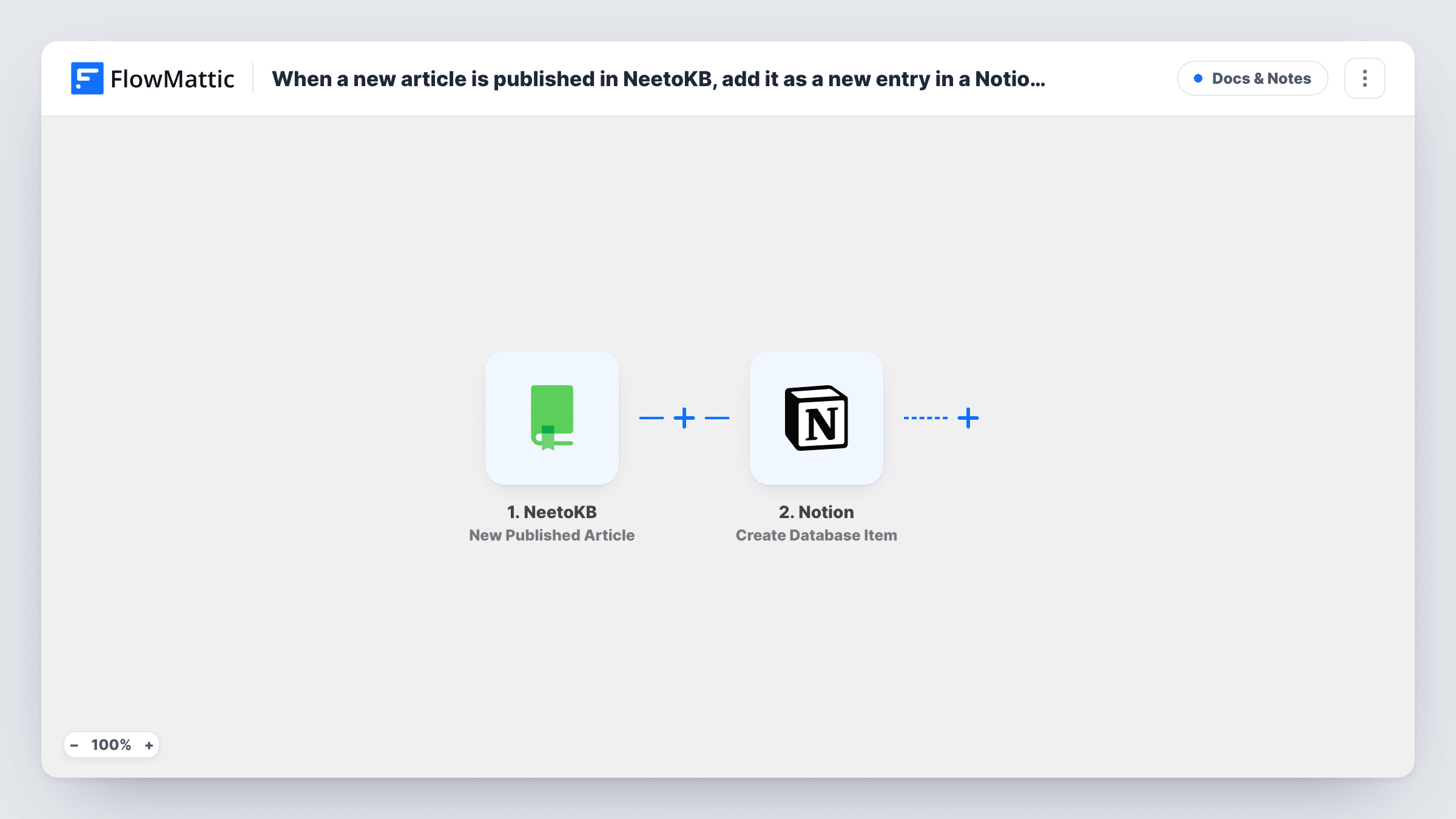
This workflow fills that table for you. The NeetoKB trigger fires when a new article is published, and FlowMattic receives the article data NeetoKB sends with it. The Notion step then creates an item in the database you select, with its properties filled from the article values you map, such as the title.
Only publishing starts a run. Drafts don't reach Notion, and the template doesn't watch for edits, so a change to a live article leaves its Notion item as it was. Each published article makes one new database item, and Task History shows the data passed to Notion on every run in case a property doesn't fill as expected.
Content calendar that marks what shipped
Your docs team plans articles in a Notion database. Each published NeetoKB article appears as an item there, so the team can compare plans with what went live.
Release notes checklist
Product managers keep a Notion board per release. New help articles show up as items they can link to the release page before announcing it.
Review schedule for support content
Every new article gets a Notion item with a review date column you fill in, so you can plan when to revisit each piece.
How this workflow runs
What happens at each step once the workflow is on, and what you need before you import it.
 NeetoKB New Published Article
Fires when an article is published in your NeetoKB knowledge base. The article data is passed to the Notion step; publish a test article after import so the values can be mapped.
- Notion Create Database Item
Adds the published article to your chosen Notion database as a new item. Connect your Notion account and map the NeetoKB article values to the database properties.
What you need
- FlowMatticCore
- NeetoKB AccountAccount
- Notion AccountAccount
After importing, map your own data. To keep the template universal, not every step is pre-filled. Open each step in the builder and connect your accounts and fields (channels, lists, sheets, recipients) before you switch the workflow on.
Make it yours
Changes worth making after you import it.
- Set up the Notion database before import with properties for the values you want to keep, so each published article fills them in on its own.
- Add a Filter after the trigger if only some NeetoKB articles belong in this database, for example ones from one category, provided the article data includes it.
- Add a Slack or email step after the Notion step to tell the team a new article is live, with the article title from NeetoKB in the message.
Questions about this workflow
Does a NeetoKB draft appear in the Notion database?
No. The trigger is New Published Article, so an article reaches Notion only once it is published.
What happens in Notion when I edit a published NeetoKB article?
Nothing. The template creates items for new publications only, so the Notion item keeps the values it was created with.
Which NeetoKB article details can fill Notion properties?
The values NeetoKB sends with the published article. Publish a test article and look at the captured data in the Notion step to see what you can map.
Will articles I published before importing be added?
No. Only articles published after the workflow is on create Notion items. Add older ones to the database yourself.
More Docs & Notes workflows
Other ready-to-import templates from the same category.





Import this workflow into your WordPress site
Download the JSON, import it from the Workflows screen and connect your accounts. Every run stays on your server, with no per-task fees.
30-day money-back guarantee Unlimited workflows and runs Self-hosted