

Log every new Rocketlane project to a Google Sheets spreadsheet
Every time a project is created in Rocketlane, FlowMattic adds a row to Google Sheets with its details, so you keep a single list of new customer projects for reporting and planning.
 Rocketlane
 Google Sheets
2 steps Setup ~5 min Used on 752 sites Free to import
What this workflow does
Rocketlane is where your onboarding and implementation teams run customer projects. Finance, sales leadership and resource planners often need a simple list of new projects without logging into it. A spreadsheet is the easiest thing to share. This workflow keeps that list filled for you.
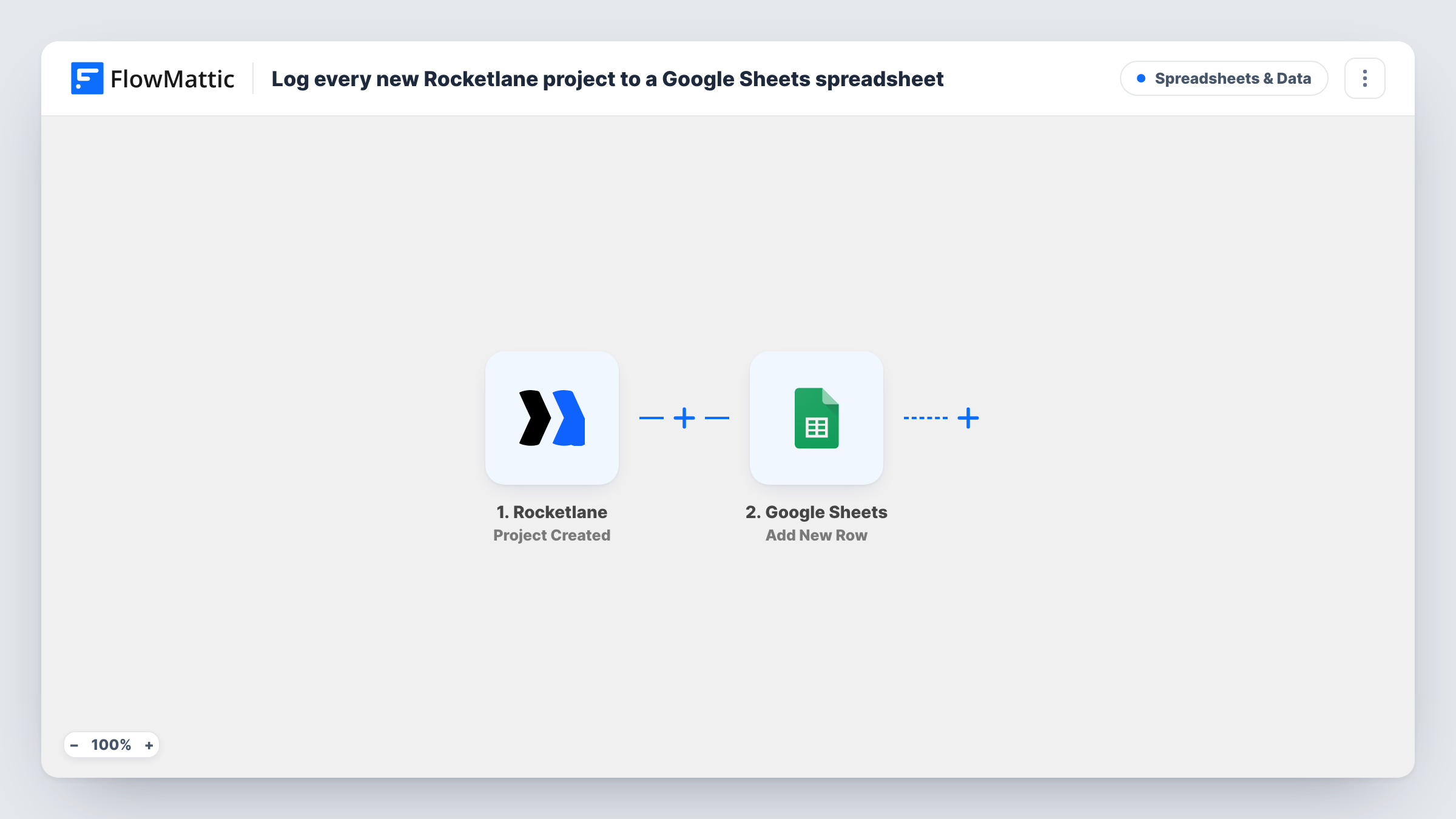
The Rocketlane trigger Project Created fires when a project is created. FlowMattic takes the project data Rocketlane sends and passes it to Google Sheets. The Add New Row action then appends a row to your chosen spreadsheet, with each column filled from the project field you mapped.
The sheet captures each project at the moment it is created. Later changes in Rocketlane, such as a new owner or a moved go-live date, are not written back to the row. Each new project gets its own row, and Task History shows what was sent on every run.
Weekly new-customer report
Customer success leaders filter the sheet by creation week to see how many onboarding projects started and for which accounts.
Capacity planning
A resource manager uses the list of new Rocketlane projects to plan which implementation consultants take on the next accounts.
Handover check with sales
Sales ops compares the sheet with closed deals in the CRM to spot won deals that still have no Rocketlane project.
How this workflow runs
What happens at each step once the workflow is on, and what you need before you import it.
 Rocketlane Project Created
Fires when a new project is created in Rocketlane. The project's data is passed on so you can map it into spreadsheet columns.
- Google Sheets Add New Row
Appends a row for the new Rocketlane project to the spreadsheet you pick. Connect your Google account and map project fields to columns.
What you need
- FlowMatticCore
- Rocketlane AccountAccount
- Google Sheets AccountAccount
After importing, map your own data. To keep the template universal, not every step is pre-filled. Open each step in the builder and connect your accounts and fields (channels, lists, sheets, recipients) before you switch the workflow on.
Make it yours
Changes worth making after you import it.
- Create a test project in Rocketlane after import, or wait for the next real one, so FlowMattic captures the payload you will map from.
- Want the sheet to reflect status changes too? Rocketlane's Project Updated trigger can feed a second workflow that writes to another tab as a change log.
- Only track projects from certain templates or customers by adding a Filter after the trigger, using a field you find in the test data.
Questions about this workflow
Does the Google Sheets row update when the Rocketlane project changes?
No. The row is written once when the project is created. Use the Project Updated trigger in a separate workflow if you want changes recorded.
Will existing Rocketlane projects be added to the sheet?
No. The trigger fires for projects created after the workflow is switched on. Add older projects to the sheet by hand or with an export from Rocketlane.
Which Rocketlane project details can I put in columns?
Whatever Rocketlane sends with the Project Created event. Create a test project and look at the captured data in FlowMattic before mapping.
Can I add Rocketlane tasks or phases to the same spreadsheet?
Yes, by building one more workflow per event. Rocketlane has Phase Created and Task Created triggers that can each add rows to their own tab.
More Spreadsheets & Data workflows
Other ready-to-import templates from the same category.




Import this workflow into your WordPress site
Download the JSON, import it from the Workflows screen and connect your accounts. Every run stays on your server, with no per-task fees.
30-day money-back guarantee Unlimited workflows and runs Self-hosted