

Log each new Cardly contact order in a Google Sheets spreadsheet
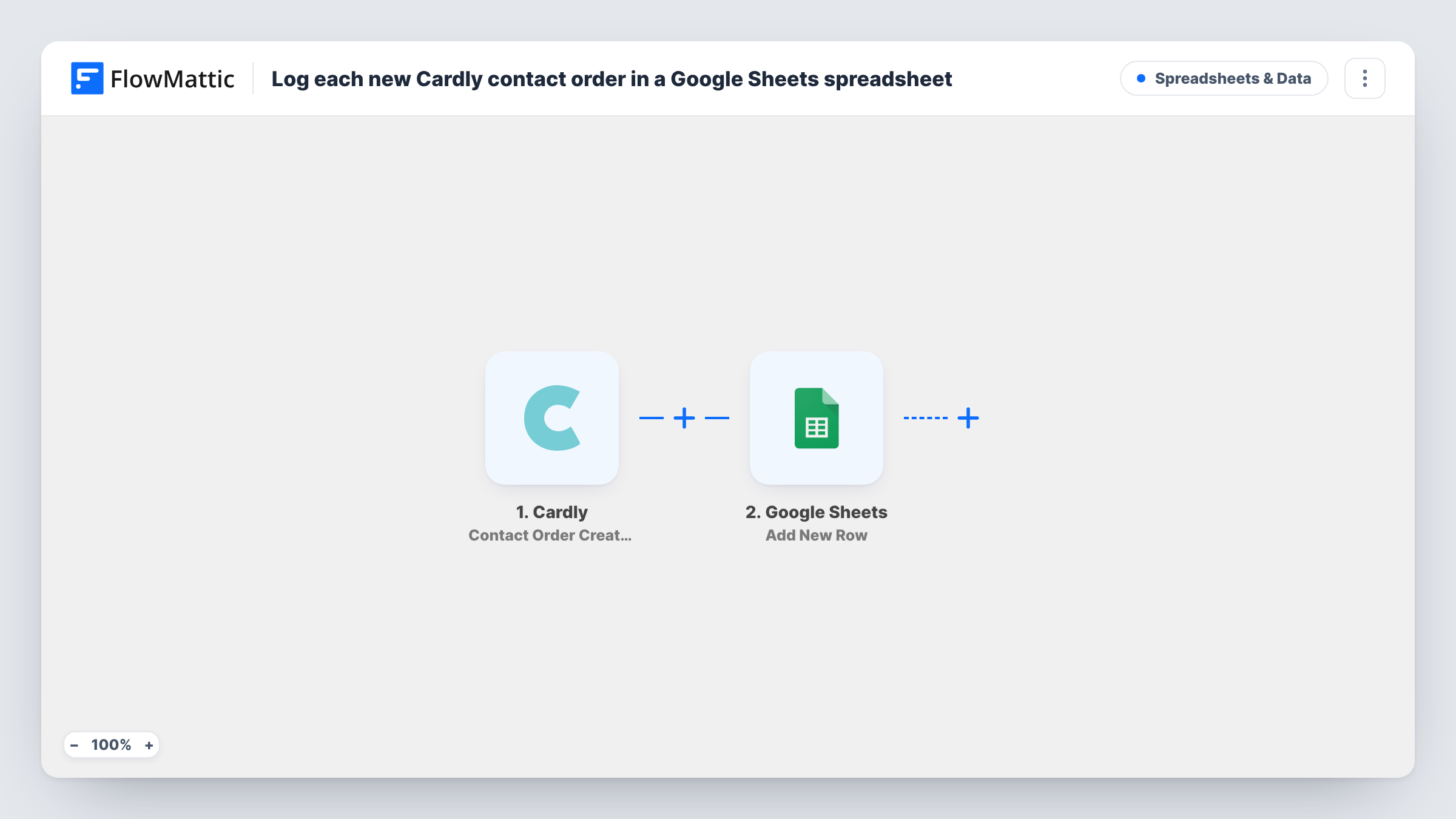
Each time Cardly creates a contact and order that is waiting for an automated send, this workflow adds a row to Google Sheets, so you keep your own list of queued cards with their recipient details.
 Cardly
 Google Sheets
2 steps Setup ~5 min Used on 1.6k sites Free to import
What this workflow does
Cardly sends physical cards and letters on your behalf, often from automated campaigns you set up once and forget. When a client or manager asks who is getting a card this week, the answer sits inside Cardly. This workflow writes each new Cardly contact order into a spreadsheet you control.
The Cardly trigger, Contact Order Created, fires when a contact and order are created and are pending an automated send. FlowMattic's description says the event includes the associated details, so the recipient and order values become data you can map. The Google Sheets step then adds one row per order to the sheet you choose.
The row records the order at the moment it is queued, not when the card ships. Cardly has separate triggers for orders being sent and refunded if you want to log those too. Send a test order to see the values Cardly passes on, and check Task History for each row added.
Client reporting for an agency
An agency running Cardly thank-you card campaigns for a client shares the sheet, so the client sees each queued card and recipient without a Cardly login.
Gift budget tracking
Map the order details into the sheet and add your own cost column, giving you one place to total what your Cardly campaigns spend each month.
Checking addresses before cards go out
A team member scans new rows each morning for recipient addresses that look wrong while the order is still pending an automated send.
How this workflow runs
What happens at each step once the workflow is on, and what you need before you import it.
 Cardly Contact Order Created
Fires when Cardly creates a contact and order that is pending an automated send. The contact and order details in the event are passed on for mapping.
- Google Sheets Add New Row
Adds a row to the Google Sheets spreadsheet you pick for each new Cardly order. Create column headers such as recipient, address and campaign, map the Cardly values to them, and connect your Google account.
What you need
- FlowMatticCore
- Cardly AccountAccount
- Google Sheets AccountAccount
After importing, map your own data. To keep the template universal, not every step is pre-filled. Open each step in the builder and connect your accounts and fields (channels, lists, sheets, recipients) before you switch the workflow on.
Make it yours
Changes worth making after you import it.
- Build a second workflow on Cardly's Contact Order Sent trigger that writes to another tab, so you can compare queued orders with dispatched ones.
- Add a Filter after the trigger on the campaign or template value if this sheet should only track one Cardly campaign.
- Add a date column and map the order's created time into it, so you can sort the sheet by when each card was queued.
Questions about this workflow
Does the Google Sheets row mean the Cardly card was sent?
No. The row is added when the contact and order are created and pending an automated send. Use Cardly's Contact Order Sent trigger in another workflow to log dispatches.
What happens to the row if a Cardly order is refunded?
The existing row for that Cardly order stays as it was, because this template never edits or removes rows. Cardly has a Contact Order Refunded trigger you could use to log refunds in a separate tab.
Are Cardly orders from before import added to the sheet?
No. The trigger reacts to orders created after the workflow is turned on. Older orders stay in Cardly only.
More Spreadsheets & Data workflows
Other ready-to-import templates from the same category.



Import this workflow into your WordPress site
Download the JSON, import it from the Workflows screen and connect your accounts. Every run stays on your server, with no per-task fees.
30-day money-back guarantee Unlimited workflows and runs Self-hosted