

Add a Smartsheet row for every new WordPress blog post
Each time a WordPress post goes live, FlowMattic adds a row for it to your Smartsheet sheet, so your content tracker lists every published article without anyone copying titles and links.
 WordPress
 Smartsheet
2 steps Setup ~5 min Used on 1.7k sites Free to import
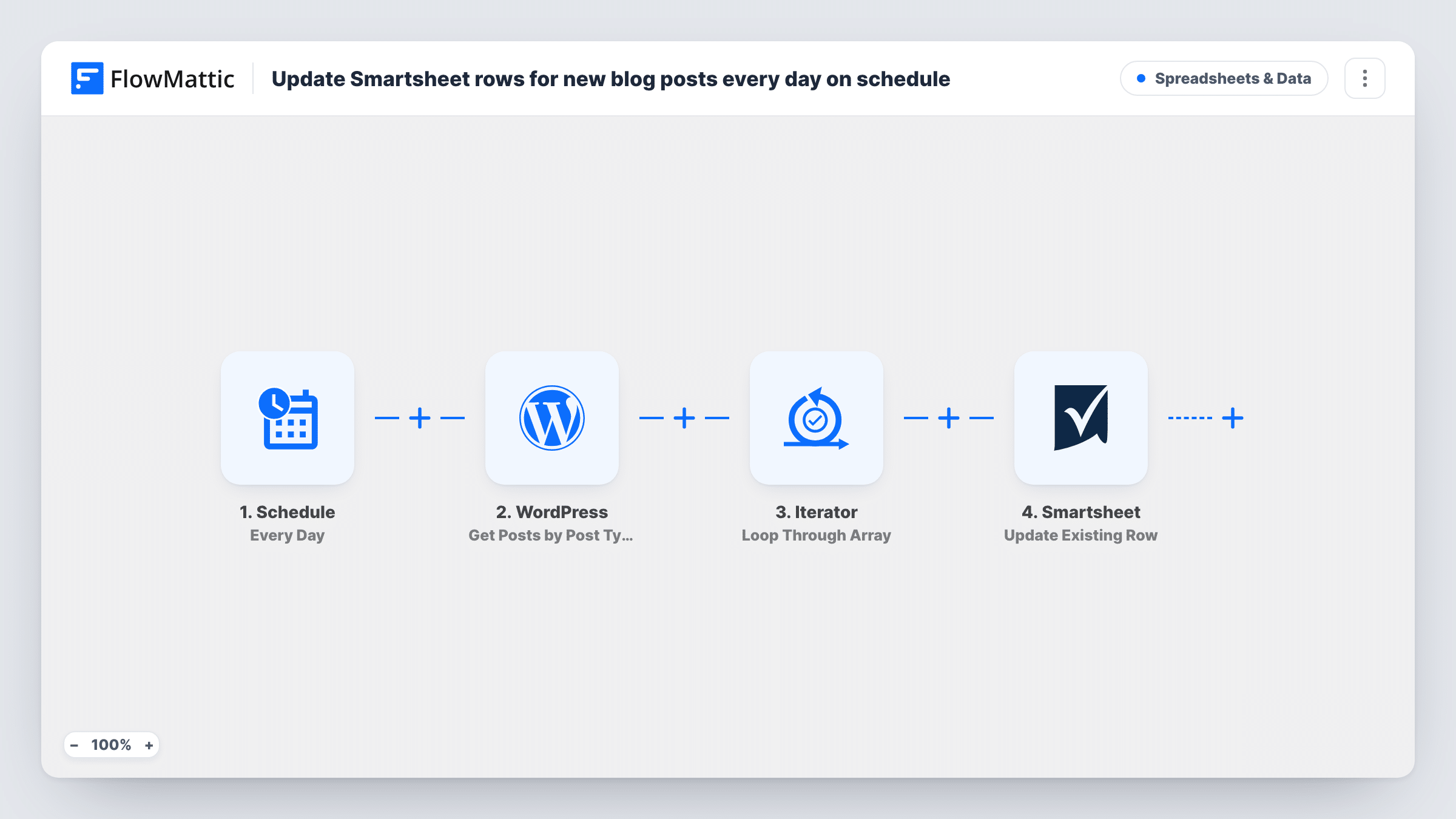
What this workflow does
Editorial teams often plan and report on content in Smartsheet while the writing happens in WordPress. Keeping the two lined up by hand means someone pastes each new title and link into the sheet. This workflow does that the moment a post is published.
The WordPress New Post trigger starts a single run per post, at the point it changes to published for the first time. Later edits to a live post don't start it again, and pages never do. Custom post types also fire it unless you limit the trigger to one post type, so set it to Posts if you only want blog articles. FlowMattic passes the post's fields, such as post_title, post_excerpt, post_author (a numeric user ID) and permalink, plus its taxonomies and featured image.
The Smartsheet Add Row to Sheet step ships unmapped. After import you connect Smartsheet, pick the sheet and map post fields into its columns. Use permalink for the link column; there is no separate post URL field. Publish a test post and check Task History to confirm the row arrived with the values you expect.
Content calendar that marks what went live
A marketing team plans articles in Smartsheet and gets a row with the title and link the moment each one is published in WordPress.
Client reporting for an agency
An agency that writes blog posts for a client keeps a Smartsheet log of published pieces to share in the monthly report.
Promotion checklist per article
Each new row becomes a checklist line where the social media lead ticks off newsletter, LinkedIn and other channels for that post.
How this workflow runs
What happens at each step once the workflow is on, and what you need before you import it.
 WordPress New Post
Starts the run when a WordPress post reaches published status for the first time. Edits to an already live post and pages don't trigger it. The post's title, excerpt, author ID, permalink and taxonomies are passed on.
- Smartsheet Add Row to Sheet
Writes one new row for the post into a Smartsheet sheet. The template maps nothing, so connect Smartsheet, pick the sheet and map the post title, permalink and any other post fields into your columns.
What you need
- FlowMatticCore
- Smartsheet AccountAccount
After importing, map your own data. To keep the template universal, not every step is pre-filled. Open each step in the builder and connect your accounts and fields (channels, lists, sheets, recipients) before you switch the workflow on.
Make it yours
Changes worth making after you import it.
- Set the trigger's post type to Posts if your site also publishes products, events or other custom post types you don't want in the sheet.
- Map the post's taxonomies into a Smartsheet column, so you can group the tracker by category. Check a test run to see how the terms arrive.
- Add a Date column in Smartsheet and map the post's publish date into it, so the sheet can be sorted and filtered by when each article went live.
Questions about this workflow
Do updates to a published WordPress post add another Smartsheet row?
No. A post triggers the workflow once, on its first publication. Editing a live post later doesn't start another run.
Can the author's name go into Smartsheet?
The trigger sends post_author as a numeric user ID, not a name. Map the ID, or add WordPress's Get User by ID action between the trigger and the Smartsheet step and map the name it returns.
Will posts published before I import this be added?
No. Only posts published while the workflow is active create rows. Add older articles to Smartsheet with a one-off import or by hand.
Can I fill the Smartsheet row with the post's featured image?
The New Post trigger includes the featured image along with the post fields. Map its value into a text or link column; run a test post first to see exactly what the image value looks like.
More Spreadsheets & Data workflows
Other ready-to-import templates from the same category.




Import this workflow into your WordPress site
Download the JSON, import it from the Workflows screen and connect your accounts. Every run stays on your server, with no per-task fees.
30-day money-back guarantee Unlimited workflows and runs Self-hosted