

Create a HubSpot ticket from new parsed incoming emails
Emails that arrive at your FlowMattic Email Parser address pass a Filter you set and become HubSpot tickets, so support requests sent by email land in HubSpot without being copied over by hand.
 Email Parser by FlowMattic
 Filter
 HubSpot CRM
3 steps Setup ~5 min Used on 1.9k sites Free to import
What this workflow does
Plenty of customers still ask for help by email, while the support team works from HubSpot's ticket pipeline. This workflow gives you an inbox address whose messages turn into HubSpot tickets, so a request sent by email is tracked like any other.
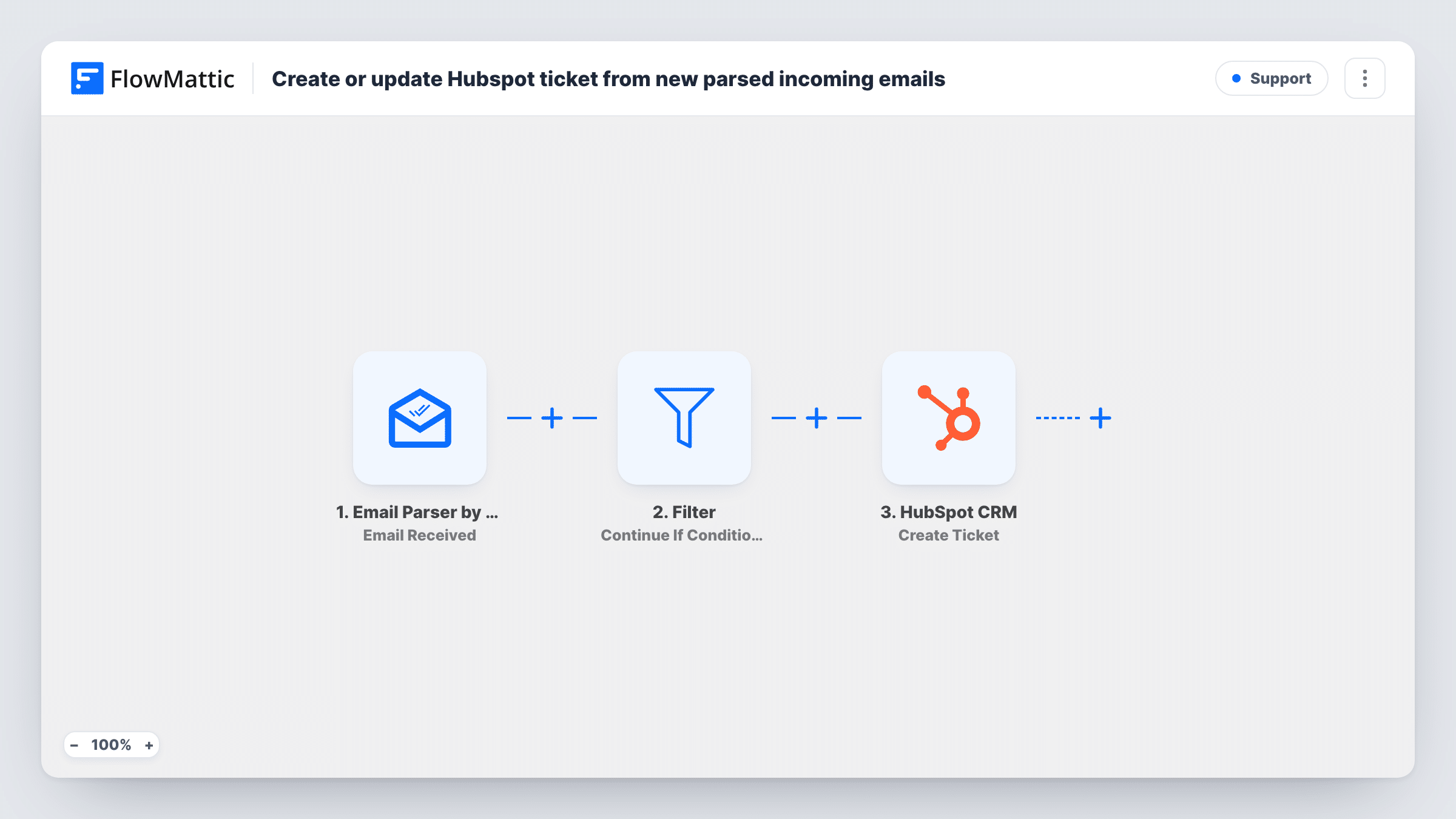
The Email Parser by FlowMattic trigger fires when an email reaches the parser address FlowMattic gives you. Forward your support mailbox to it, or publish it as the contact address. The email's parts, such as the sender, subject and body, are passed on.
A Filter sits between the email and HubSpot, but it ships with no conditions. An empty Filter stops every run, so as imported no tickets are created. Before you turn the workflow on, add the condition that marks a support email, for example a subject that contains a word your support form uses, or delete the Filter if every email should become a ticket.
The final step creates a ticket in HubSpot. It is unmapped: connect your HubSpot account, then map the subject into the ticket name and the body into the description, and fill in any other ticket details the step shows, such as where in your HubSpot setup new tickets should go. Each email that passes the Filter creates a new ticket; replies in the same thread do too. Send yourself a test email and check Task History to see what HubSpot returned.
Support mailbox into HubSpot tickets
A small software company forwards its help@ mailbox to the parser address, so each customer email becomes a ticket in the HubSpot help desk pipeline.
Only order problems become tickets
A store sets the Filter to subjects containing "order", so delivery and refund questions reach HubSpot while newsletters and receipts stop at the Filter.
Requests from partner systems
An agency points a client's system notification emails at the parser and turns each one into a HubSpot ticket for the account manager.
How this workflow runs
What happens at each step once the workflow is on, and what you need before you import it.
 Email Parser by FlowMattic Email Received
Starts a run for each message delivered to the parser address FlowMattic assigns you. The sender, subject, body and other parsed parts are available to check in the Filter and map into HubSpot.
- Filter Continue If Condition Meet
Continues only when the conditions you add are met. The template ships with none, and an empty Filter stops every run, so set at least one condition, such as the subject containing a keyword, before going live.
- HubSpot CRM Create Ticket
Creates a ticket in HubSpot from the email. The step ships unmapped: connect HubSpot, map the subject and body into the ticket, and fill in whatever else the step shows for your HubSpot setup.
What you need
- FlowMatticCore
- HubSpot CRM AccountAccount
After importing, map your own data. To keep the template universal, not every step is pre-filled. Open each step in the builder and connect your accounts and fields (channels, lists, sheets, recipients) before you switch the workflow on.
Make it yours
Changes worth making after you import it.
- Treat the Filter condition as an example to fill in for your own mail. A check on the sender's domain or on a subject keyword is common; Filter text checks ignore upper and lower case.
- If every email to the parser address should become a ticket, delete the Filter step, so the email goes straight from the trigger to the Create Ticket step.
- Map the sender's address into the ticket description along with the body, so agents can see who wrote without opening the original email.
Questions about this workflow
Why aren't any HubSpot tickets created after I import this?
The Filter ships with no conditions, and an empty Filter stops every run. Add a condition to the Filter that sits between the Email Received trigger and the Create Ticket step, or remove it, and the next matching email reaches HubSpot.
Do I need my own mail server for the Email Parser?
No. Email Parser by FlowMattic gives you an address to receive mail. Forward your existing support mailbox to it, or give it to customers directly.
Does a reply to the same email thread update the existing HubSpot ticket?
No. The workflow only creates tickets, so each email that passes the Filter, including a reply, becomes a new ticket in HubSpot.
Which parts of the email go into the HubSpot ticket?
Whatever you map in the Create Ticket step. The template maps nothing, so choose the subject, body, sender or any other parsed part that your team needs to see.
More Support workflows
Other ready-to-import templates from the same category.






Import this workflow into your WordPress site
Download the JSON, import it from the Workflows screen and connect your accounts. Every run stays on your server, with no per-task fees.
30-day money-back guarantee Unlimited workflows and runs Self-hosted