

When a new ticket is created in Tawk.to, send an automated email to user using Email Module
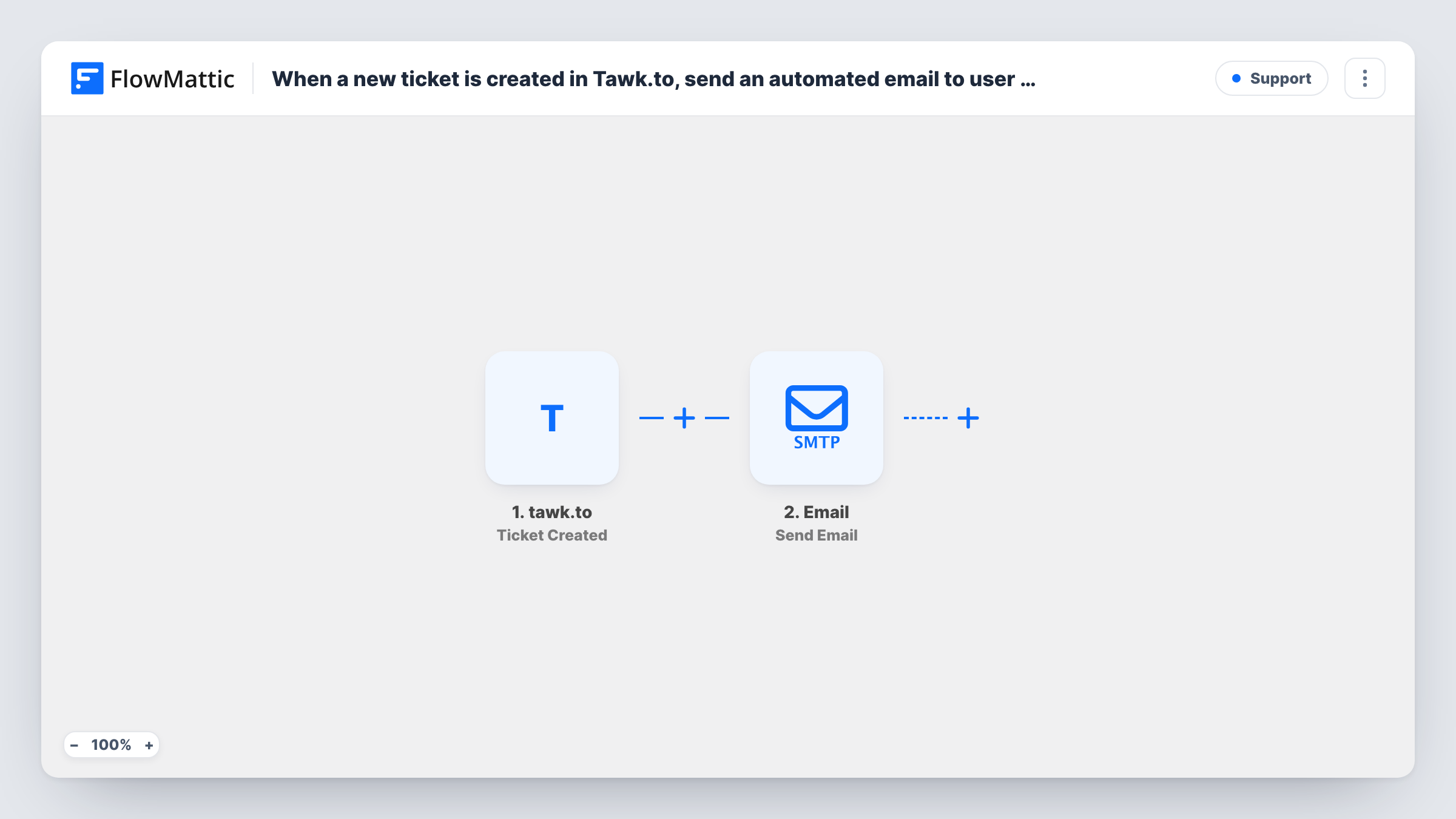
When a ticket is created in Tawk.to, this workflow emails the person who raised it through FlowMattic’s Email module, so they get your own written acknowledgement from your WordPress site or SMTP account.
 tawk.to
 Email
2 steps Setup ~5 min Used on 2.9k sites Free to import
What this workflow does
Visitors often leave a ticket in Tawk.to when nobody is online to chat. Without a reply they can't tell whether the message reached anyone, and some will send it again or go elsewhere. This workflow sends them an email you write as soon as the ticket exists.
The tawk.to trigger, Ticket Created, fires when a new ticket is created. FlowMattic then runs the Email module's Send Email action, which sends through WordPress mail or a custom SMTP account. You map the requester's email address from the ticket as the recipient, and write the subject and body, pulling in values such as their name or the ticket subject.
Every new ticket gets the email, with no Filter in between. The message comes from your site or SMTP account, not from Tawk.to, so it is separate from any notification Tawk.to sends on its own. Send yourself a test ticket to check delivery and spam placement.
Out-of-hours support desk
A visitor leaves a ticket at night. They get an email straight away saying when your team is back and what details to have ready.
Pointing people to help articles
Include links to your most-read help pages in the acknowledgement, so the person can try them while waiting for a reply.
Branded replies from your own domain
Send the acknowledgement through your own SMTP account so it carries your domain and signature rather than a third-party address.
How this workflow runs
What happens at each step once the workflow is on, and what you need before you import it.
 tawk.to Ticket Created
Fires when a new ticket is created in Tawk.to. The ticket details, including the requester's contact information, are passed to the email step.
 Email Send Email
Sends an email with FlowMattic's Email module, using WordPress mail or your SMTP settings. Map the requester's address from the ticket, and write the subject and message you want them to receive.
What you need
- FlowMatticCore
- Tawk.to AccountAccount
After importing, map your own data. To keep the template universal, not every step is pre-filled. Open each step in the builder and connect your accounts and fields (channels, lists, sheets, recipients) before you switch the workflow on.
Make it yours
Changes worth making after you import it.
- Send through a proper SMTP account rather than default WordPress mail if your site's emails tend to land in spam.
- Mention the ticket subject in the email so the person knows which request you're confirming.
- Add a Slack or email notification to your own team as a second action if tickets need a quick human reply.
Questions about this workflow
Which address does the Tawk.to acknowledgement come from?
From the sender you set in the Email step, which uses WordPress mail or the SMTP account you configure. It doesn't come from Tawk.to.
Do chats in Tawk.to also trigger the email?
No. This uses the Ticket Created trigger. Chats have their own Tawk.to triggers, such as Chat Start and Chat End.
What if a ticket has no email address?
The Email step has nowhere to send, so it records an error in Task History for that run. Make sure your Tawk.to ticket form asks for an email.
Can I send the email through Gmail?
Yes, by entering Gmail's SMTP details in the Email step. You could also swap in the Gmail app's Send Email action instead.
More Support workflows
Other ready-to-import templates from the same category.








Import this workflow into your WordPress site
Download the JSON, import it from the Workflows screen and connect your accounts. Every run stays on your server, with no per-task fees.
30-day money-back guarantee Unlimited workflows and runs Self-hosted