

When a Runrun.it task is reopened, log it in Google Sheets and notify the team in Slack
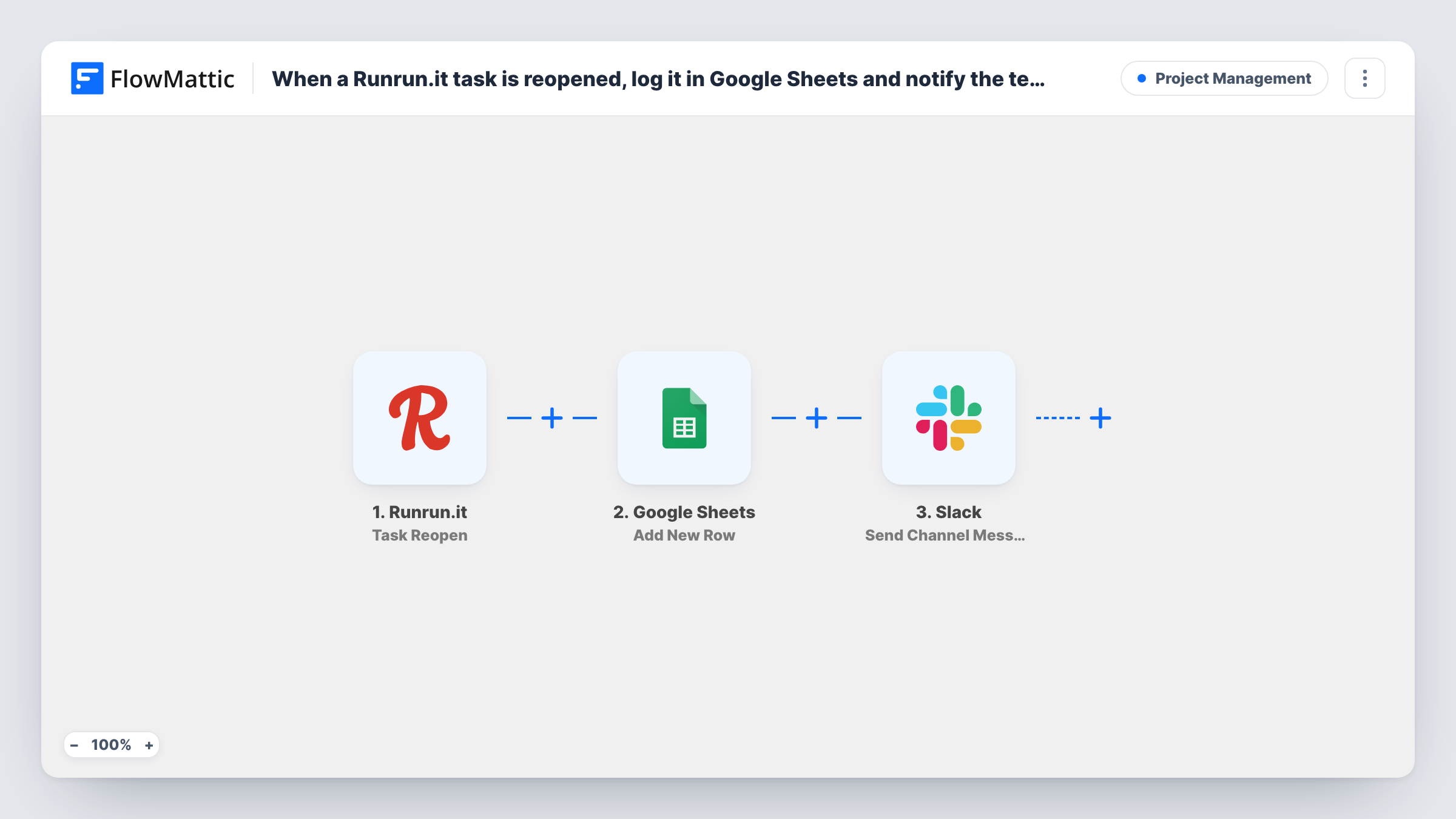
When a task is reopened in Runrun.it, this workflow adds a row about it to Google Sheets and posts a message to a Slack channel, so reopened work is both on record and in front of your team.
 Runrun.it
 Google Sheets
 Slack
3 steps Setup ~5 min Used on 2.3k sites Productivity Free to import
What this workflow does
A reopened task usually means something went wrong: a fix that didn't hold, a deliverable sent back, a requirement that changed. Those moments are worth tracking, yet they are easy to miss inside a busy Runrun.it board. This workflow records each one and tells the team.
The Runrun.it trigger fires when a task is reopened. FlowMattic first adds a row in Google Sheets with the task details you map, which builds a running log of reopened work you can count and review later. It then posts a message to the Slack channel you choose, so the people involved see it without opening Runrun.it.
Each reopen is its own run. A task reopened twice adds two rows and two Slack posts, which is useful if you want to see how often the same work comes back. Task History shows every run, including any error returned by Google Sheets or Slack.
Quality review for a dev team
Tasks reopened after QA land in a sheet the team lead reviews each sprint, and the developers see each one in their Slack channel as it happens.
Agency client revisions
When a delivered task is reopened for client changes, the account channel in Slack hears about it and the sheet shows which projects get the most revisions.
Support escalations
Support tasks reopened by a customer's follow-up are logged for monthly reporting and flagged to the support channel so someone picks them up.
How this workflow runs
What happens at each step once the workflow is on, and what you need before you import it.
 Runrun.it Task Reopen
Fires when a task is reopened in your Runrun.it account. The task data is passed on for mapping in the Google Sheets and Slack steps.
- Google Sheets Add New Row
Appends the reopen to your log spreadsheet. Map the Runrun.it task details to your columns, and include a date column so you can sort the log by time.
- Slack Send Channel Message
Announces the reopened task in a Slack channel of your choice. Write the text and insert task details from Runrun.it so readers know which task came back.
What you need
- FlowMatticCore
- Runrun.it AccountAccount
- Google Sheets AccountAccount
- Slack AccountAccount
After importing, map your own data. To keep the template universal, not every step is pre-filled. Open each step in the builder and connect your accounts and fields (channels, lists, sheets, recipients) before you switch the workflow on.
Make it yours
Changes worth making after you import it.
- Reopen a test task in Runrun.it after import so FlowMattic captures the task fields, then map them in both later steps before turning the workflow on.
- Add a Filter after the trigger if only one project or team matters to you, using a value the reopened task carries, so other reopens don't reach the sheet or Slack.
- Use a Router to post to different Slack channels per project, with a route for each project name, if the task data carries one, and a Send Channel Message step on each route.
Questions about this workflow
Does a Runrun.it task reopened twice get logged twice?
Yes. Every reopen is a separate event, so it adds another row and another Slack message. The sheet then shows how often each task comes back.
Can I send the Runrun.it alert to a private Slack channel?
It depends on whether the connected Slack account has access to post there. Pick the channel in the step and send a test reopen to see if the message lands.
Are tasks reopened before setup added to the Google Sheet?
No. The trigger only reacts to reopens that happen while the workflow is on. Earlier reopens are not imported.
Does this change anything in Runrun.it?
No. The workflow only reads the reopen event. It writes to Google Sheets and Slack and leaves the task in Runrun.it as it is.
More Project Management workflows
Other ready-to-import templates from the same category.






Import this workflow into your WordPress site
Download the JSON, import it from the Workflows screen and connect your accounts. Every run stays on your server, with no per-task fees.
30-day money-back guarantee Unlimited workflows and runs Self-hosted