

Add users to Zoho Projects from new WordPress registrations
When a new user account is created in WordPress, this workflow adds that person to a Zoho Projects project using the details from their account, so new team members or clients get project access without a manual invite.
 WordPress
 Zoho Projects
2 steps Setup ~5 min Used on 3.4k sites Productivity Free to import
What this workflow does
If people sign up on your WordPress site before they work with you in Zoho Projects, someone has to add each one to the right project. This workflow does that step as each WordPress account is created.
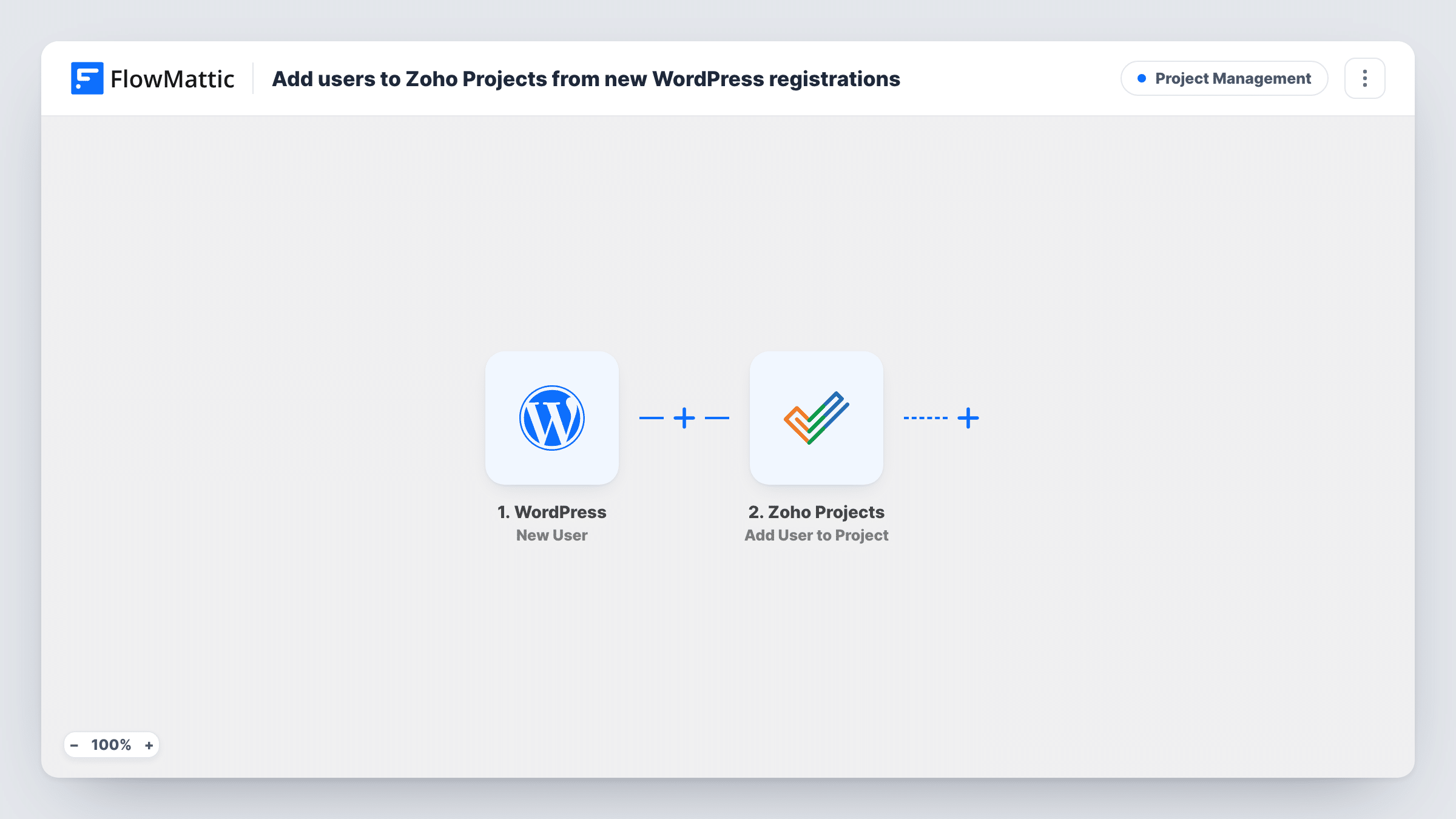
The WordPress trigger is New User, which runs when a user is registered. FlowMattic passes the account details, such as email and name, on for mapping. The Zoho Projects step runs Add User to Project, which adds a user to the project you choose. Map the WordPress user's email into the step, plus any other details it asks for.
The trigger fires for every new account on the site, not only the people you want in the project. On a site with public sign-ups or a shop, that includes every customer, so add a Filter on the user's role before going live. Zoho Projects decides how it handles someone who isn't yet in your portal; check Task History after a test.
Client portal sign-ups
An agency creates WordPress accounts with a Client role for new clients, and each one is added to the shared client project in Zoho Projects.
Freelancer onboarding
A studio registers contractors on its WordPress intranet, and the workflow adds them to the Zoho Projects project they'll work on.
Staff joining an internal project
New employees get a WordPress login on the company site, and a Filter on their role adds them to the onboarding project in Zoho Projects.
How this workflow runs
What happens at each step once the workflow is on, and what you need before you import it.
 WordPress New User
Runs whenever a new user account is created on your WordPress site, whether from a sign-up form, an admin or a plugin. The account's email, name and meta data are available to map.
- Zoho Projects Add User to Project
Adds a user to the Zoho Projects project you select. Map the new WordPress user's email and connect your Zoho account, then confirm with a test run which details the step needs.
What you need
- FlowMatticCore
- Zoho Projects AccountAccount
After importing, map your own data. To keep the template universal, not every step is pre-filled. Open each step in the builder and connect your accounts and fields (channels, lists, sheets, recipients) before you switch the workflow on.
Make it yours
Changes worth making after you import it.
- Add a Filter after the trigger that continues only for the role you use for project members, such as an editor or a custom client role.
- Register a test account with an address you control and check in Zoho Projects whether that user appears in the project or receives an invitation.
- To put different roles in different projects, use a Router with one route per role and an Add User to Project step on each route.
Questions about this workflow
Will every new WordPress user be added to the Zoho Projects project?
Yes, as imported. The New User trigger fires for every account the site creates. Add a Filter on the user's role to limit it.
What if the person isn't in my Zoho Projects portal yet?
Zoho Projects decides whether to add or invite them, or to refuse. Task History shows its response on the Add User to Project step for each run.
Does deleting the WordPress user remove them from Zoho Projects?
No. The workflow only reacts to new accounts. Remove people from the project in Zoho Projects yourself.
Are existing WordPress users added when I import the workflow?
No. Only accounts created after the workflow is turned on are sent to Zoho Projects.
More Project Management workflows
Other ready-to-import templates from the same category.







Import this workflow into your WordPress site
Download the JSON, import it from the Workflows screen and connect your accounts. Every run stays on your server, with no per-task fees.
30-day money-back guarantee Unlimited workflows and runs Self-hosted